
Lean PlanDo manual › Masterplan
Activity features in the Masterplan
Open an activity's detailed view or mini widget in the Masterplan, and see what each one shows.
Each activity has two menus: the Detailed View and the Mini Widget. Tasks and constraints have them too.
Detailed View
Double-click the activity bar in the Gantt chart to open the Detailed View. The tabs are on the left. Hover over an icon to see its description.
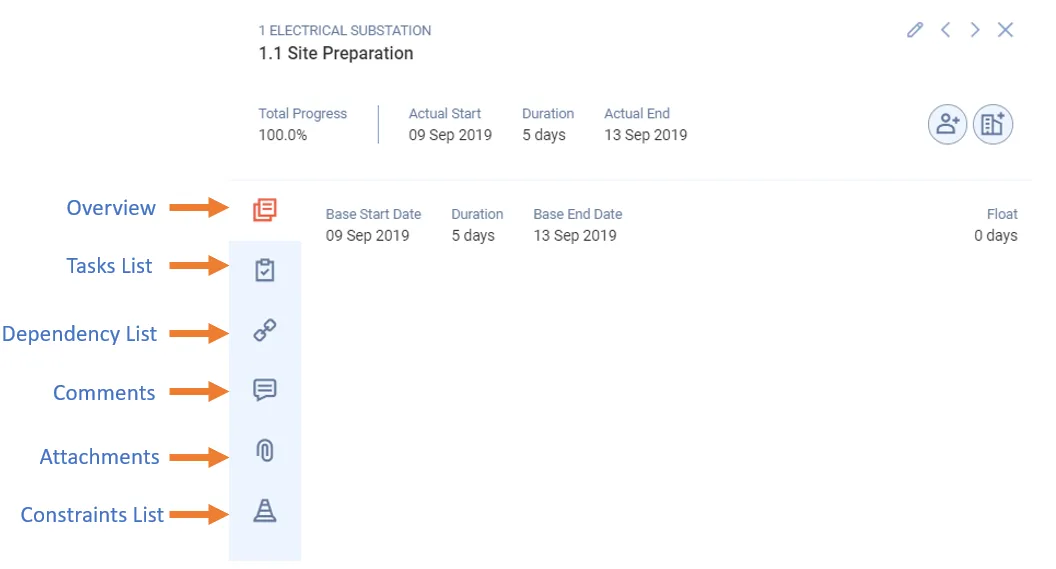
- Overview: base start and end dates, duration, and float (the number of working days an activity can be delayed without changing the project end date).
- Task list: the tasks under the activity. You can also turn the task prefix on or off here (see Add a task prefix).
- Dependency list: the predecessor and successor activities. You can add a new dependency here.
- Comments: read and add comments on the activity.
- Attachments: view and add attachments.
- Delay history: every change to the activity's start date, duration or due date, with the reason, the responsible party, who made the change and when.
- Constraints list: the constraints linked to the activity. You can add a new constraint here.
- Workflow planner (flow projects only): the workflows scheduled on the activity. You can delete a workflow here.
- More options: Convert to Constraint turns selected dependent activities into a constraint. Mark as Critical Path marks the dependent activities in the path as critical.
Use the Previous activity and Next activity arrows to move to the activity above or below without closing the Detailed View.
Mini Widget
Click the activity bar once to open the Mini Widget. It shows Base Start, Duration, Base End, Float (leaf activities only) and Created on, then the actions.
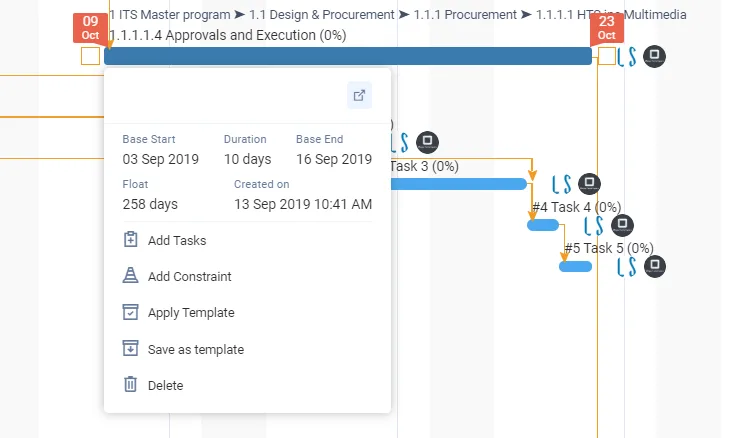
In the Masterplan, the Mini Widget lets you add a constraint (before the activity starts), delete the activity (if it is not finished), or open the Detailed View with View all details. On flow projects it also shows Schedule a workflow.
Adding tasks and using templates (apply a template, save tasks as a template) are done in the Lookahead, not the Masterplan.
Last updated 2020-04-06. Part of Masterplan in the Lean PlanDo manual. Lean PlanDo by Lean Station.