
Lean PlanDo manual › Lookahead
Apply a template
Apply a saved template to an activity in the Lookahead to create its tasks and constraints automatically.
Apply a saved template to an activity in the Lookahead to create its tasks and constraints automatically. They are based on the tasks and constraints of the source activity used to create the template. You cannot apply a template in the Masterplan.
Saved templates are also listed under Templates in the project menu, which opens the company templates library.
Apply a template
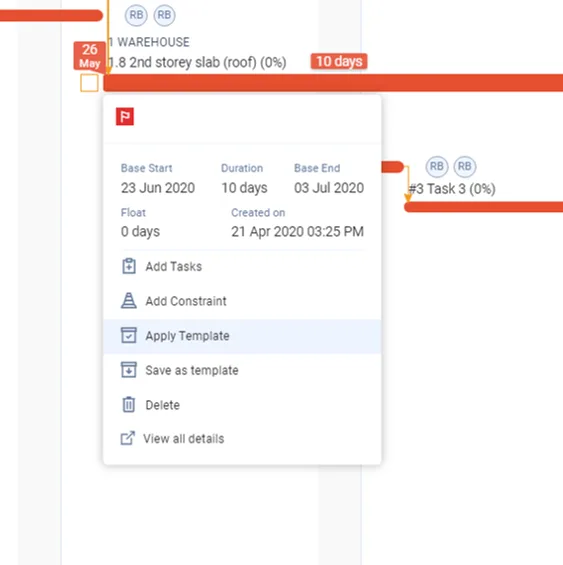
- In the Lookahead, click the activity bar to open the Mini Widget, then click Apply Template.
- Select the template from the list on the left, then click Choose. The form shows it as the Chosen Template.
- If needed, enter prefixes for the tasks in Prefix 1 and Prefix 2. For example, when you apply a template made from a Zone 1 activity to a Zone 2 activity, enter "zone 2" as a prefix. Every task created under the activity gets that prefix.
- Set From and To: the dates between which the tasks are created. They must be within the activity's dates. By default they are the activity's start and end dates. Applied Duration (days) updates to match.
- Under Assign To, choose the user (from the main contractor's users) and the company (the main contractor or a subcontractor).
- Click Load Preview (or Update Preview) to see how the template will be applied.
- Click Apply Template. The template's tasks and constraints are created under the activity.
To create a template, see Save an activity as a template.
Last updated 2023-07-10. Part of Lookahead in the Lean PlanDo manual. Lean PlanDo by Lean Station.