
Lean PlanDo manual › Masterplan
Add an activity constraint
Add a constraint to an activity, set its type, ETA, assignee and steps, so you can track preparation work before the activity starts.
Add a constraint to an activity when something must be completed before the activity can start. A constraint is work that must be cleared before a task can be done, such as getting site access. Any preparation work, such as getting an approval from an authority or getting a contract, can be a constraint in Lean PlanDo.
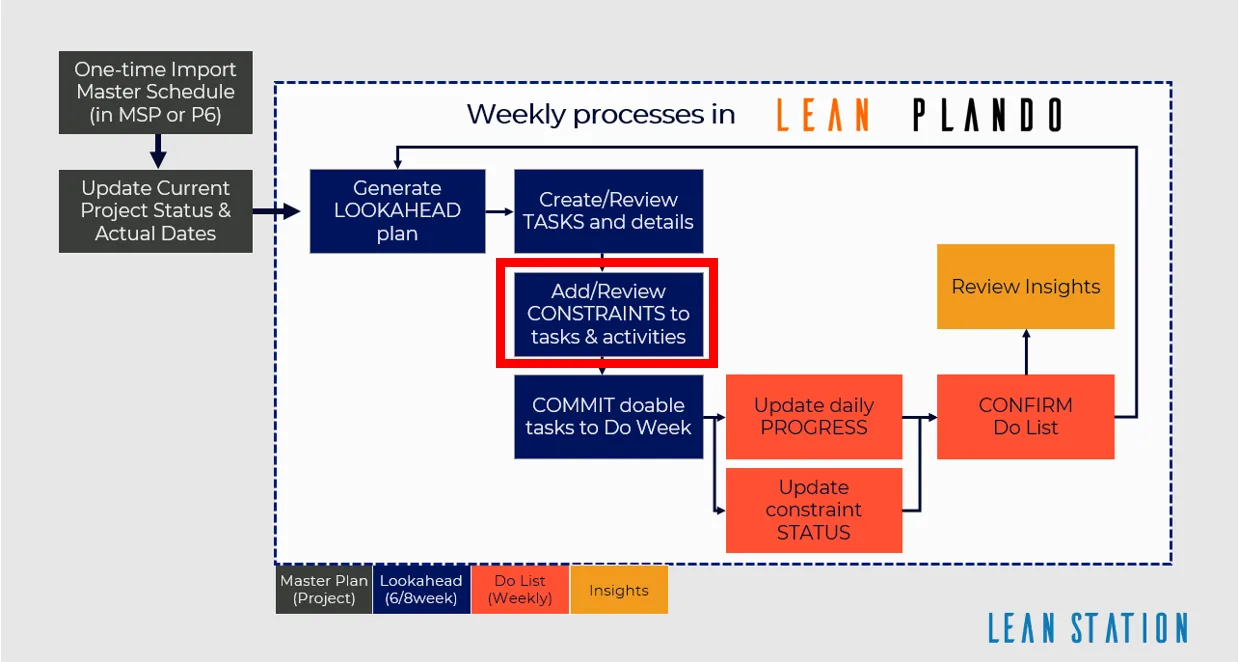
About constraints
- After the Lookahead (the 6-week or 8-week plan where activities are broken down into smaller tasks) is generated, you can add constraints to activities or tasks.
- You can add a constraint to an activity in the Masterplan, or to a task or activity in the Lookahead.
- Prerequisites can relate to contracts, approvals, materials, safety, engineering design, QA/QC or construction.
- A constraint shows as a grey circle on its planned due date, in line with its activity.
- Steps (one part of a constraint; a step not done shows as an empty circle with a grey outline, a done step as a filled green circle) are the intermediate steps to complete the constraint.
- Any delay to a constraint delays its activity. This in turn affects the activities that have dependencies with that activity.
Add the constraint
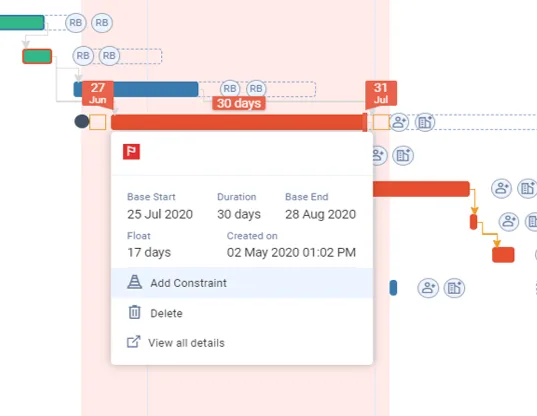
- Click the activity bar once.
- Click Add Constraint.
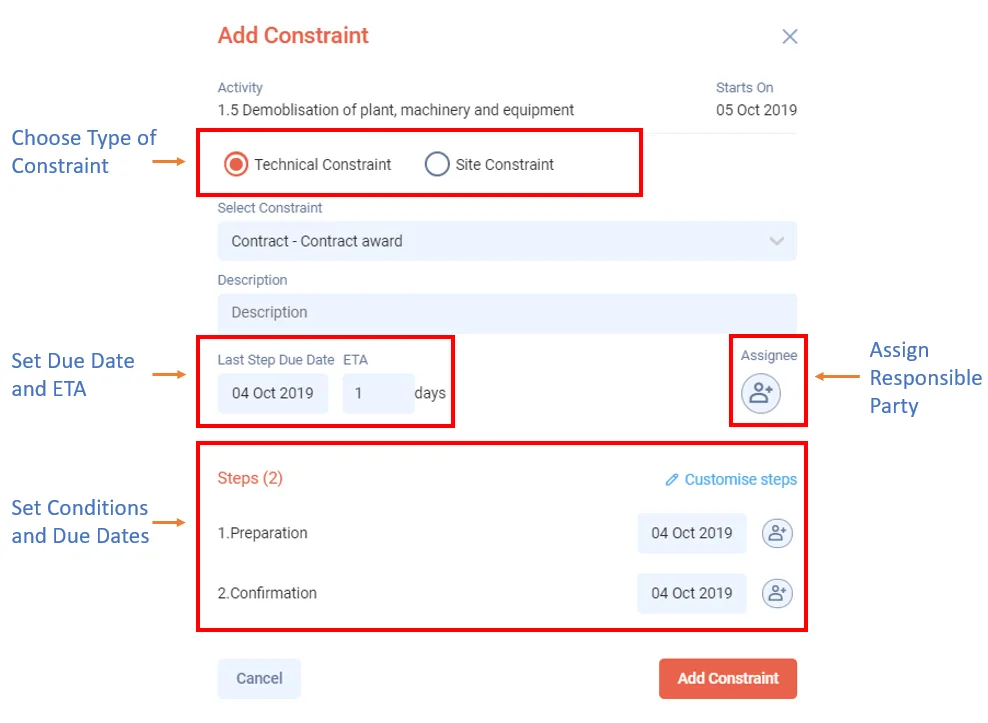
- Choose Technical Constraint or Site Constraint. Technical Constraint is selected by default.
- Search for and select the constraint in the Select Constraint list.
- Enter a Description.
- Set the Last Step Due Date. The steps take this date. By default it is one working day before the activity start, with an ETA of 1.
- Set the ETA, or keep the default.
- Select one Assignee. This field is required.
- Under Steps, set a due date and an assignee for each step. If you change a step's date, the Last Step Due Date updates to match the last step.
- To change the steps, click Customise steps. You can rename or delete a step (bin icon), or add one with + Add New Step. Click Reset to go back to the default steps. Reset also sets the ETA back to 1 and resets the due date.
- Click Add Constraint.
Repeat these steps to add more constraints to the activity.
How ETA, due dates and status work
-
ETA is the number of working days between the constraint's last step and the start of the activity or task. The last step must be due at least that many working days before the start.
-
The constraint's due date always matches the last step's due date. This is because when the last step is complete, the constraint is complete.
-
Step due dates must be in increasing order. The second step's due date must be the same as or later than the first. If you change the Last Step Due Date, any earlier step dated later than it is pulled back to it.
-
When a step's due date first falls in the Do week (the first week of the Lookahead, where tasks can be committed; it should be the current calendar week), that date becomes its base due date.
-
Status shows the actual state of a constraint. There are two possible statuses:
- Not Done: the starting state, shown in blue.
- Done: the completed state, shown in green.
If today's date passes the due date and the constraint is still Not Done, it shows as a red circle.
Adding a task constraint works the same way. See Add a task constraint.
Last updated 2023-07-10. Part of Masterplan in the Lean PlanDo manual. Lean PlanDo by Lean Station.