
Lean PlanDo manual › Lookahead
Task features in the Lookahead
Open a task's detailed view or mini widget in the Lookahead, and see what each tab and menu item does.
Each task in the Lookahead has two menus: the Detailed View and the Mini Widget. Activities and constraints have the same two menus.
Open the Detailed View
- Double-click the task bar. The Detailed View opens from the right.
- Find the task's features in the left column. Hover over an icon to see its description.
The left column has these tabs:
- Overview: shows the base and actual start and end dates and the duration of the task.
- Quantity: add a quantity to the task, because a percentage is hard to picture.
- Dependency list: edit a dependency's relationship type and lag (the number of days added between a predecessor and its successor), turn it off by clearing its box, or delete it. You need a relationship type and lag to create a task dependency.
- Comments: add or view comments.
- Attachments: add or view attachments, such as photos and documents.
- Progress update: update the daily progress of the task.
- Constraints list: view the constraints on the task, or add a new one.
- Workflow planner (new).
- Delay history (new).
The header at the top of the Detailed View has:
- Edit (the pencil icon): change the task name, start date, duration and sequence number. You need permission to edit tasks.
- the Commit switch: commit or uncommit the task. It shows when the task starts between the Lookahead start and the end of the Do week, both days included (the first week of the Lookahead, where tasks can be committed; it should be the current calendar week), has not started, and you have permission to commit. A started task cannot be uncommitted.
- the three-dots menu, with Force start (new) and Delete. Delete shows only when the task is not committed and you have permission to delete tasks.
To assign a supervisor or the company in charge, click the avatars on the task bar in the Gantt chart, or click Edit in the Detailed View and pick them there. You need permission to assign tasks. The supervisor can be a Main Contractor or Client user. The company can be the Main Contractor or a Subcontractor.
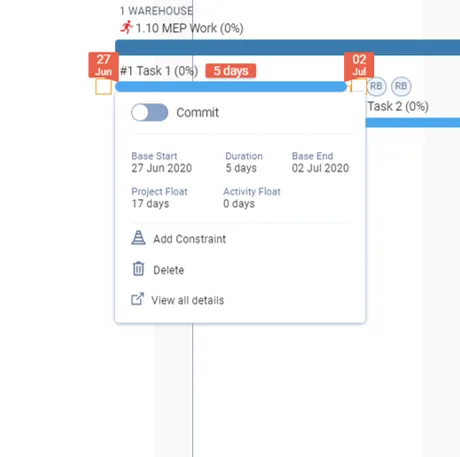
Open the Mini Widget
- Click the task bar once in the Gantt chart.
The Mini Widget shows the task dates, Project Float and Activity Float (float: the number of working days an activity can be delayed without changing the project end date), and the Commit switch for Do week tasks.
Its footer has:
- Schedule a workflow (on Flow-schedule projects)
- Add ACC Constraint (when that feature is on)
- Add Constraint
- Delete (when the task is not committed and you have permission to delete)
- View all details: opens the Detailed View
To learn how to create tasks, read Create a single task.
Last updated 2020-05-21. Part of Lookahead in the Lean PlanDo manual. Lean PlanDo by Lean Station.