
Lean PlanDo manual › Lookahead
Add a quantity to a task
Quantify a task as a physical count, such as 3 columns, so you can update its progress in units instead of percentages.
Quantify a task when its progress is easier to count than to estimate as a percentage. For example, a task to build 3 columns, one per day, can be quantified as 3 columns. You then enter progress as 1 column for the day, not 33.33%.
The quantity is spread equally over the task's days automatically. You cannot allocate it by hand.
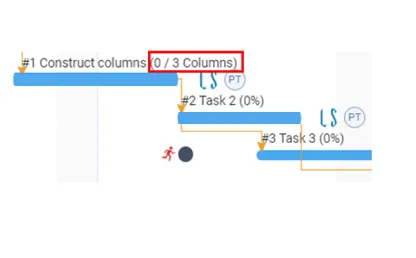
Quantify a task
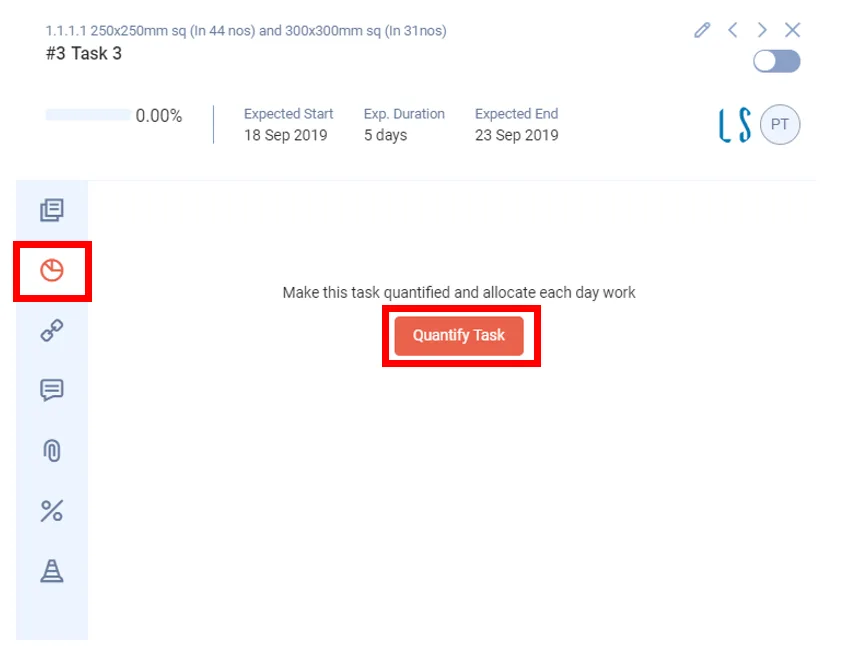
- Double-click the task bar.
- Click the Quantity tab (second from the top).
- Click Quantify Task.
- Set the Total Quantity and Unit.
- Click Save.
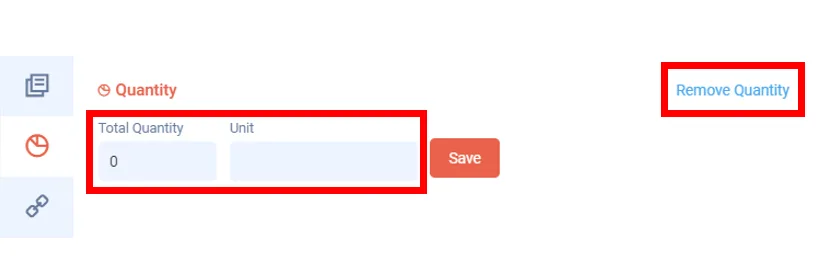
To undo it, click Remove Quantity. It shows only before the task starts.
When you can quantify a task
- You can add a quantity only when the task is not committed and has not started. Completed tasks cannot be quantified.
- To quantify a task, uncommit it first: turn off the Commit switch in the task's widget or Detailed View. A started task cannot be uncommitted. A committed task with no quantity shows Tasks can be quantified only before it starts.
- If the task already has progress without a quantity, you cannot quantify it part way. You must quantify it from the start, at 0 progress.
Last updated 2023-07-10. Part of Lookahead in the Lean PlanDo manual. Lean PlanDo by Lean Station.