
Lean PlanDo manual › Do List
Update task progress
Record daily progress on committed tasks in the Do tab, using the progress widget or the detailed view.
Update the progress of committed tasks every day. For a task measured in percentage, enter the percentage of work completed each day.
You can update progress in two places:
- The progress widget, in the Do tab
- The detailed view, in both the Lookahead (the 6-week or 8-week plan where activities are broken down into smaller tasks) and the Do tab
Update progress in the widget
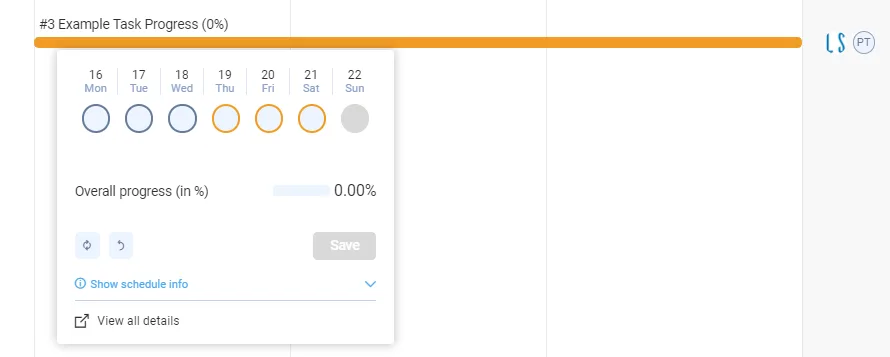
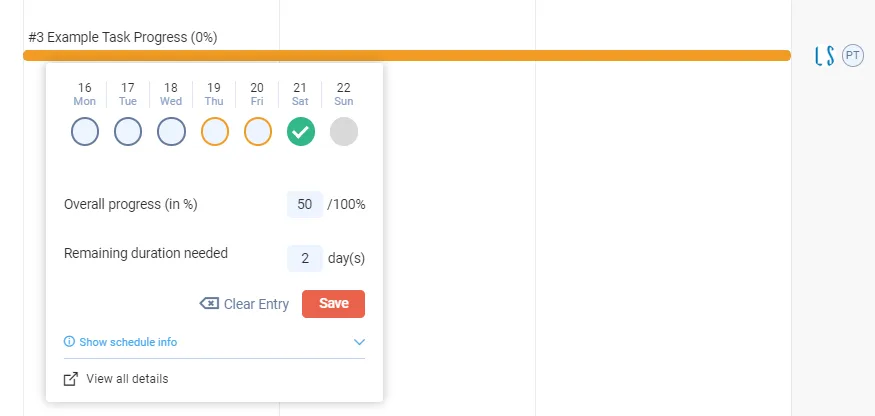
- In the Do tab, click the task in the Gantt chart. The progress widget opens, with a circle for each day.
- Click the circle for the day and enter the progress in Overall progress (in %).
- Click Save.
Examples
In the image above, the task starts on the 19th and ends on the 21st. Orange circles mark these days.
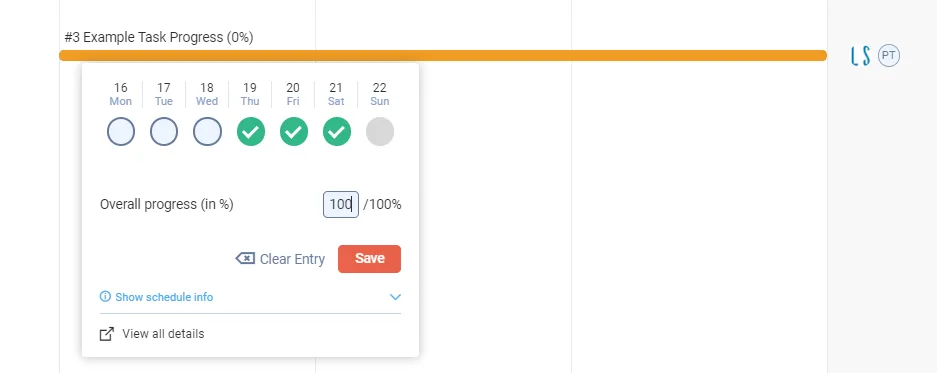
Work done as planned. Click each day and update the overall progress. Or click all three circles, enter 100 on the last day (the 21st), and click Save.
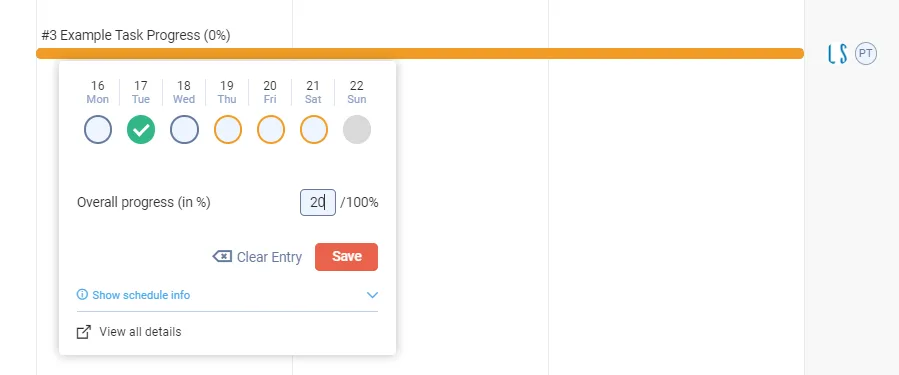
Work started early. If work started on the 17th, click the circle for the 17th and enter the progress.
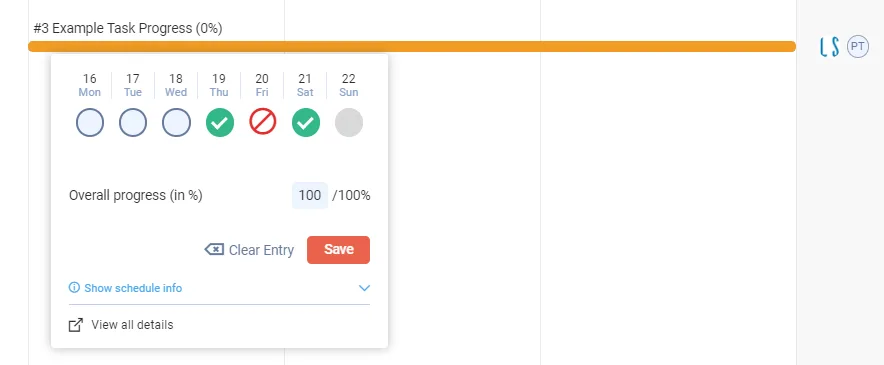
A day with no work. If you worked on the 19th and 21st but not the 20th, click only the 19th and 21st. Lean PlanDo marks the 20th as a non-working day.
Work started late. If the task only started on the 21st, click the circle for the 21st and enter the progress. To make the task longer, enter the extra days in Remaining duration needed. When you click Save, Lean PlanDo asks you for a delay reason, because the task did not finish on time.
Other options in the widget
- Clear Entry removes everything you entered in this progress update.
- Show schedule info shows the schedule (click Hide schedule info to close it). For a task not yet started, it shows the expected start date, duration and end date. For a task in progress, it shows the actual start date, expected total duration, end date, Remaining Early Start date (the date the remaining work of a started activity or task resumes), remaining duration, and remaining work quantity or percentage.
Update progress in the detailed view
You can do all of the above in the detailed view too, in both the Lookahead and the Do tab. To open it, click View all details in the progress widget, or double-click the task bar. Then open the Progress update tab.
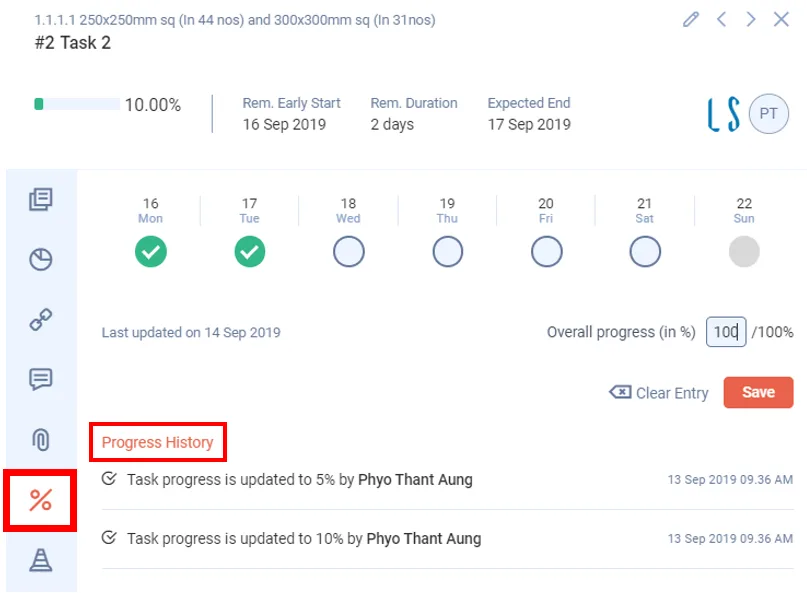
Only the detailed view has Progress History, in the Progress update tab. It records every progress update for the task. For tasks in progress, it also shows the progress entered in previous weeks.
To undo or clear a progress update, read Reset task progress.
Last updated 2023-07-10. Part of Do List in the Lean PlanDo manual. Lean PlanDo by Lean Station.