
Lean PlanDo manual › Masterplan
Versions
Import a new master schedule from Microsoft Project or Primavera P6 and merge it into your active Masterplan as a new version.
When you have a new master schedule with major changes, such as a catch-up programme, import it as a new version of the Masterplan. Versions lets you choose which data to update in your current plan.
For small changes, edit the Masterplan directly: base and expected dates, dependencies or new activities. Use Versions when the new schedule was made in Microsoft Project (MSP) or Primavera P6 and changes the whole plan.
Import a new masterplan
-
Click Versions in the left menu.
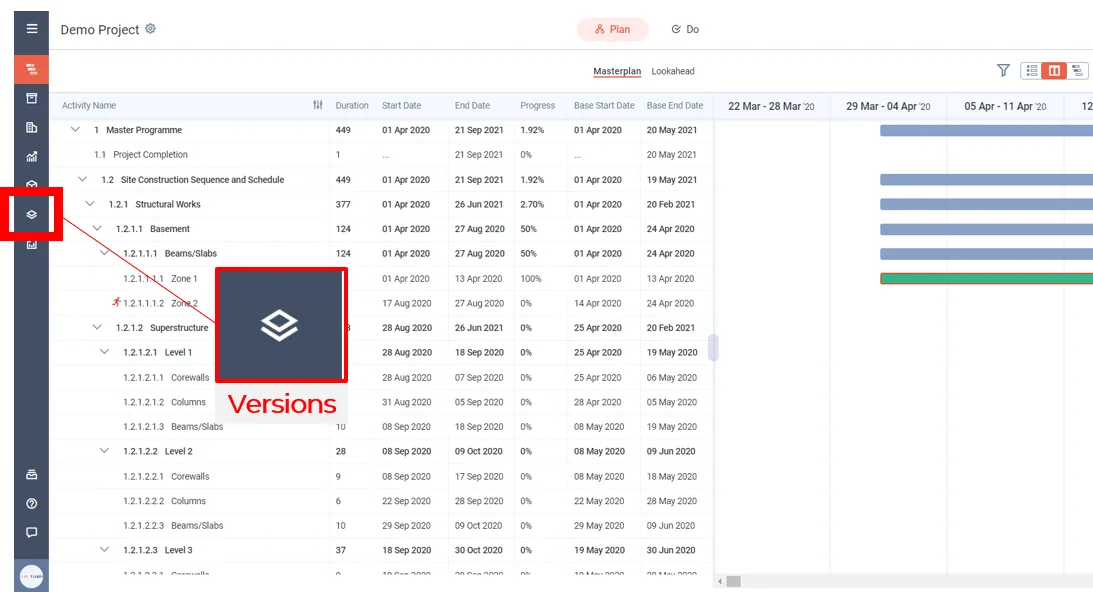
The Versions page has two tabs, Previous Version and Masterplans. It shows the active master plan and any other versions already uploaded.
-
Click Import New Masterplan.
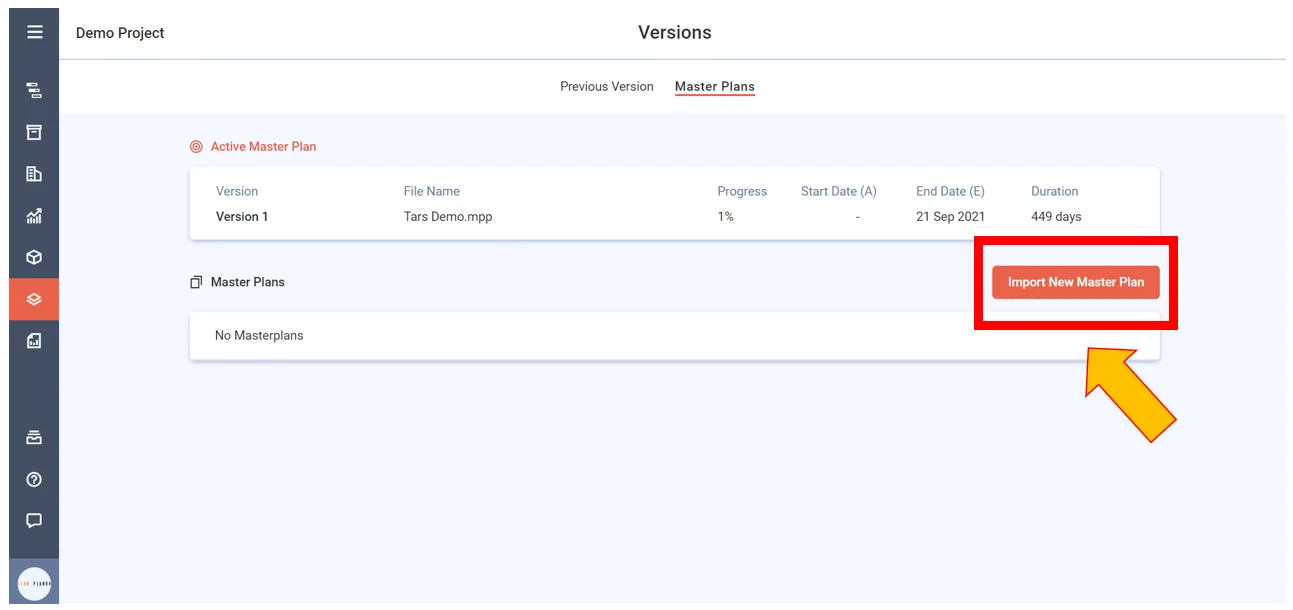
-
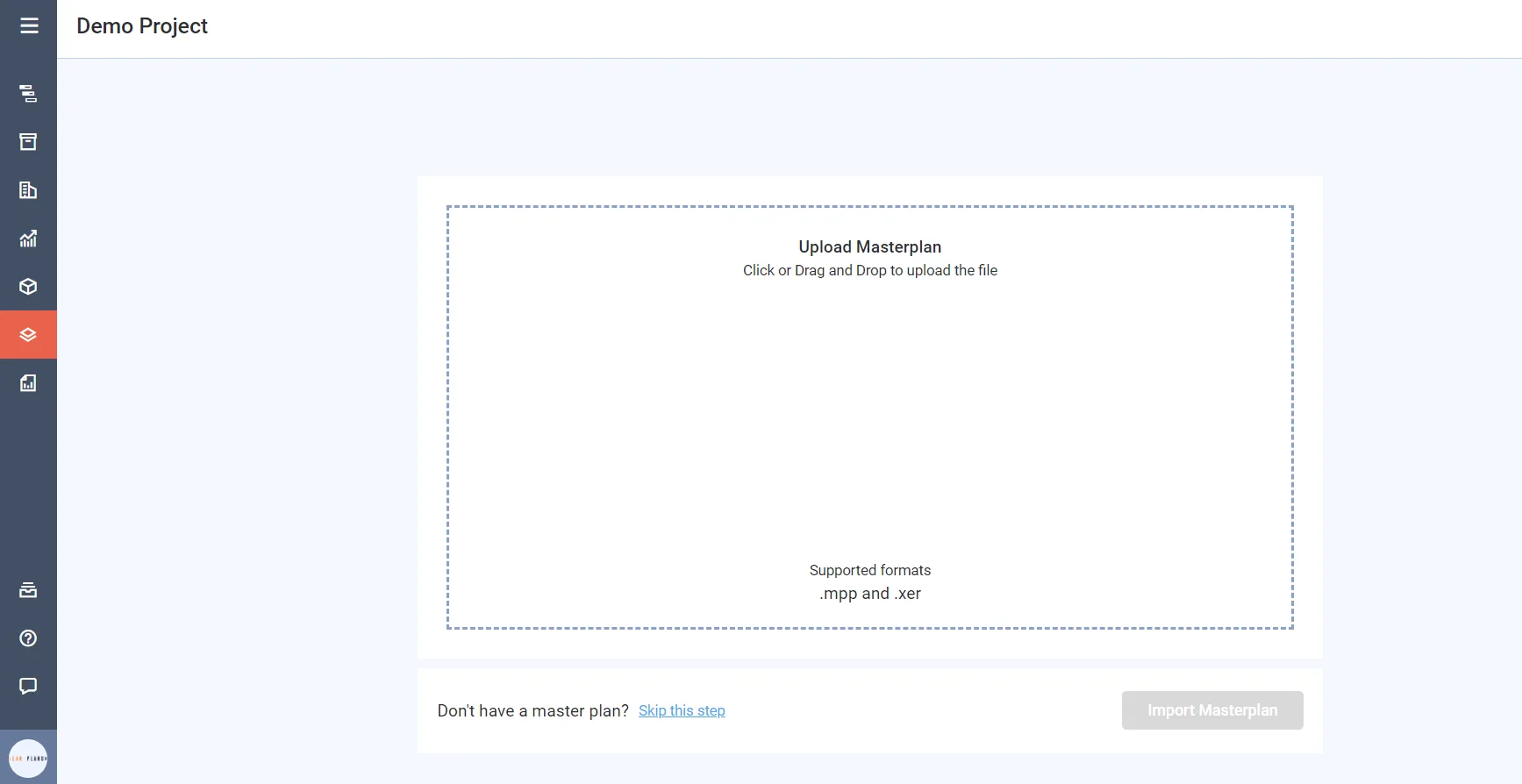
The usual masterplan upload window opens (see Create a project from an existing masterplan). Select the MSP or P6 file.
-
Click Import Masterplan.
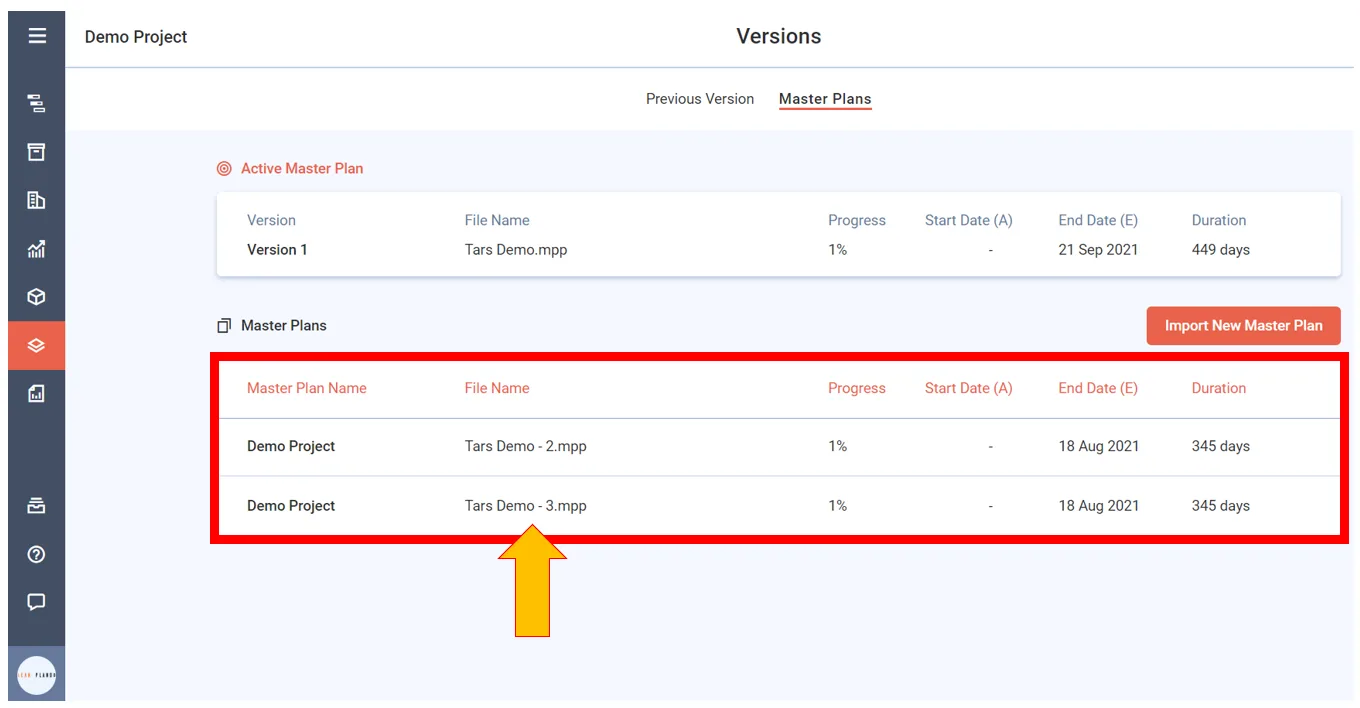
Each uploaded masterplan appears in the Masterplans tab.
Merge it with the active plan
-
Click the masterplan you want to use as the update. A preview opens. Check it is the right plan.
-
Click Merge with active plan.
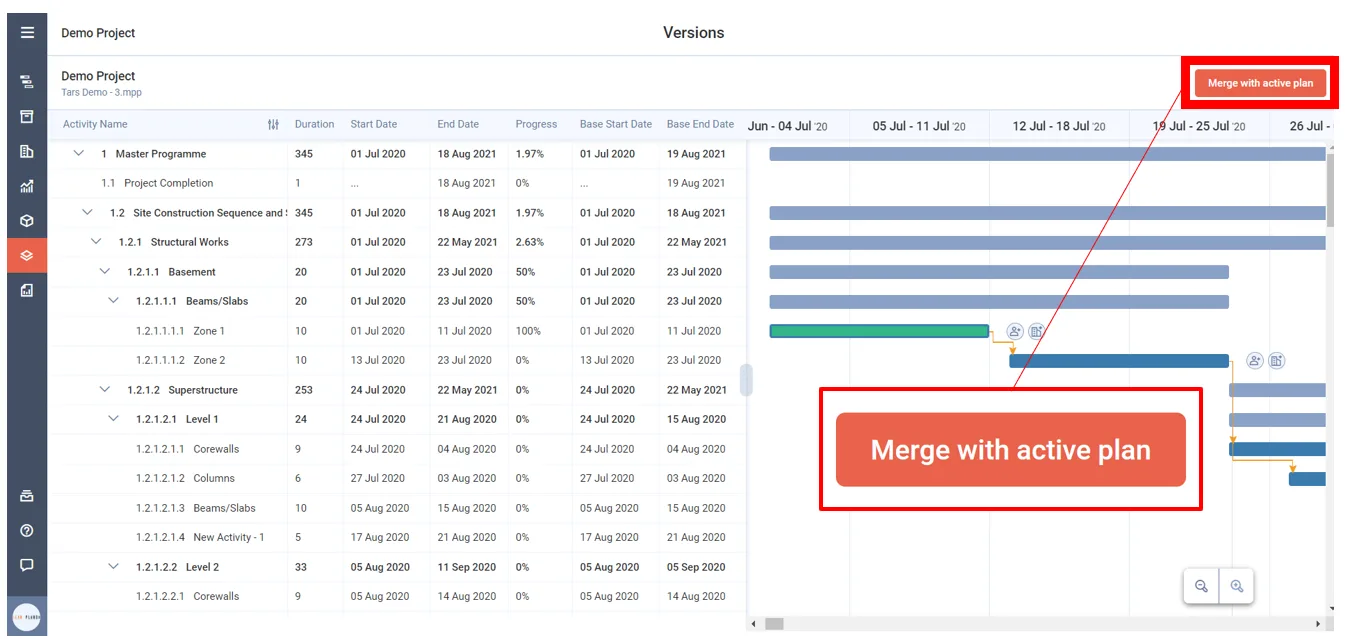
The merge has three stages.
Stage 1: Merge Options
For each category, choose which data to keep from the old plan and which to update from the new one.
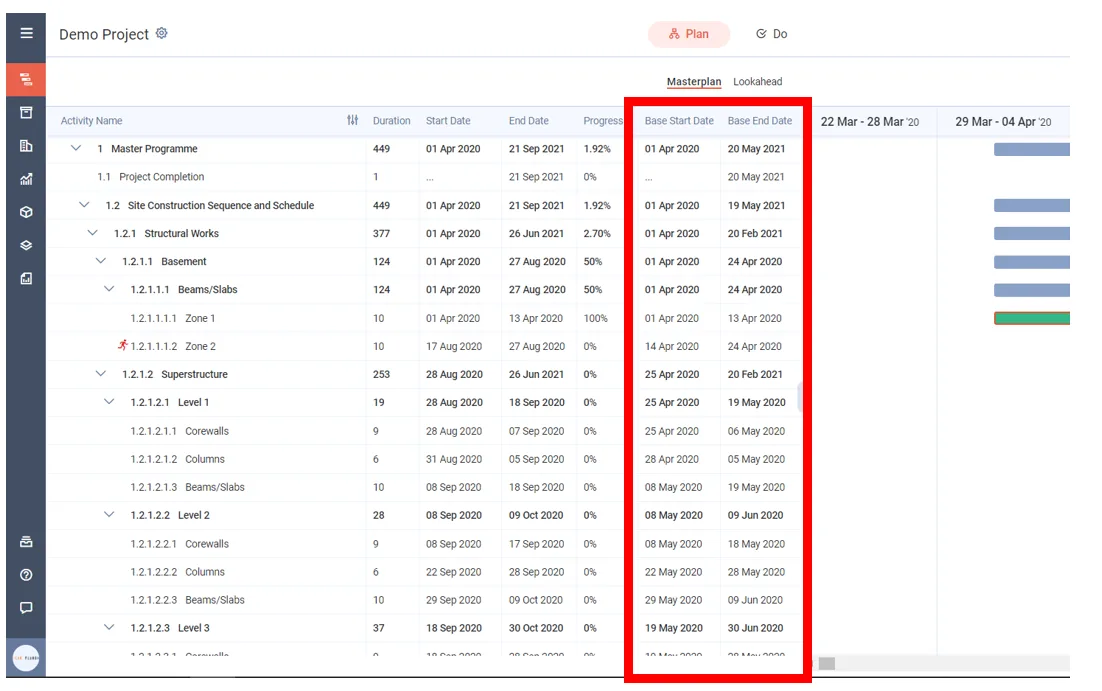
In this example, Base Dates are updated and Expected/Actual Dates are not. Dependencies, Levels, Calendar and Progress come from the new plan by default.
-
Make your choices.
-
Click Merge at the bottom right.
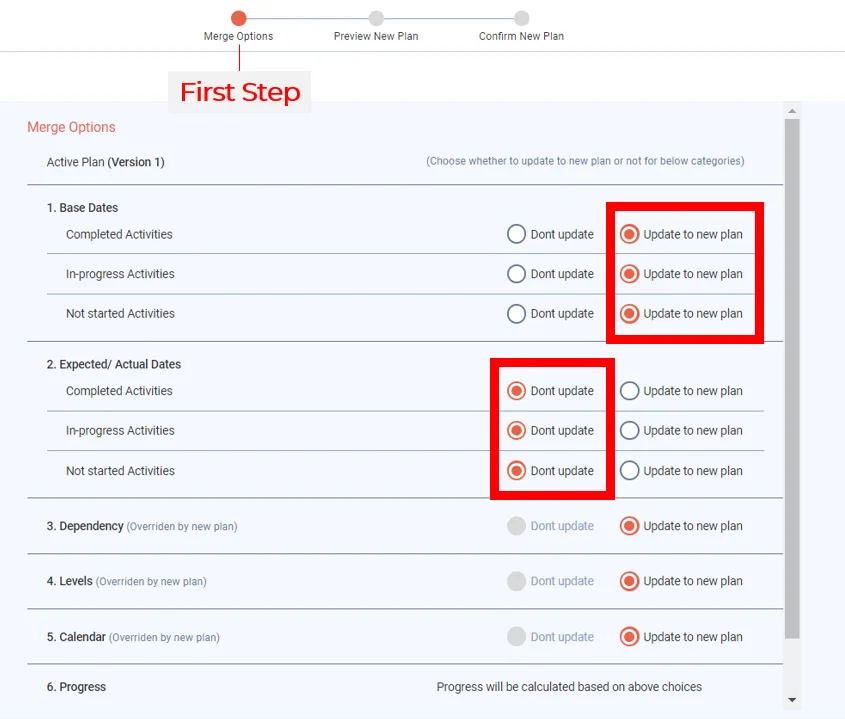
Stage 2: Preview New Plan
Compare the current plan with the new plan, and check which activities will be added or deleted.
The Active Plan tab shows the current Masterplan.
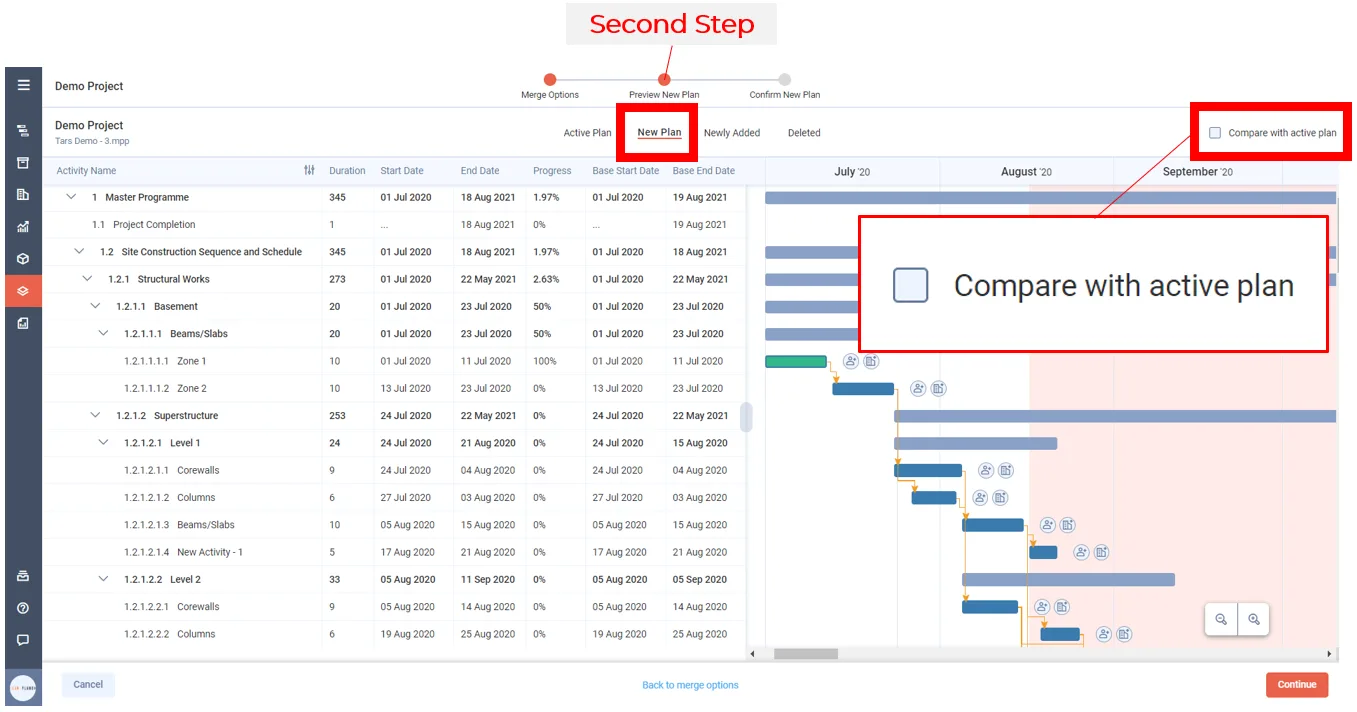
The New Plan tab shows the new schedule. Tick Compare with active plan to see what changes for existing activities. Here, the new base dates show beside the old ones.
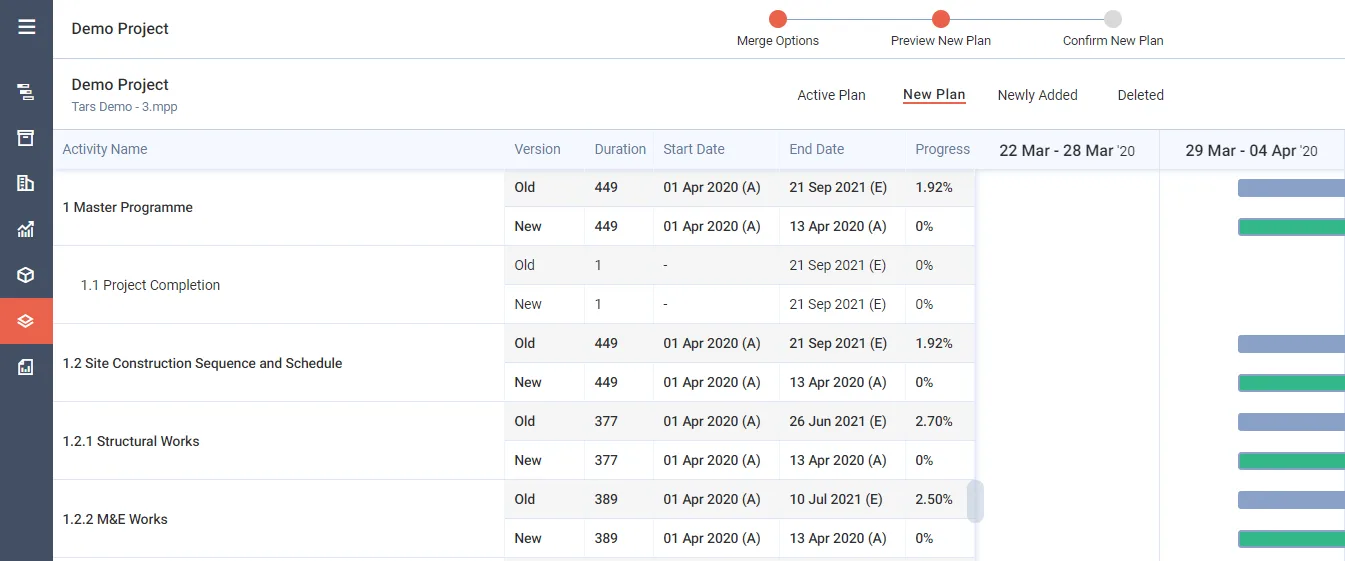
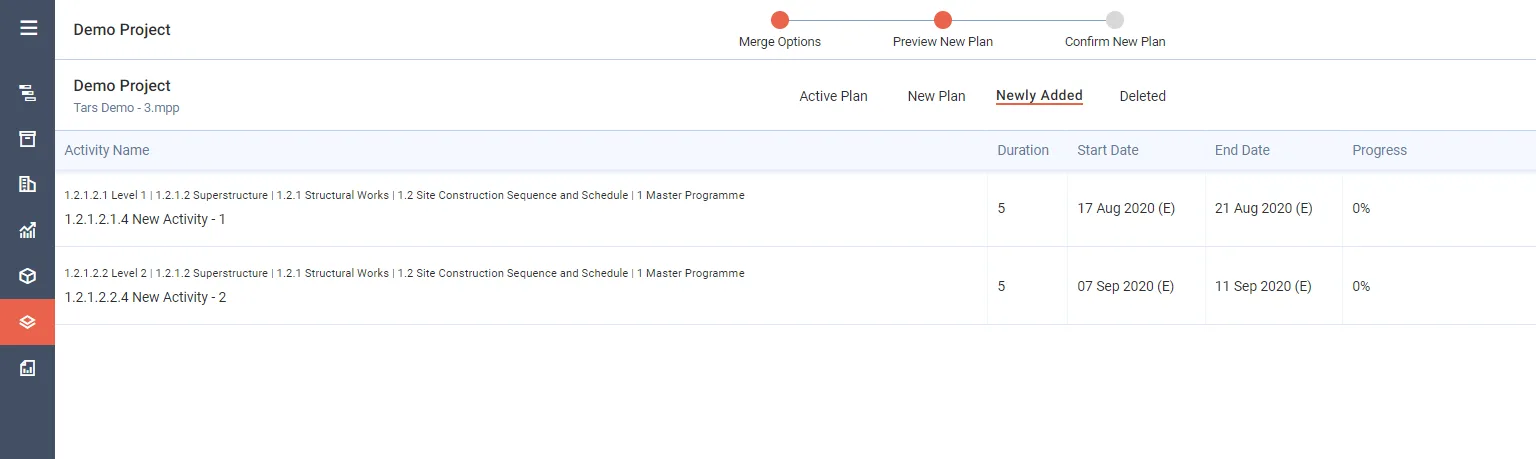
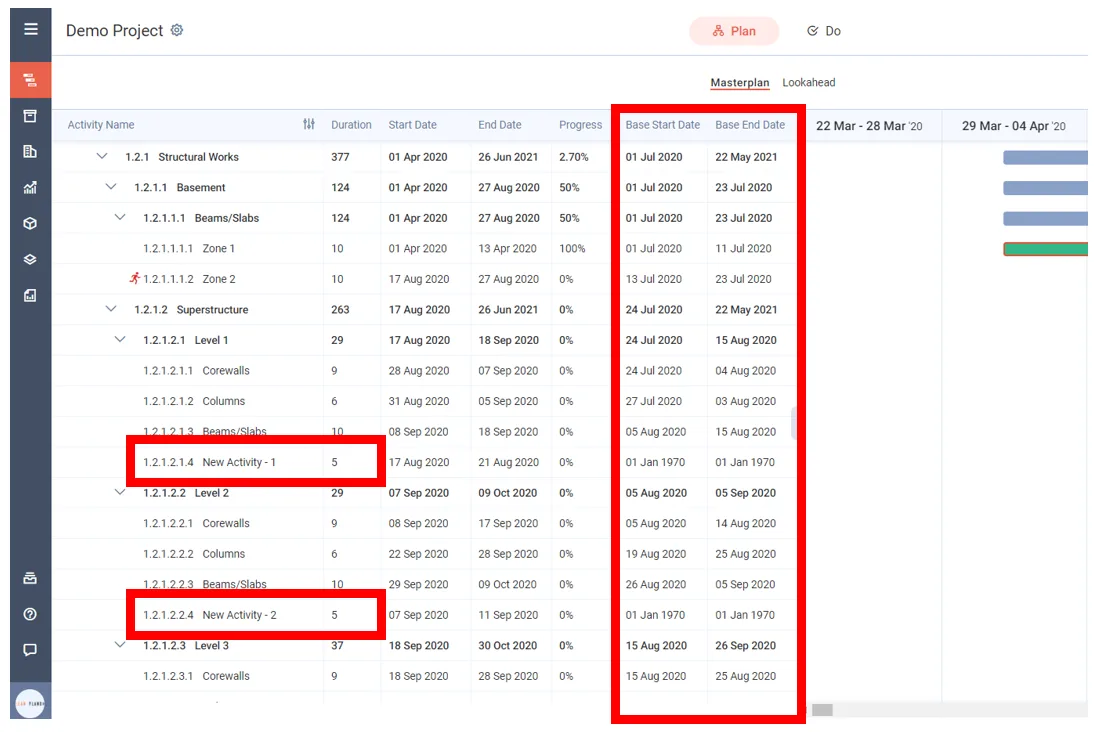
The Newly Added tab lists activities that exist only in the new plan. Here there are two: Activity 1 and Activity 2.
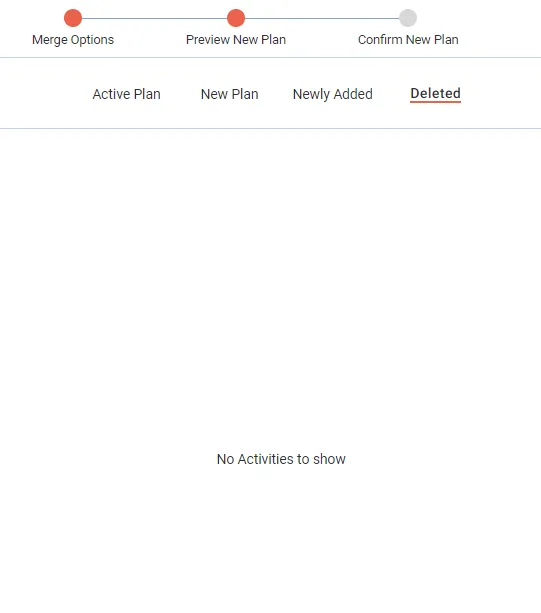
The Deleted tab lists activities in the current plan that are not in the new plan. These will be removed. Here there are none.
Stage 3: Confirm New Plan
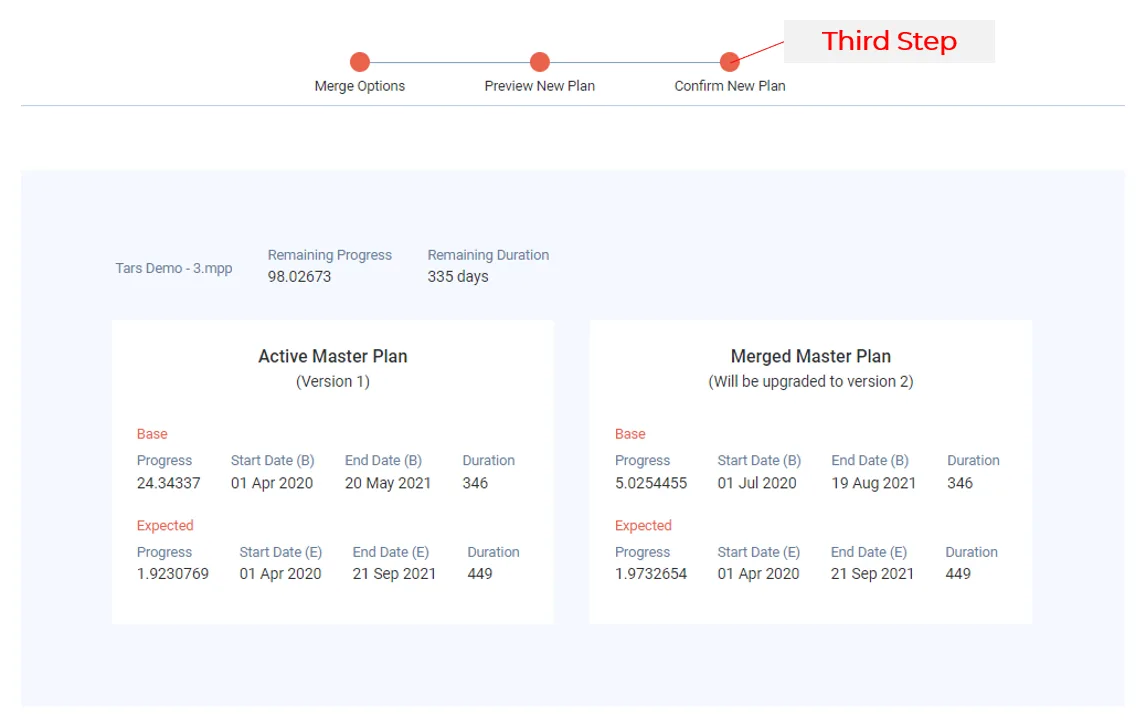
A summary compares the active masterplan with the merged masterplan, which becomes Version 2 of the project. Here the base dates differ, so the base progress of the project differs too.
-
Click Confirm at the bottom right when everything is final.
-
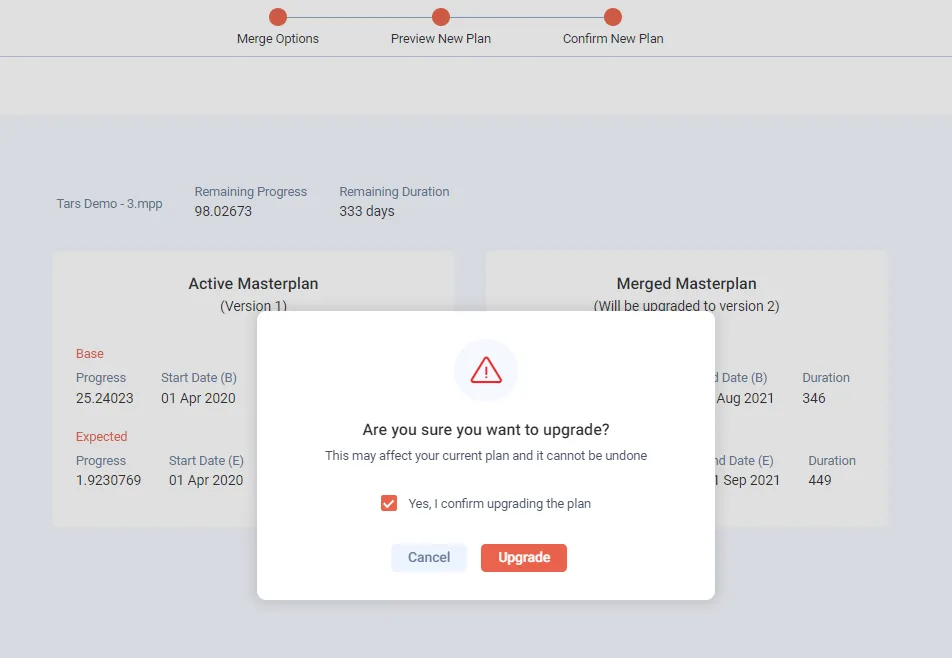
Tick Yes, I confirm upgrading the plan.
-
Click Upgrade.
Your plan is now Version 2, with the changes from the merged masterplan.
Last updated 2020-08-31. Part of Masterplan in the Lean PlanDo manual. Lean PlanDo by Lean Station.