
Lean PlanDo manual › Masterplan
Add an activity in the Masterplan
Add a sub activity under an existing activity in the Masterplan, and learn how parent activities and dependencies affect it.
To add a sub activity under an existing activity in the Masterplan, use the activity's three-dots menu.
When you add a sub activity under an activity, that activity becomes its parent activity (an activity with sub activities under it; you cannot record progress on it). You cannot edit a parent activity's duration. It is set by the total duration of its sub activities. Its progress is made up of the total progress of all its sub activities.
Add a sub activity
-
In the Masterplan, open the three-dots menu of the activity you want to add under.
-
Click Add sub activity.
-
Enter the Activity Name, Duration and Start Date, and the Base Dur. and Base Start Date. Only the name is required; the other fields have defaults. The end dates follow from the start date and duration.
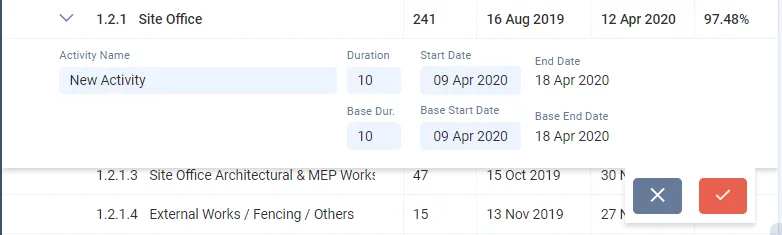
-
Click the tick button. The Masterplan updates.
Repeat these steps to add as many activities as you need to schedule the Masterplan.
Note: You cannot add a sub activity to an activity with existing dependencies, either predecessor or successor. If you try, the app shows the message "parent activity has dependencies". Delete the existing dependencies first, then add the sub activity.
Watch the video to see how to add new activities under an existing activity in the Masterplan:
Last updated 2023-07-10. Part of Masterplan in the Lean PlanDo manual. Lean PlanDo by Lean Station.