
Lean PlanDo manual › Masterplan
Edit an activity in the Masterplan
Change an activity's name, dates, base dates or duration after the Lookahead is generated, and learn how delays and progress are recorded.
After the Lookahead (the 6-week or 8-week plan where activities are broken down into smaller tasks) is generated, you can edit these parts of an activity:
- Activity name
- Expected or Remaining Early Start date (the date the remaining work of a started activity or task resumes)
- Base dates (only users whose role allows editing base dates)
- Duration
Instead of editing the activity from the detailed view, you can drag the whole activity bar, or drag its end date.
Changing the start date or duration can delay or advance the activity. Lean PlanDo records a reason for the delay and the party responsible when either is true:
- The delay moves the activity away from its base dates or duration.
- The activity is on the critical path (the activities and tasks where any change moves the project end date; critical activities show as solid red bars).
When an activity is delayed, you choose the delay reason from a list, and the responsible party from a second list.
You can also delete the activity if the plan no longer needs it.
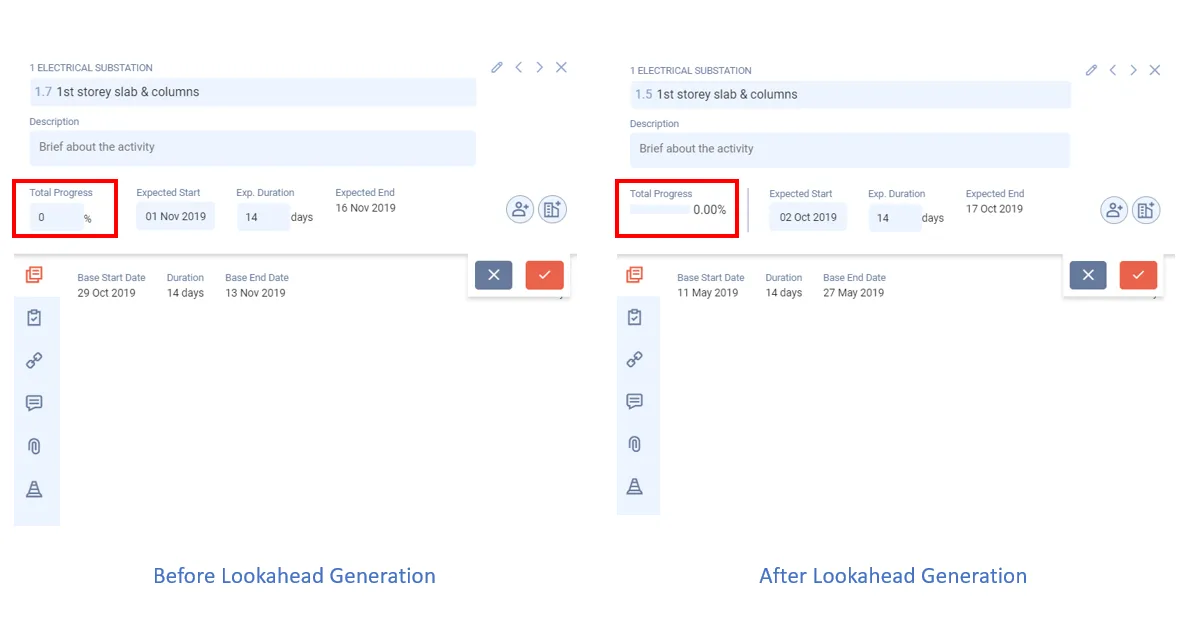
You cannot change an activity's progress by hand after the Lookahead is generated. Lean PlanDo calculates it from the progress of the activity's tasks. To learn how to edit tasks, see Edit a task.
Edit the base dates of an activity
You can also edit an activity's base dates from the detailed view. Only users whose role allows editing base dates can do this. Watch the video to see how:
Note: After the Lookahead is generated, you update an activity's progress only through the progress of its tasks. To learn how to create tasks under an activity, see Create a single task.
Last updated 2023-07-10. Part of Masterplan in the Lean PlanDo manual. Lean PlanDo by Lean Station.