
Lean PlanDo manual › Masterplan
Edit an activity in pre-configuration
Change an activity's name, start date, duration and progress in the pre-configuration phase, from the edit form or by dragging its bar.
In the pre-configuration phase, after the Masterplan upload, you can update an activity's start date, duration, work progress and work resume date. At any time you can also rename an activity, change the user or company in charge, or delete it.
Edit from the detailed view
-
Double-click the activity bar to open its details.
-
Click Edit (the pencil icon).
-
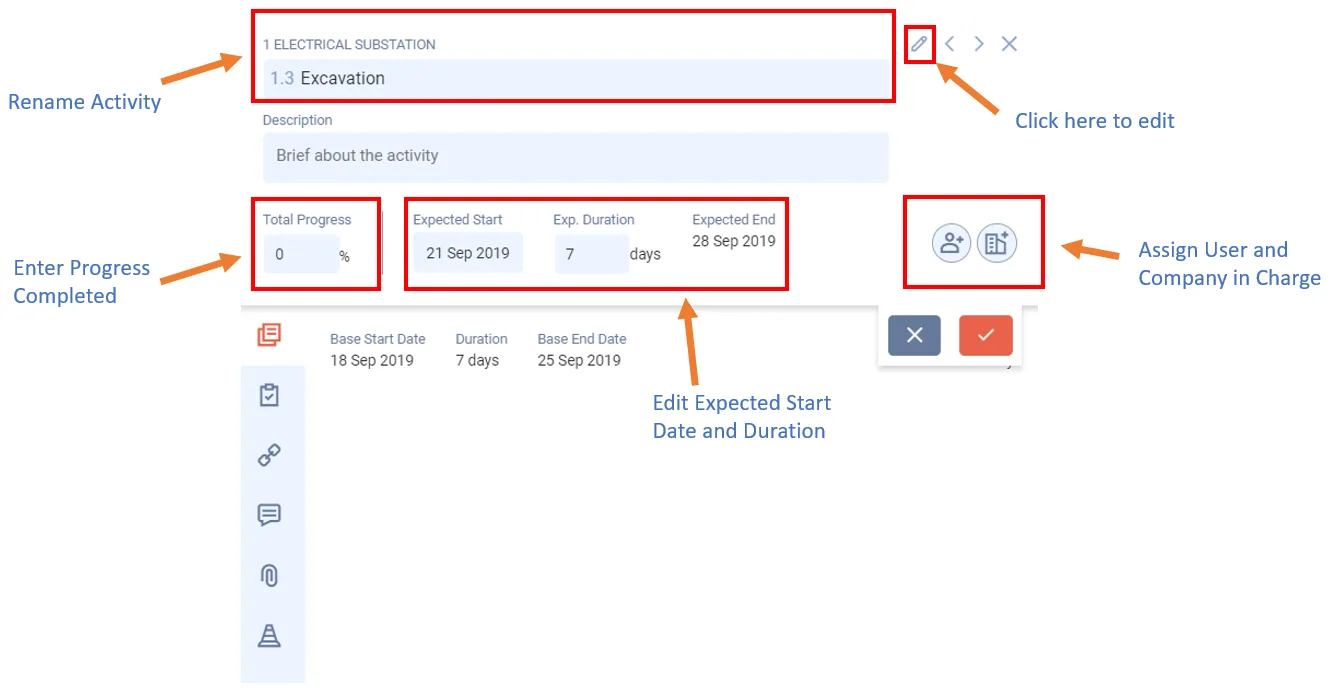
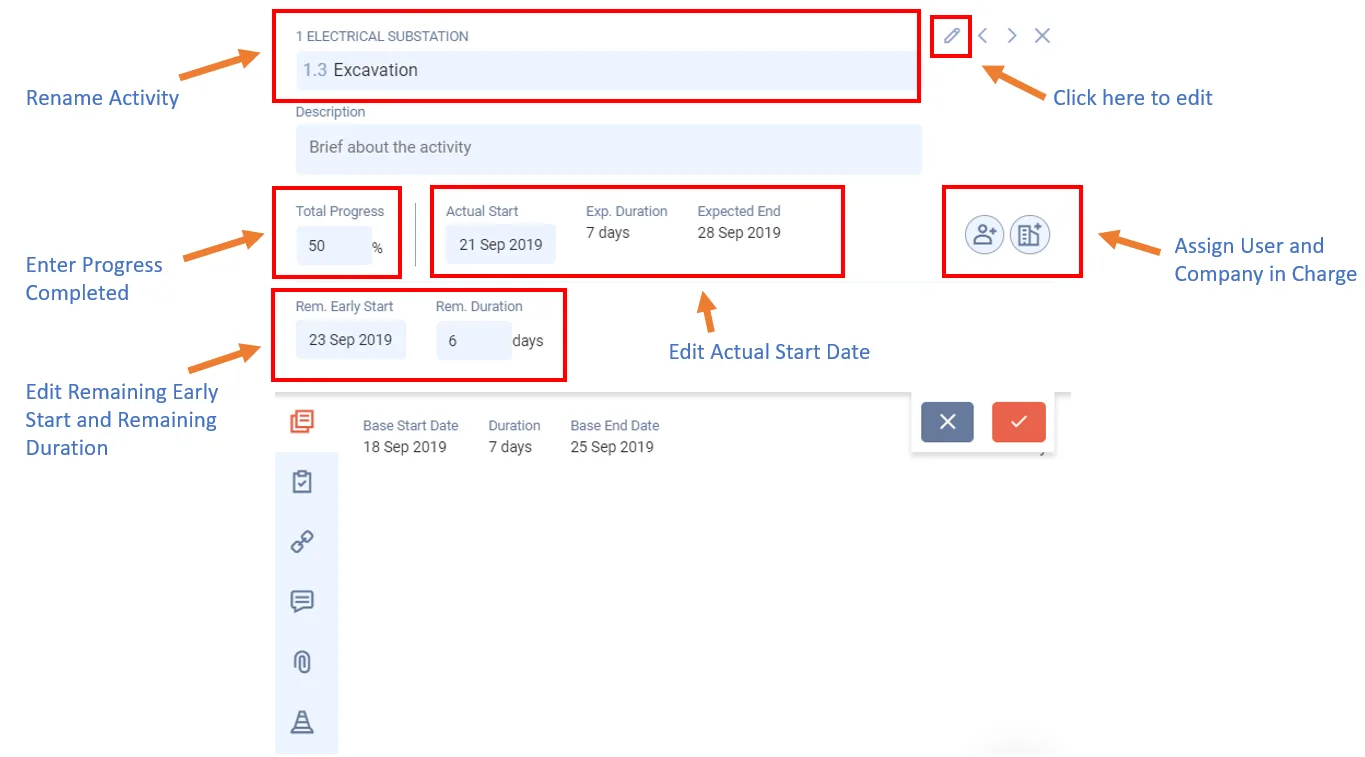
Update the fields you need, in screen order: Name, Description, Total Progress, Expected Start and Exp. Duration. If the activity has progress, also set Rem. Early Start (the date the remaining work resumes) and Rem. Duration. The start field is then labelled Actual Start.
-
Click the Tick button to confirm.
Drag the activity bar
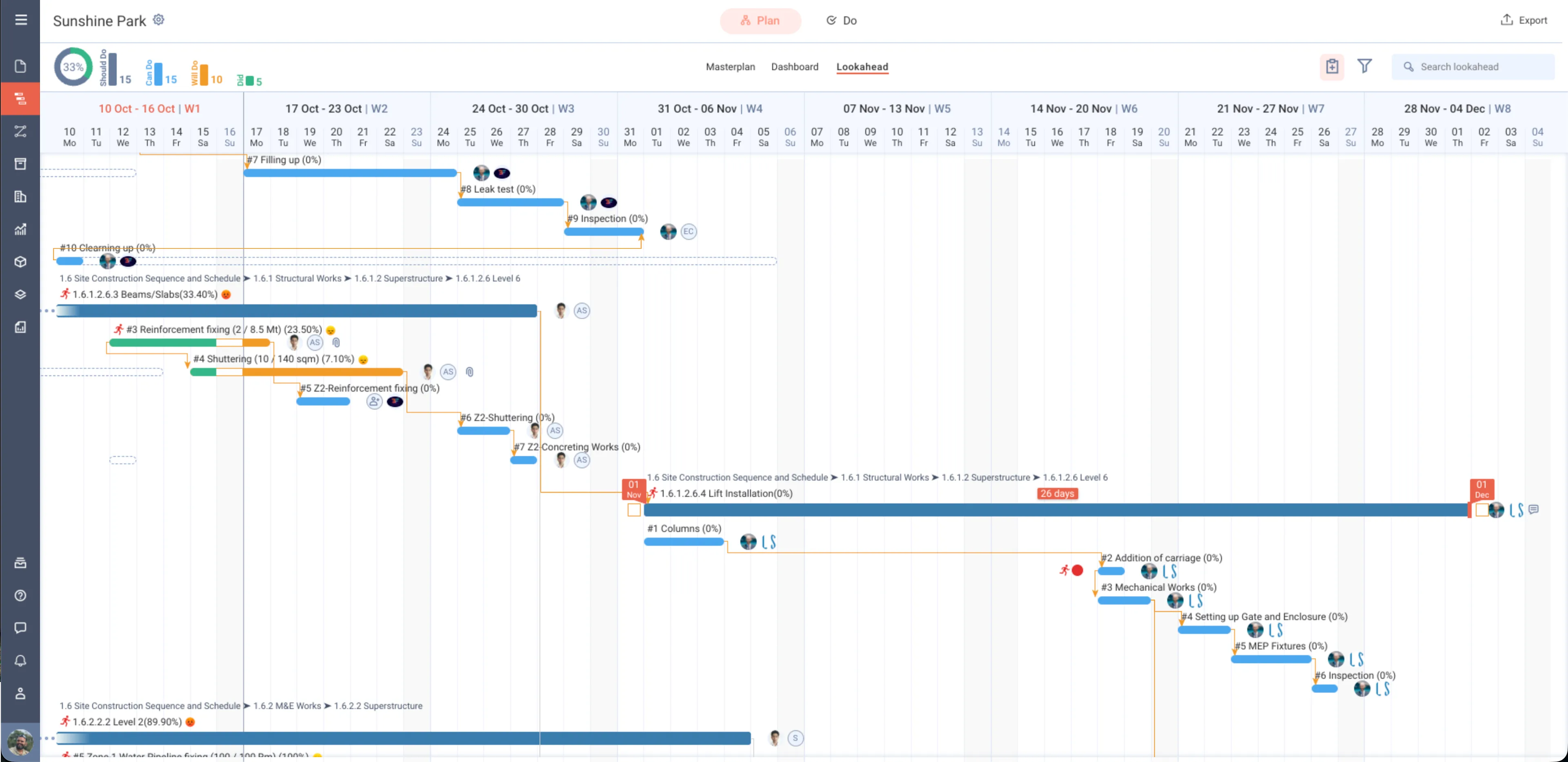
Instead of using the edit form, you can drag the whole activity bar to move its start, or drag its right end to change the duration. While you drag, the new start and end dates show on the bar. In pre-configuration, Lean PlanDo saves the new dates at once and does not ask for a delay reason.
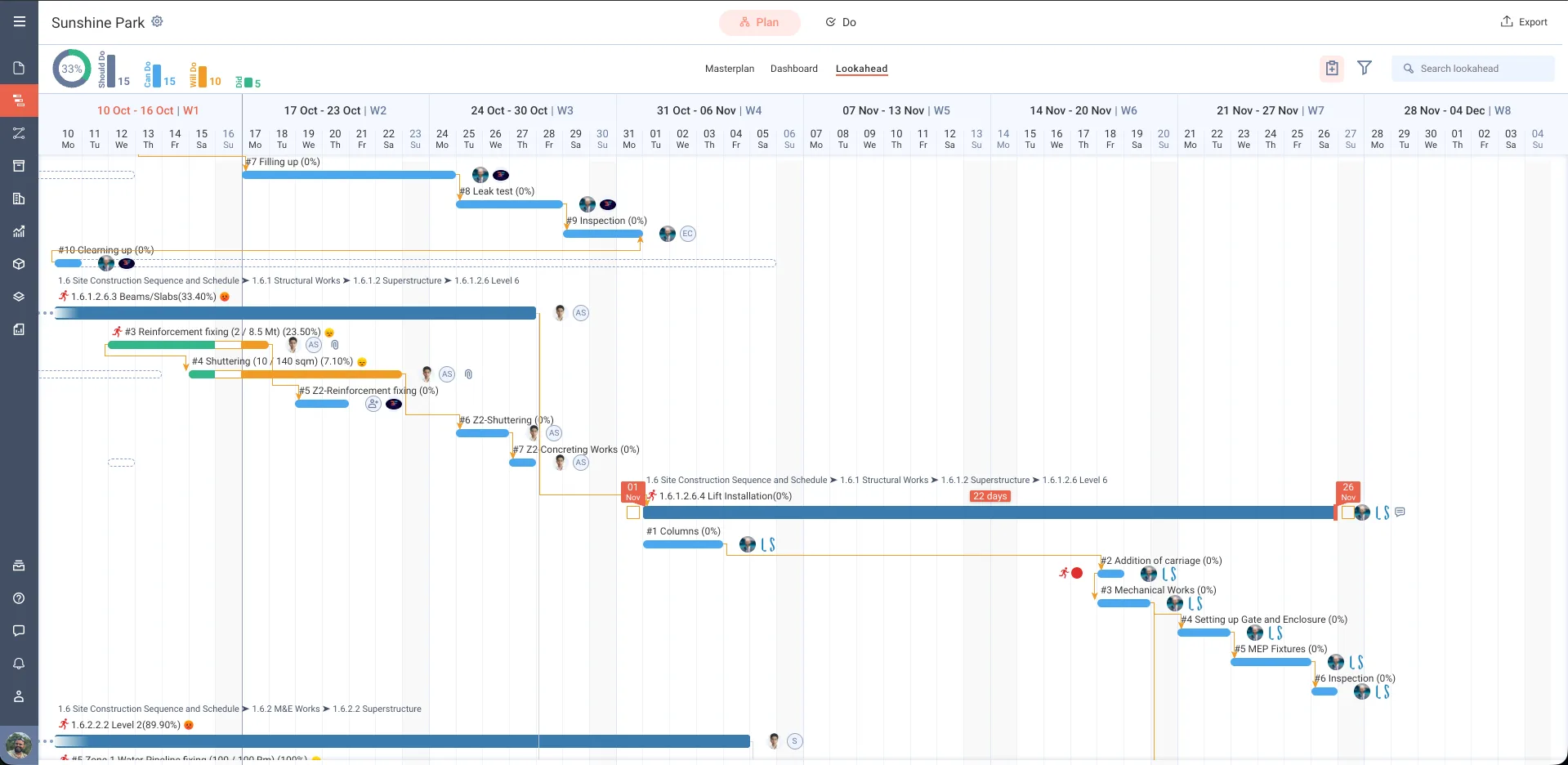
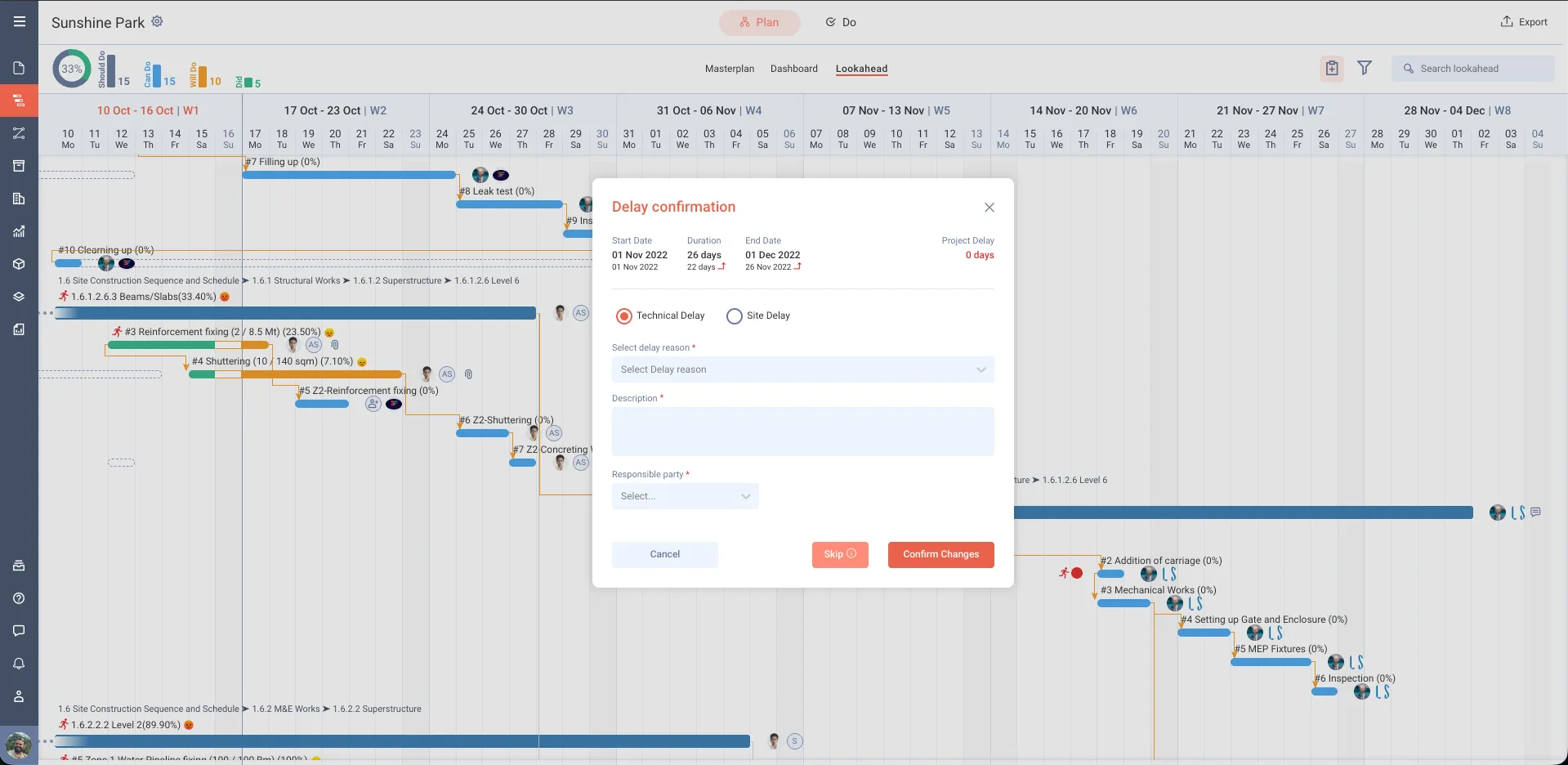
After pre-configuration, once the Lookahead is generated, a change that delays the activity works differently. Lean PlanDo asks for a delay reason before it saves:
- Choose Technical Delay or Site Delay.
- Select a reason.
- Add a description and the responsible party.
- Click Confirm Changes.
Change who is in charge, or delete the activity
To change who is in charge of a leaf activity (an activity with no sub activities), click Edit and pick a new person or company from their avatars. You need permission to assign activities.
To delete the activity, use Delete in the three-dots menu of the detailed view, or in the Mini Widget (click the bar once). Delete shows only for unfinished leaf activities, and only if you have permission to delete.
Last updated 2020-04-06. Part of Masterplan in the Lean PlanDo manual. Lean PlanDo by Lean Station.