
Lean PlanDo manual › Create Project
Create a project from an existing masterplan
Create a Lean PlanDo project by importing your masterplan from Microsoft Project (MPP) or Primavera P6 (XER).
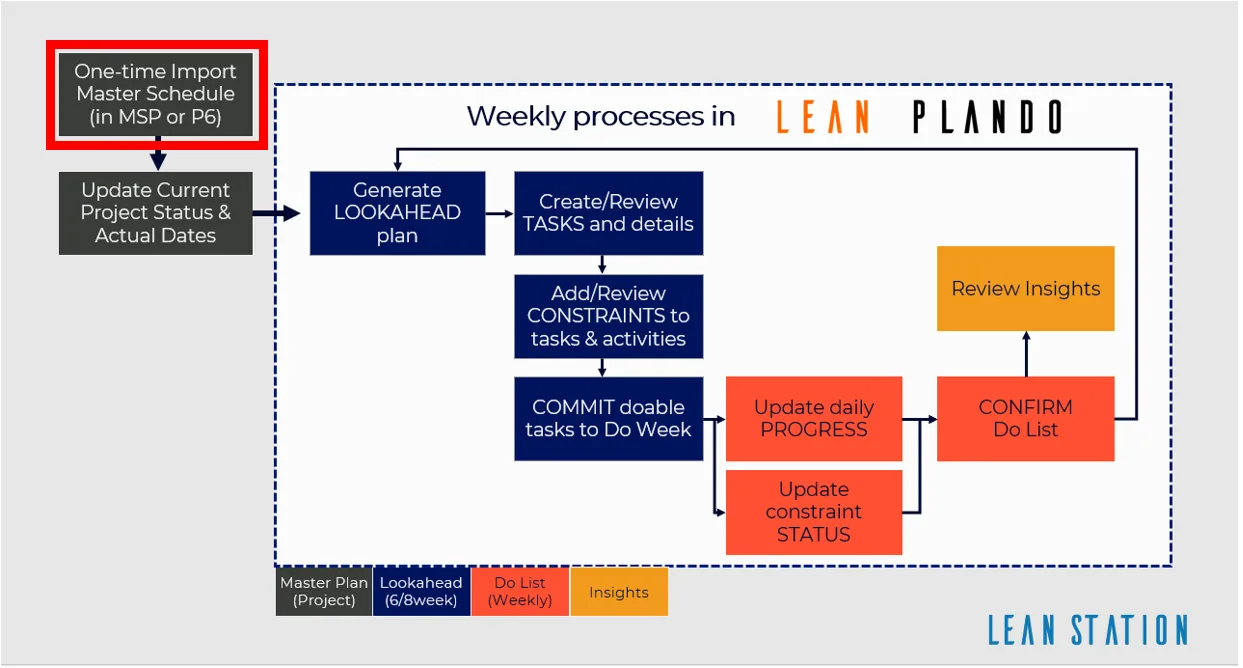
If you already have a master schedule in Microsoft Project or Primavera P6, import it to create your Lean PlanDo project. The flowchart shows the whole Lean PlanDo process.
Create the project
-
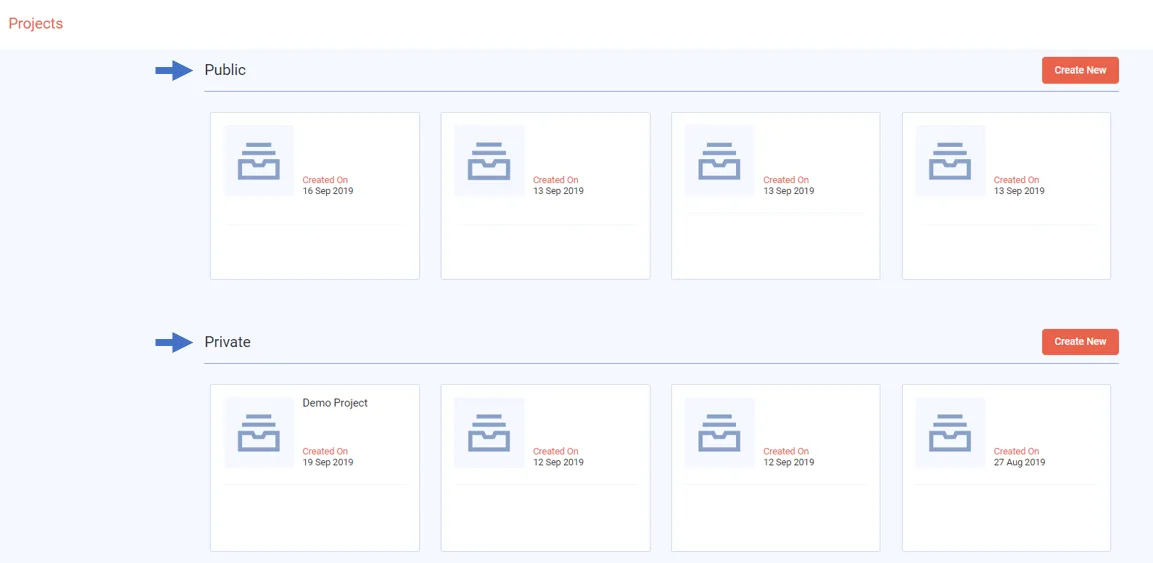
After you log in, go to the projects page. It has a Public section and a Private section, each with its own Create New button.
- Public: a project you can share with other users. This section shows if you belong to a public company.
- Private: a project only you can open. This section shows if you have a private company.
The section you use decides the company the project is created under.
-
Click Create New in the section you want.
-
Enter the project details:
- Mode (schedule projects only): choose Production (the default) for a real project. It runs on today's date. Simulation is for training: the project runs on a Simulation Date shown in the header, which you can only move forward.
- Project Owner Role: choose Client or Contractor (the default). This decides whether your company joins the project as the Client or as the Main Contractor. You can see it later in Project Settings.
-
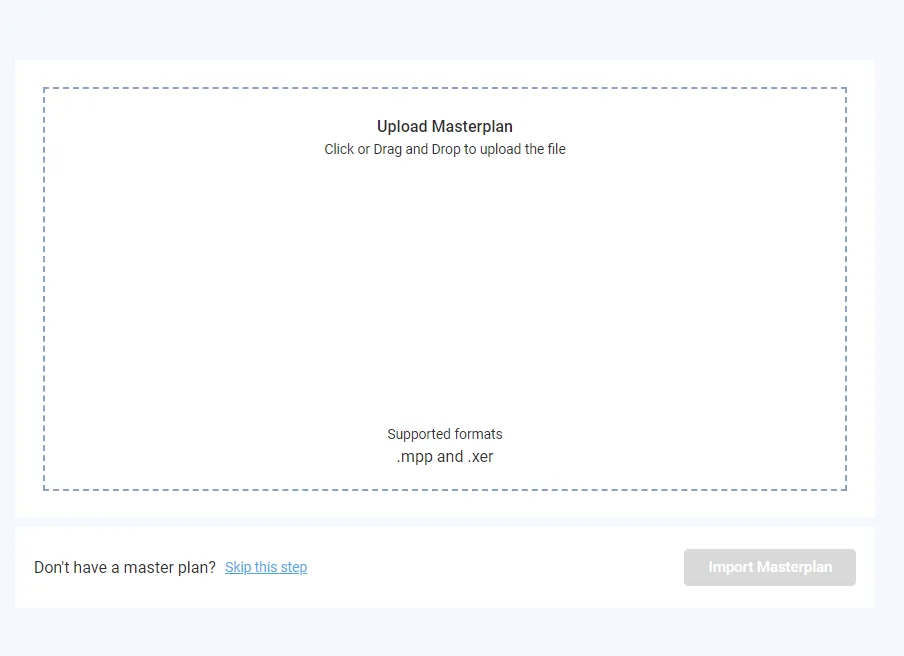
Drag and drop your masterplan file, or click to select it. Use a Microsoft Project (MPP) or Oracle Primavera P6 (XER) file.
-
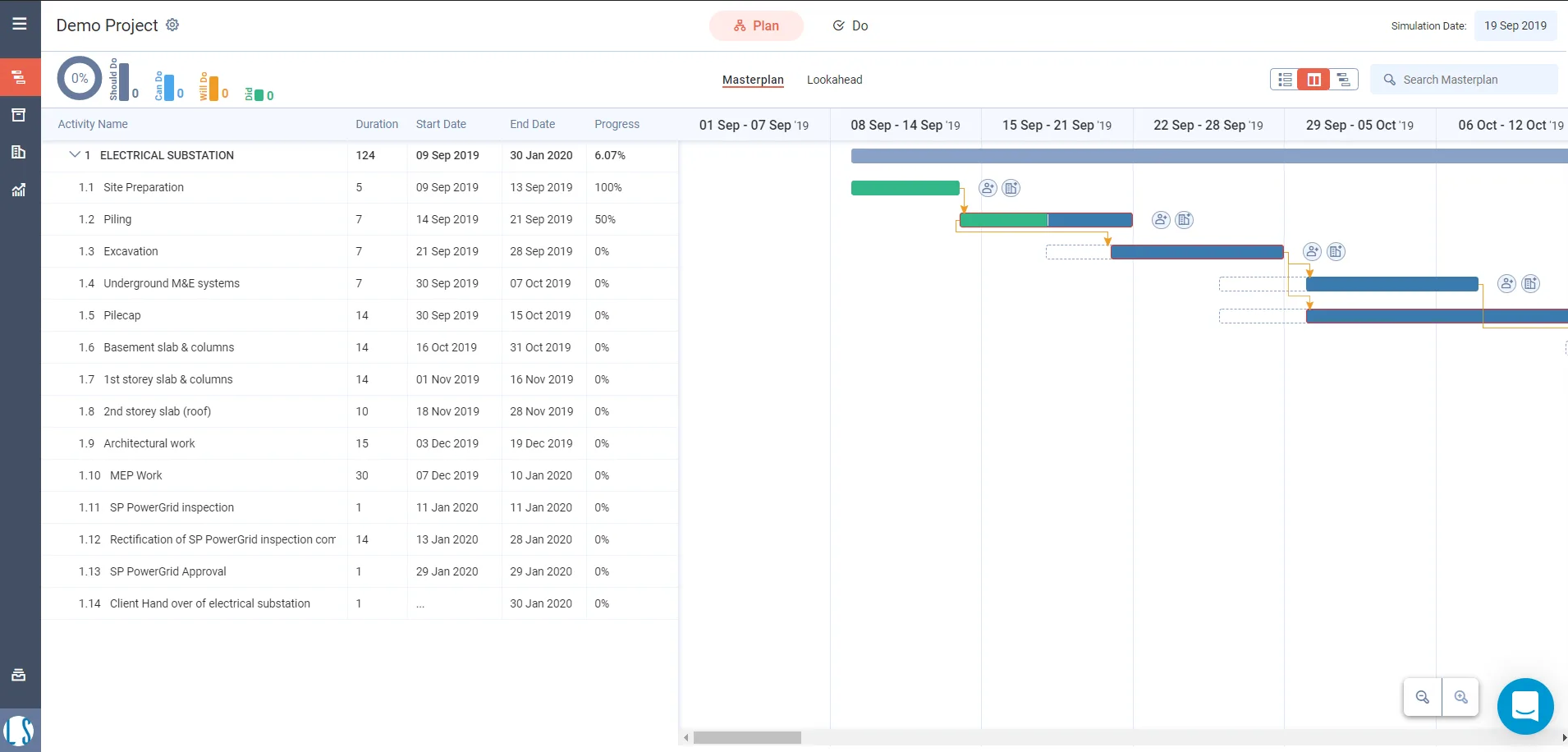
Click Import Masterplan. Lean PlanDo shows the project's Masterplan as a Gantt chart.
Common upload errors
- "Activity x.x.x Activity Name non leaf activity cannot have a dependency." In your original plan, a parent activity (an activity with sub activities under it; you cannot record progress on it) has a predecessor or successor. Lean PlanDo does not support this. In the original plan, move these dependencies to the matching child activities.
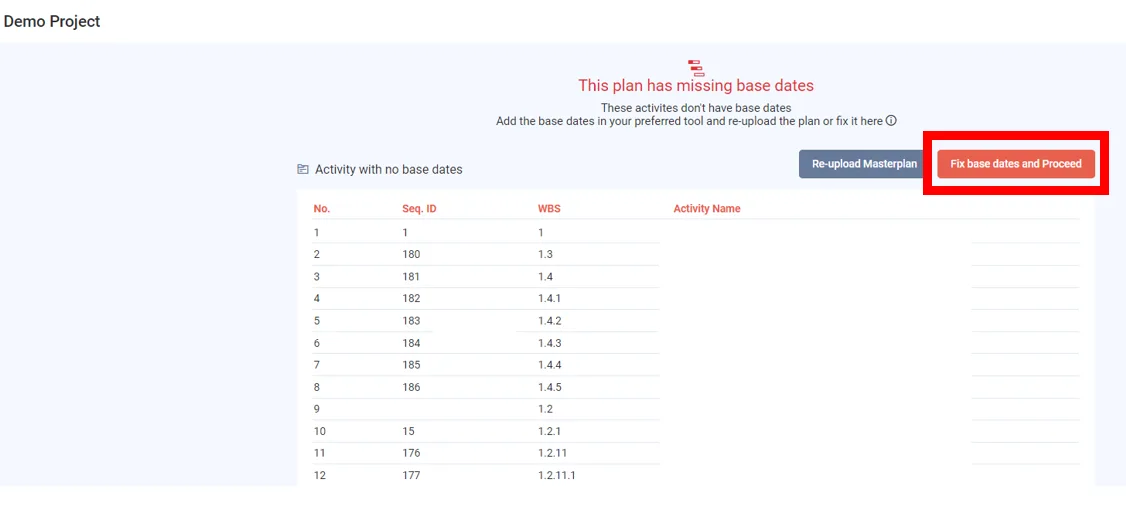
- No base dates. If activities in your file have no base (baseline) dates, Lean PlanDo shows This plan has missing base dates and lists each Activity with no base dates. Click Re-upload Masterplan, or click Fix base dates and Proceed. Then the expected dates are copied as base dates, so your base dates and expected dates become the same.
Trial projects
If you are a newly registered user without a commercial licence, your project expires 14 days after you create it. Until then, you can use all features. After it expires, the project shows Your 14 days free trial has expired, and only Lean PlanDo Insights is available. To buy a commercial licence, contact us through the chat option or email info@leanstation.com.
Last updated 2020-08-04. Part of Create Project in the Lean PlanDo manual. Lean PlanDo by Lean Station.