
Lean PlanDo manual › Lookahead
Create multiple tasks
Split one activity into several tasks at once in the Lookahead, with optional links between them.
Once the Lookahead (the 6-week or 8-week plan where activities are broken down into smaller tasks) is generated, you can split an activity into several tasks in one go.
Create the tasks
- Click the activity bar in the Lookahead.
- Click Add Tasks.
- If the activity has no supervisor or responsible company, assign them at the top of the Add Tasks window, below the activity name and dates. The supervisor can be a Main Contractor or Client member. The company can be the Main Contractor or a Subcontractor. If they are already set, they are locked.
- Click Create multiple tasks.
- Enter the number of tasks in No. of Tasks.
- Select Link Tasks (0FS) to link the tasks one after another.
- Click Add (Add rows when smart planning is on). Lean PlanDo spreads the tasks evenly over the activity's duration.
- Fill in each row: Name, Duration and Assignee (a user from the Main Contractor or Client, and a company from the Main Contractor or Subcontractors). The columns are Seq No., Name, Start Date, Duration, End Date and Assignee, plus Quantity and Unit when smart planning is on.
- Click Save. If the activity's supervisor or company is missing, both are highlighted and Lean PlanDo shows the message Please assign a supervisor and responsible company for the activity.
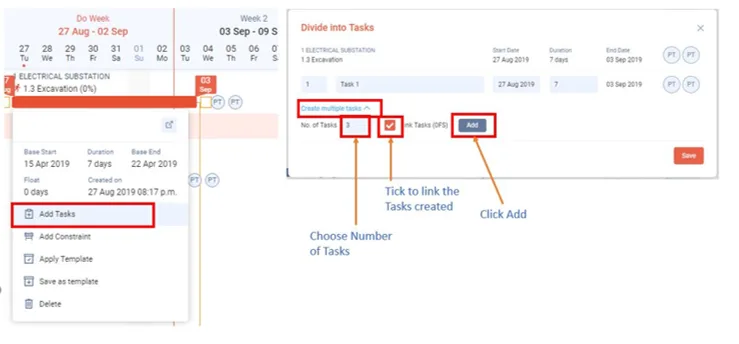
Watch how to create multiple tasks:
Task details
Number of tasks
- Before you create the tasks, decide how many you need. Enter the number in No. of Tasks.
Task name
- In the detailed view of an activity, under Task list, tick Enable prefix to add a task prefix. See Add a task prefix.
- A task prefix relates each task back to the activity it belongs to. For example, use the first prefix for the zone the task is in, and the second for the building level.
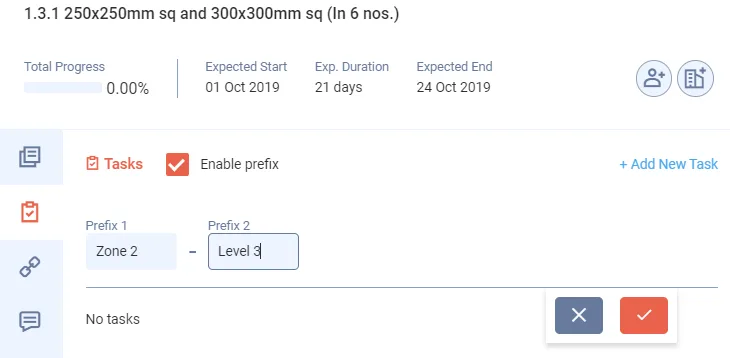
- The task prefix applies to every task created under that activity.
Link tasks
- Linking tasks creates dependencies between them. If you select Link Tasks (0FS), each task starts the working day after the previous one ends (finish-to-start, 0 lag). The dates recalculate as you edit.
Company and supervisor in charge
- The company in charge is responsible for finishing the work under the activity. The assignee should be the engineer in charge from the Main Contractor company. The assigned company should be the Subcontractor company.
- The supervisor has full control over the tasks assigned to the company in charge. The supervisor oversees the work and can override the progress the company in charge enters. In Assignee, you can pick Main Contractor or Client members as the task's user.
To create one task at a time, read Create a single task.
Last updated 2023-07-10. Part of Lookahead in the Lean PlanDo manual. Lean PlanDo by Lean Station.