
Lean PlanDo manual › Templates
Create a blank template
Build a new form from scratch in the Flow form builder, customise its fields, then save and publish it.
If you do not want to use an existing Library form, create a new form from scratch with the Form Builder.
Create the form
-
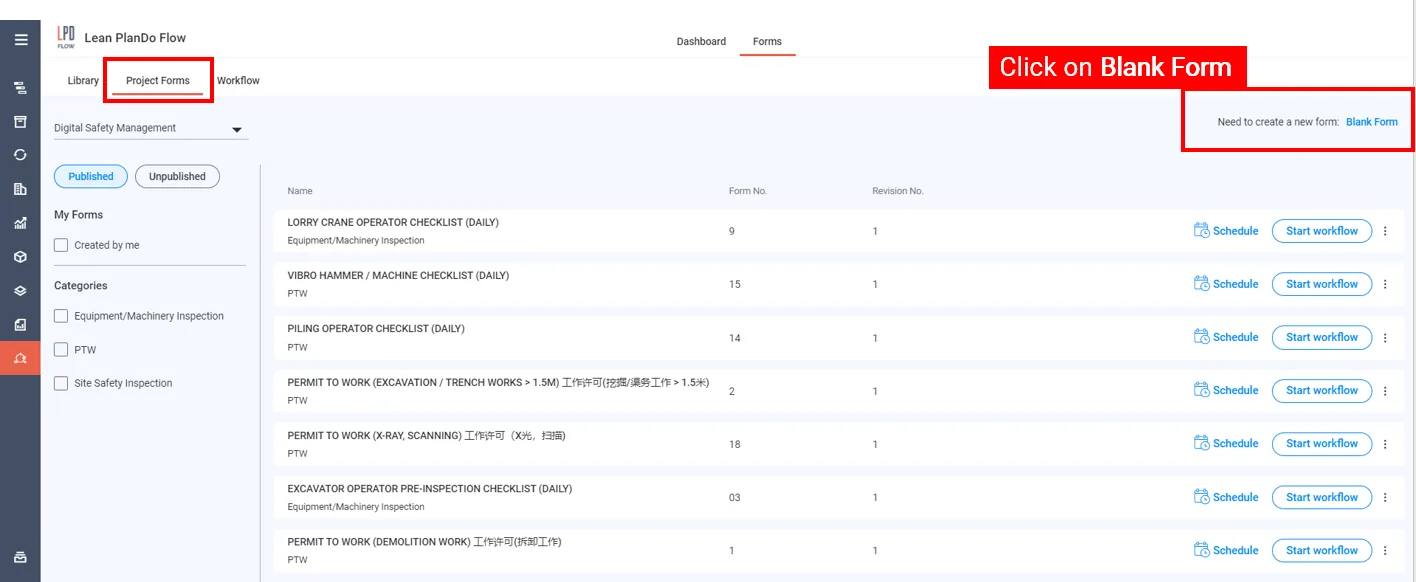
In Flow, open the Templates tab.
-
Click Blank Form.
-
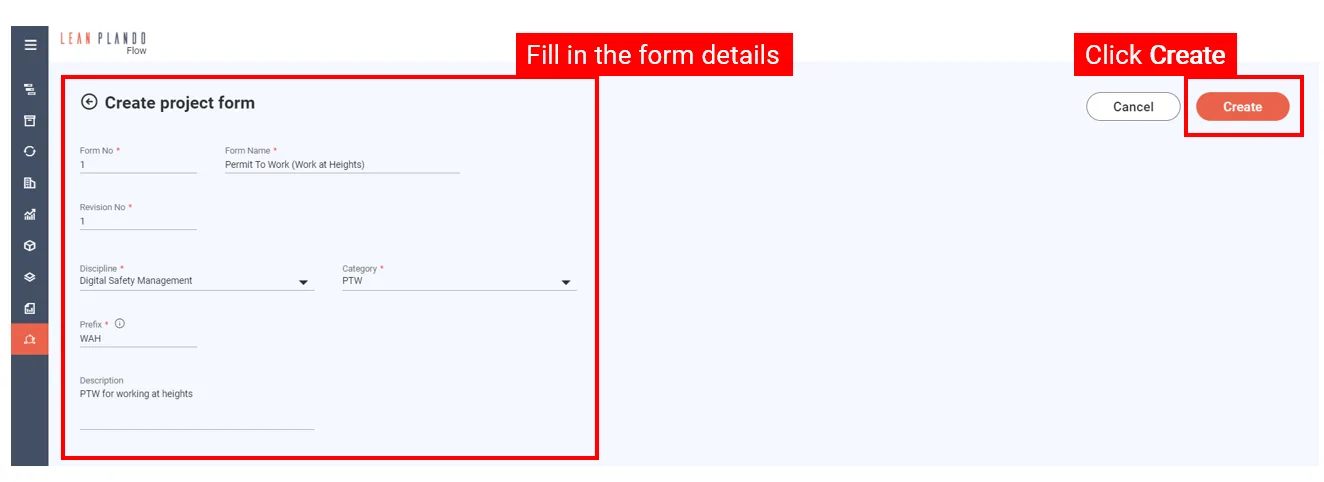
On the Create Template page, enter ISO No., Template Name, Revision No, Discipline and Category (all required), and a Description if you want one.
-
Click Create.
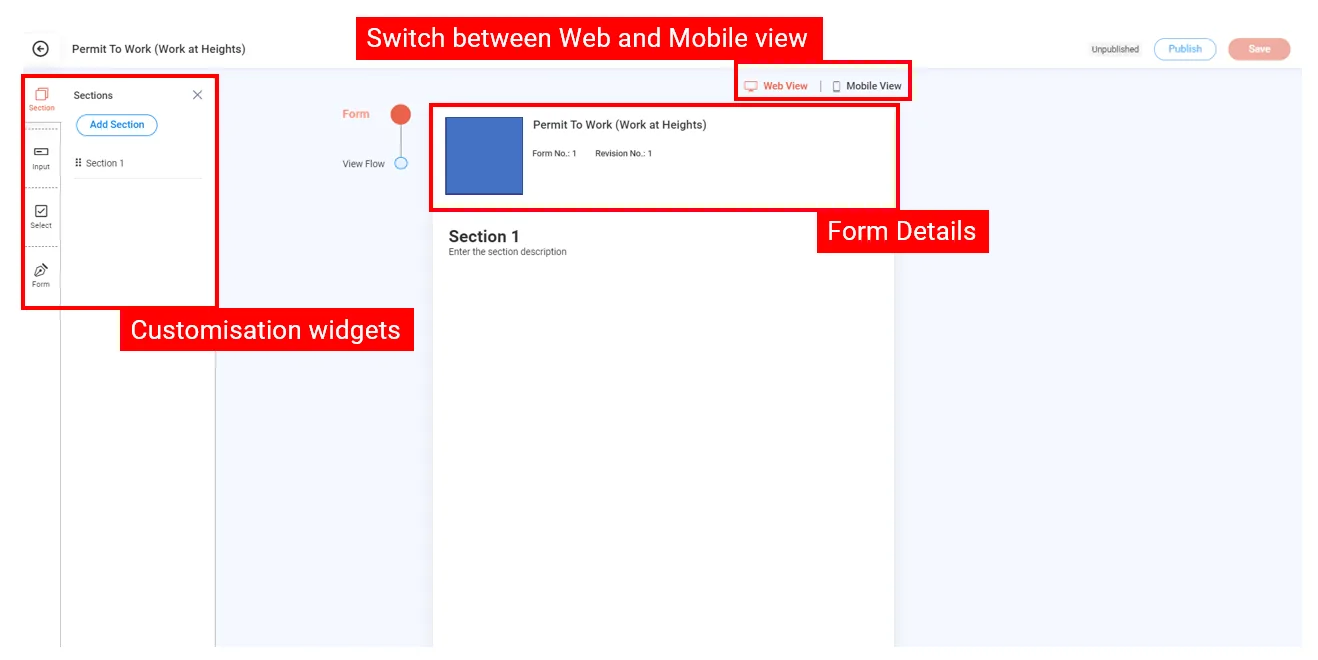
Customise your form
The builder has three tabs at the top:
- Flow: the workflow builder. See Create a workflow.
- Form: the form builder.
- Details: change the template name, ISO number, revision number, category, prefix and description. Changes here do not affect workflows already running.
Use Web View to build the form. Use Mobile View to preview it as it appears on a phone.
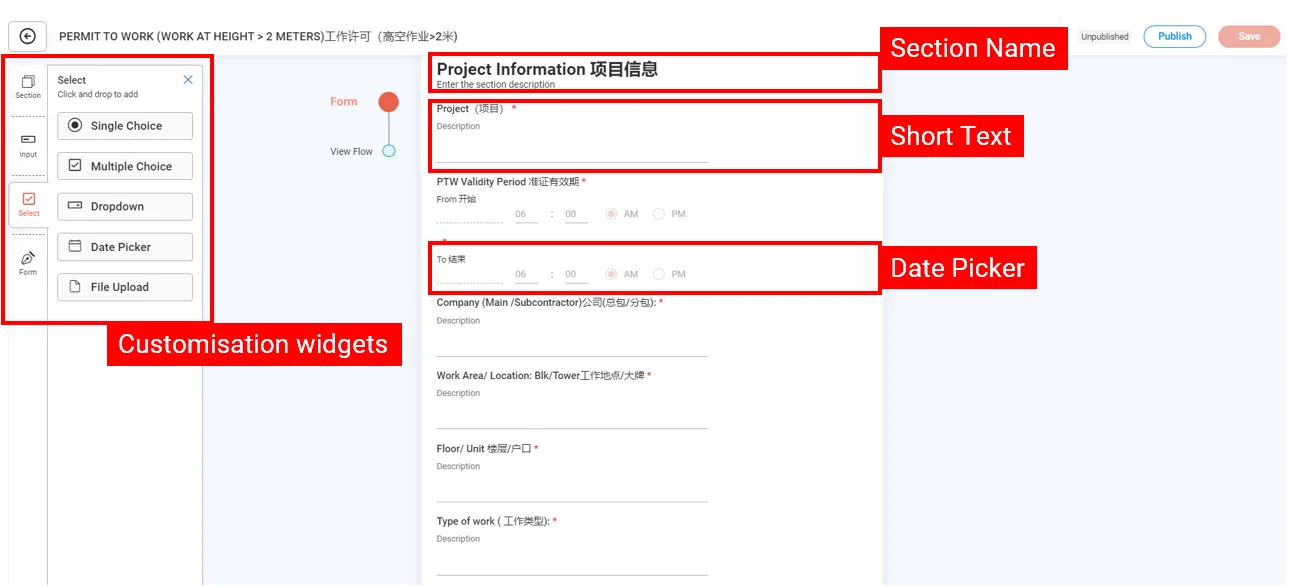
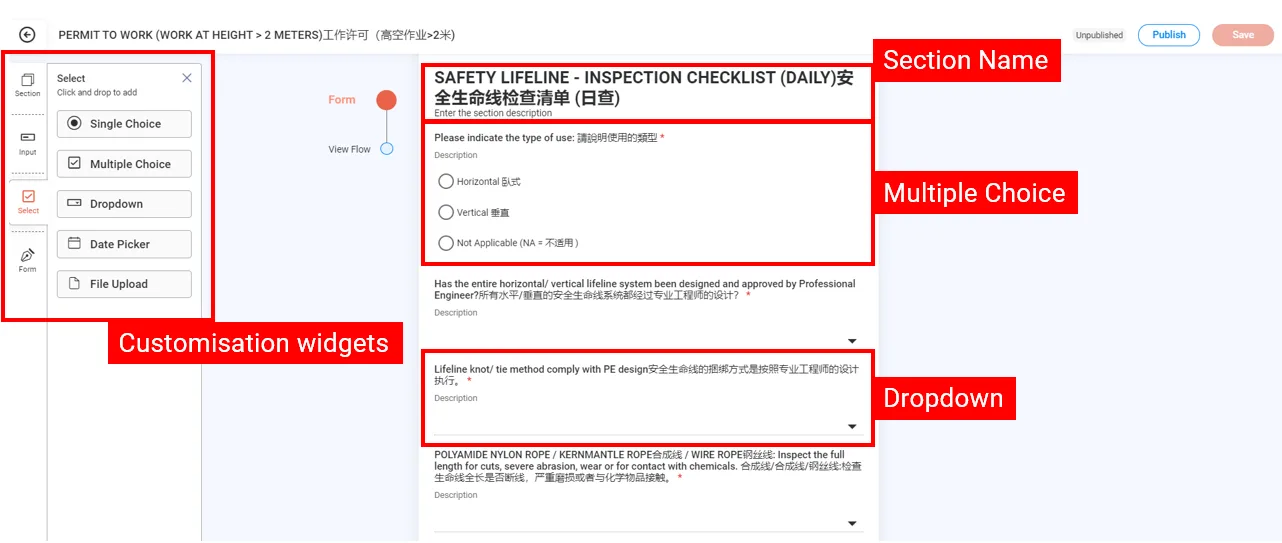
In Web View, the widgets for your form's content are on the left.
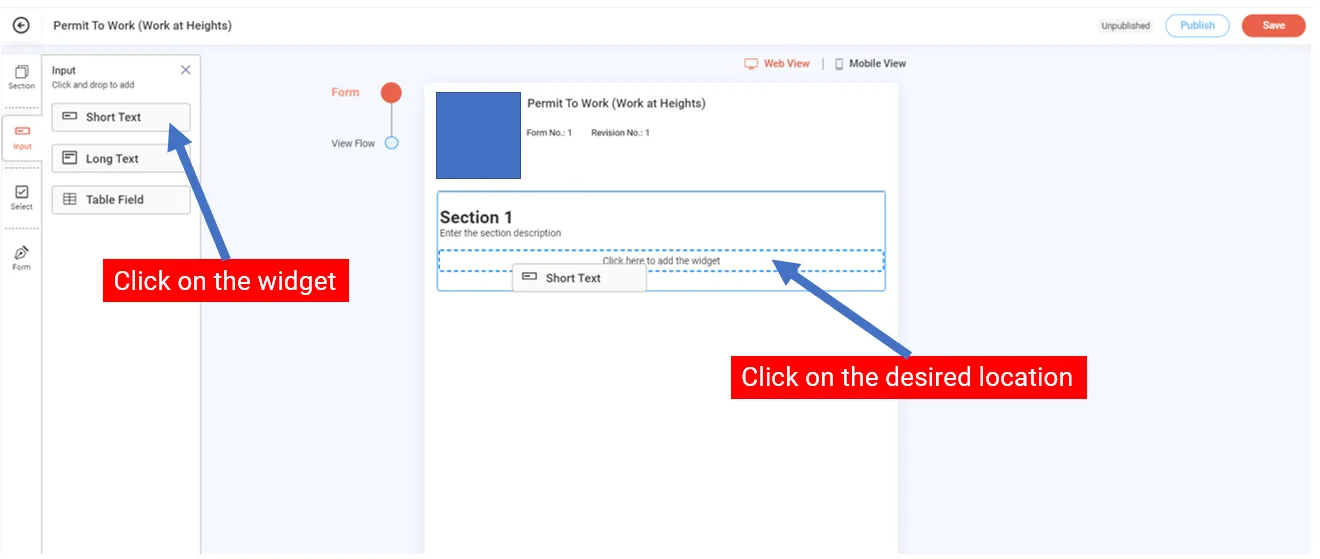
To add a section to the form, or remove one, use the section controls in the Form tab:
- Section: add several sections to separate the parts of your form.
- Title: add a Heading, Sub Heading or Paragraph to label parts of the form or add instructions. These are text, not input fields.
- Input: choose Short text, Long text or Table field.
- Select: choose Single choice, Multiple choice, Dropdown, Date picker or File upload.
- Form: add a signature field, so users can sign directly on the form (e-signature).
Save and publish
- Click Save at the top right.
- To make the form available for workflows, click Publish at the top right. If you have unsaved changes, click Save and proceed when asked. The tag beside the button changes from Unpublished to Published.
Only published forms can start a workflow. You need publish permission. See Start or schedule a workflow.
Last updated 2023-07-19. Part of Templates in the Lean PlanDo manual. Lean PlanDo by Lean Station.