
Lean PlanDo manual › Workflow and History
Start or schedule a workflow
Publish a Flow template, then start its workflow now or schedule it for a set date with assignees for each step.
Once a form has a workflow attached, you can start the workflow among your project team. Start it now, or schedule it for a set date.
The form must be published first. Only a published form's workflow can be started or scheduled.
Publish the form
- In Flow, open the Templates tab.
- Choose Unpublished.
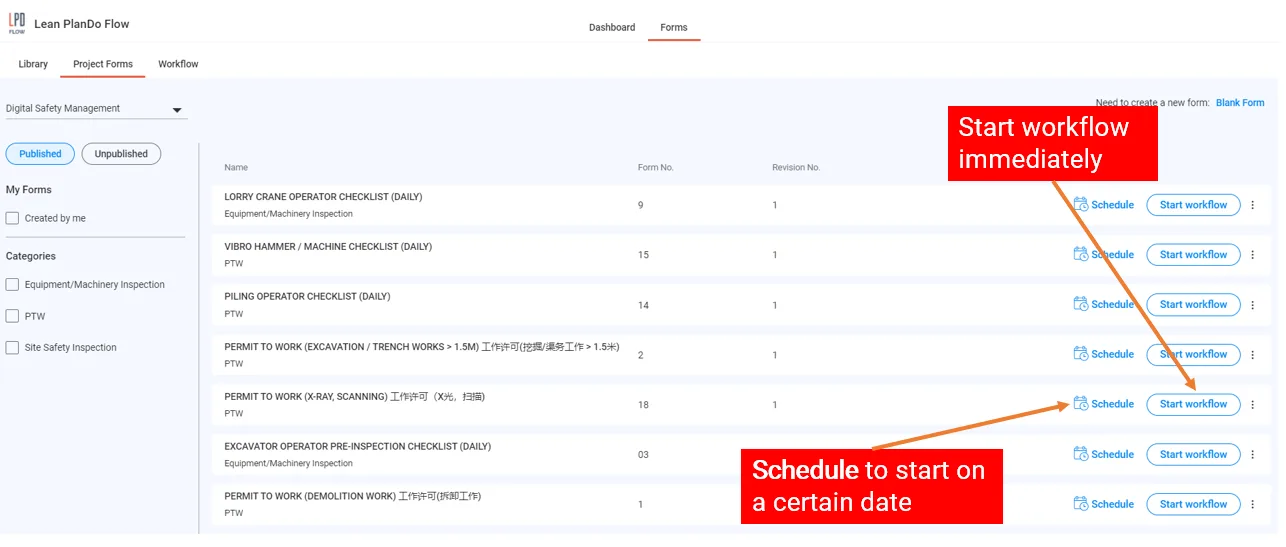
- Click Publish beside the form. Lean PlanDo shows Publishing form, and the form moves under Published. Schedule and Start workflow now appear beside it.
You can also click Publish at the top of the open form. If you do not see Publish, the form is already published or you do not have permission to publish forms. To take a form back, use Unpublish in its three-dots menu.
Schedule a workflow
-
In Flow, open the Templates tab.
-
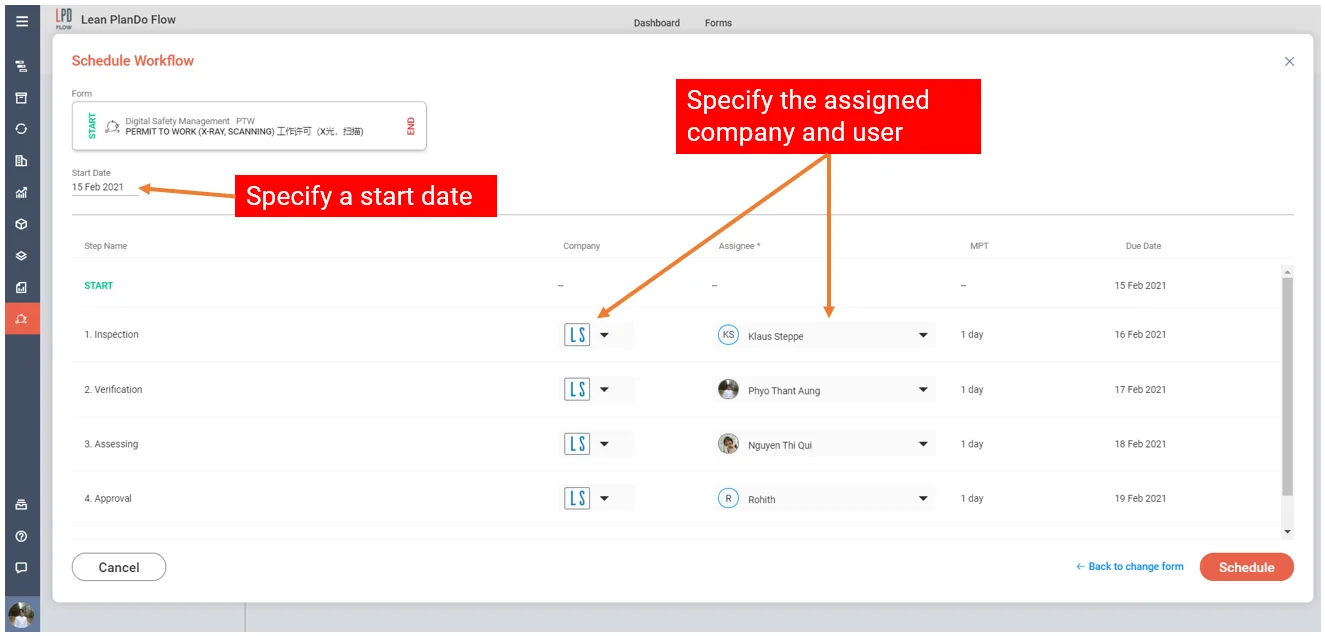
Beside a published form, click Schedule to start the workflow on a set date. The Schedule Workflow dialog opens.
-
Pick the Start Date. It can be today or later, and non-working days are blocked.
-
Choose the assignee and company for each step.
-
Click Schedule. The button stays disabled until the first step has an assignee and company.
Start a workflow now
-
In Flow, open the Templates tab.
-
Beside a published form, click Start workflow. The message Workflow started successfully appears.
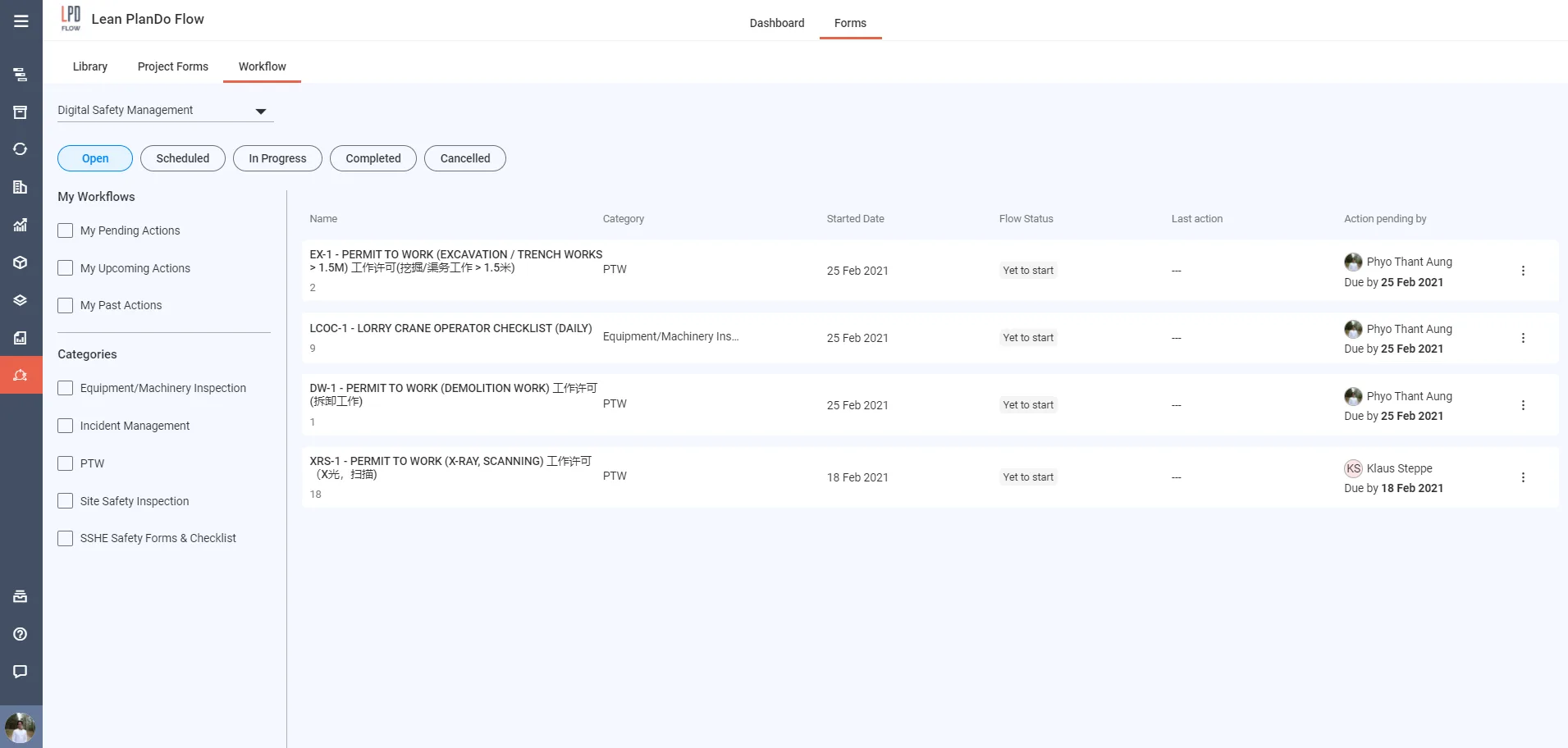
Started and in-progress workflows appear in the Workflow tab. See Workflow tab.
Last updated 2023-07-19. Part of Workflow and History in the Lean PlanDo manual. Lean PlanDo by Lean Station.