
Lean PlanDo manual › Workflow and History
Workflow tab
Find, filter, export and cancel the workflows your team has started in the Workflow tab of Lean PlanDo Flow.
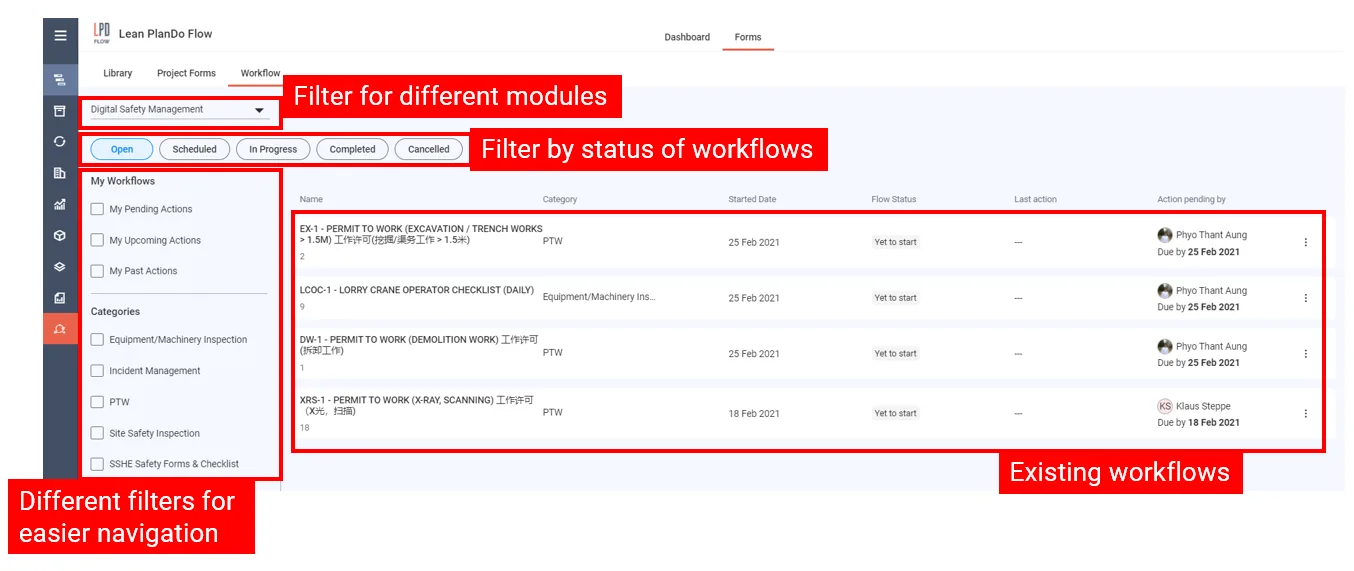
The Workflow tab shows every workflow that you or your team have started.
Find a workflow
Workflows are split into status tabs: Scheduled, In Progress, Completed and Cancelled.
Narrow the list with:
- the discipline drop-down
- action status: Action pending, Upcoming action, Action taken, Collaboration pending
- My Workflows
- Critical Workflows
- Potential Delays
- Overdue Actions
- companies
- a From and To date range
- categories
Each workflow shows its status: whether it has started, what the last action was, and who takes the next action.
Generate QR codes or export
Generate QR and Export sit at the top right of the list, beside the discipline drop-down. Each shows only where its feature is on.
- Click Generate QR to download QR codes as a PDF. In Generate QR Code, set the No of QR codes and a Caption (40 characters at most), then click Download PDF.
- Click Export to download the workflows as an .xlsx file. Choose the Status (In-progress or Completed), then click Export.
Cancel a workflow
If a workflow is no longer valid or in use, cancel it:
- Open the workflow's menu and click Cancel.
- Enter the Cancel Reason.
- Click Cancel Workflow.
A cancelled workflow cannot be started again. It moves to the Cancelled tab.
Last updated 2023-07-19. Part of Workflow and History in the Lean PlanDo manual. Lean PlanDo by Lean Station.