
Lean PlanDo manual › User Guides
User guide for site team
How the site team signs up, installs the Lean PlanDo Site app and updates task progress, photos and comments from site.
As a member of the site team, use the Lean PlanDo Site app to see how site work is planned, update the progress of your tasks, and follow project status and performance. This guide shows you how to get started and update your site tasks.
Lean PlanDo is a project delivery tool built on lean methods. Your project team uses the Integrated Lean Project Delivery (ILPD) workflow with the Plan, Do, Check, Act (PDCA) cycle to plan, monitor and improve the project. For an overview of the ILPD method, see Getting started.
Lean PlanDo is cloud based, so you do not need to install any software. You need an internet connection and a laptop, tablet or phone.
Sign up and log in
You can create your Lean PlanDo account on your phone.
- Go to https://app.leanplando.com/.
- Click Create New Account to register.
If you already have an account, on the web log in with your Email Address and Password, or click Login with email OTP or Login with Autodesk.
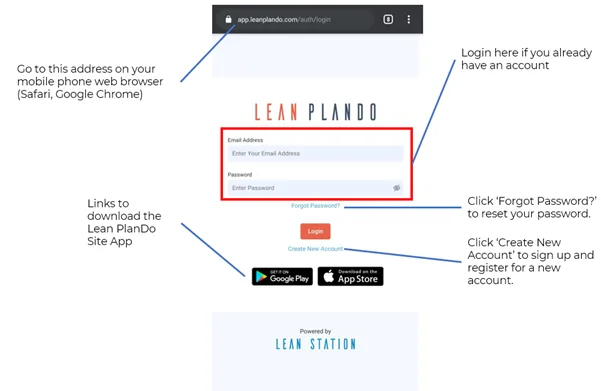
When your email address is added to the main contractor company in a project, your account is created automatically if you do not have one. Lean PlanDo sends you an email to confirm your account. You can open this email on your phone and confirm your account there.
For step-by-step instructions, see Sign up.
Once your account is confirmed, log in. See Log in.
Install the app
Install the Lean PlanDo Site app to track and update site work on the go. It is available for Android and iOS. Search for "Lean PlanDo Site" in the App Store (iOS) or Google Play Store (Android). The app has this icon:
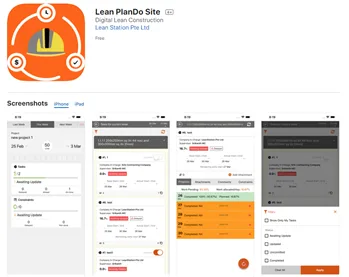
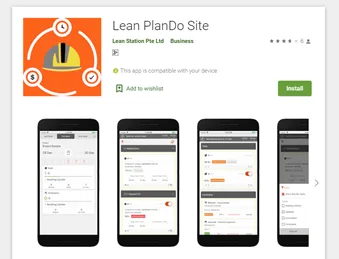
In the app you can monitor and update the status and progress of tasks on site, and add comments, photos and documents to them.
Update your site tasks
-
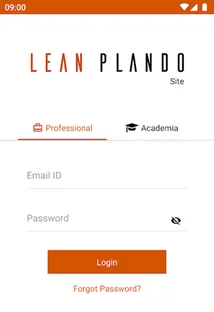
Open the Lean PlanDo Site app. Enter your email ID and password, and tap Login.
-
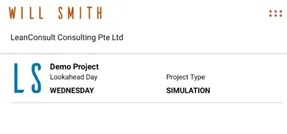
Tap the project you were invited to.
-
View the task list for the project.
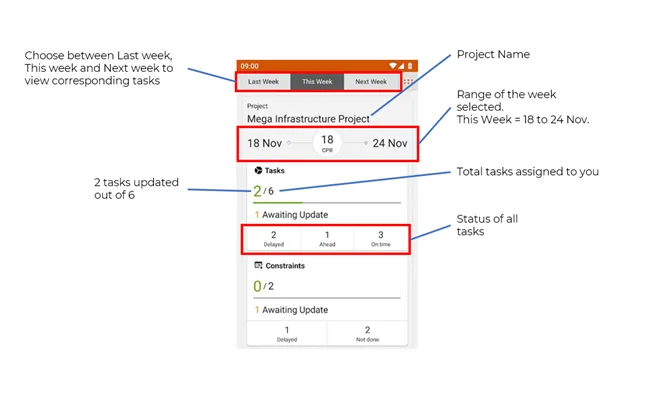
The screen also shows the CPR (Construct Plan Reliability), one of the KPIs Lean PlanDo calculates from your team's input. See Commitment and reliability.
-
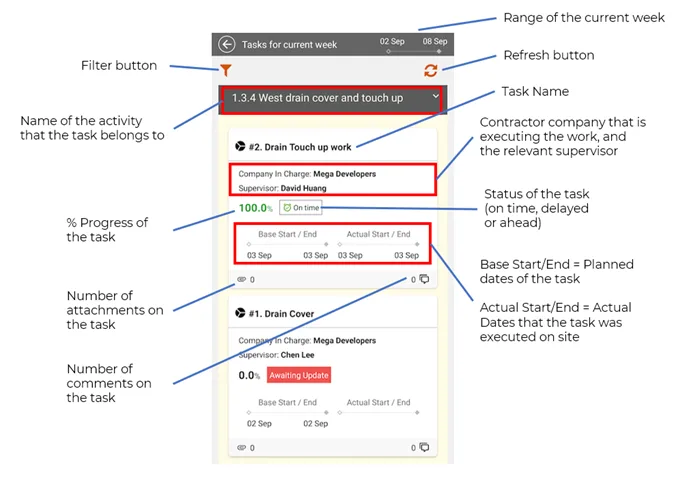
Tap the Tasks tab. Update the tasks waiting for your progress input.
-
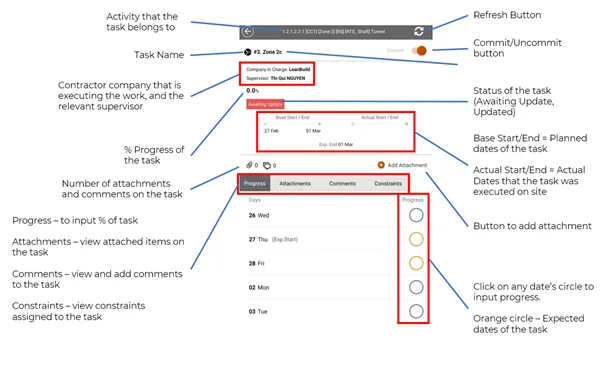
Tap the task you want to update.
-
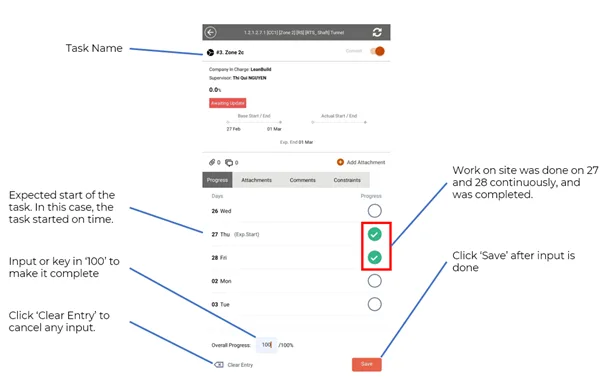
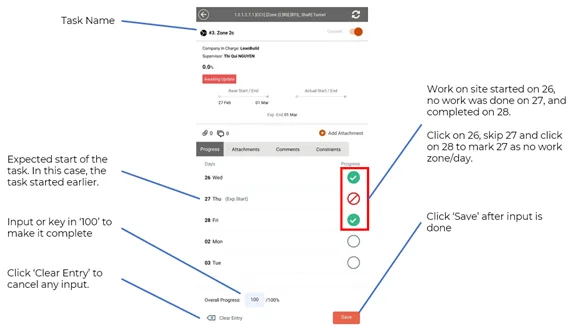
Enter the progress for each day. For example, you started on the 26th, did not work on the 27th and finished on the 28th. Mark the 27th as a Non-Working Day.
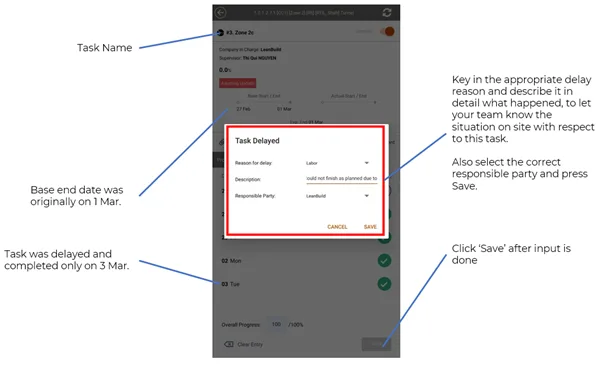
If you finish after the task's base end date, or take longer than planned, the app asks you to confirm the delay.
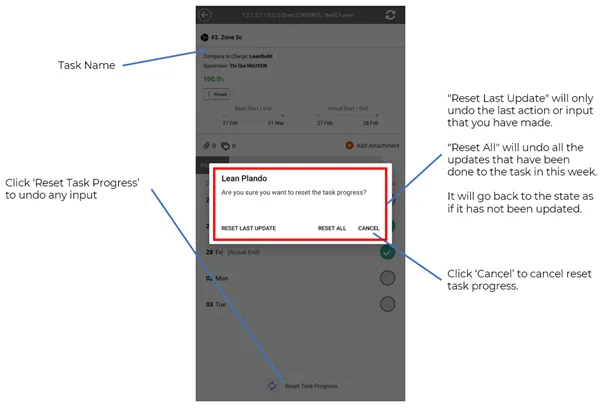
If you made a mistake, you can correct your progress input.
-
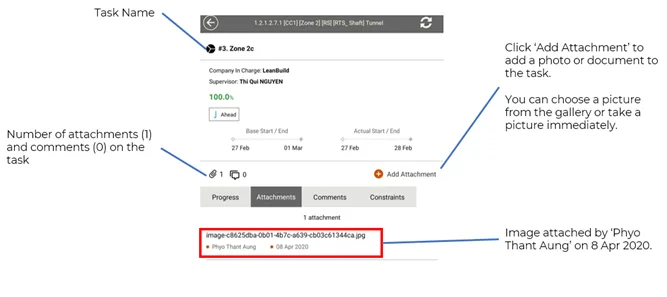
Add attachments or photos to the task.
-
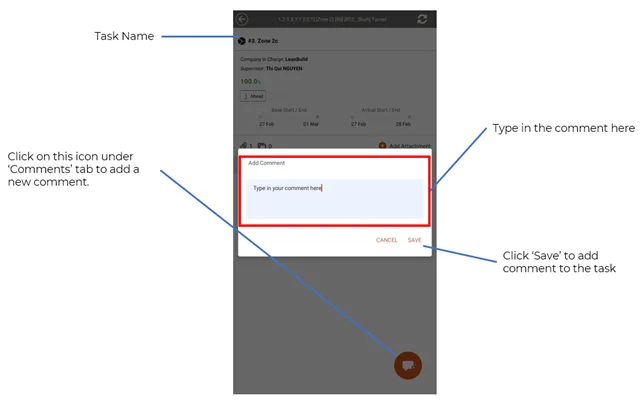
Add a comment to tell your supervisor and colleagues anything about the task.
Other features
In a task's Constraints tab, you see any constraint planned to be done before the task. A constraint is work that must be cleared before a task can be done, such as getting site access. See Constraints overview.
For more on using the app, see The Lean PlanDo Site app.
The features above matter most for the site team taking part in the project. To learn about other features, and how other team members plan and monitor, explore the full manual.
Last updated 2020-05-18. Part of User Guides in the Lean PlanDo manual. Lean PlanDo by Lean Station.