
Lean PlanDo manual › Lookahead
Manage steps under a task constraint
Edit the status, due date and assignee of each step in a task constraint.
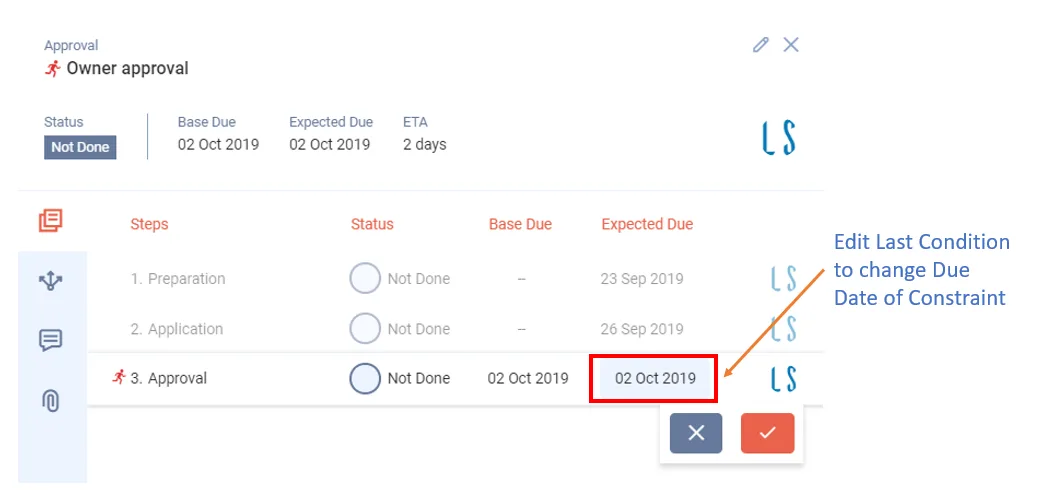
Edit the steps of a task constraint to change their status, due date or assignee. A step is one part of a constraint; a step not done shows as an empty circle with a grey outline, a done step as a filled green circle. Steps are the actual prerequisite work needed to complete the constraint before the task starts.
- The last step's due date is the task constraint's due date.
- Each step has three parts: status, due date and the company or user assigned to it.
Edit a step
- Double-click the constraint (the circle in line with its task).
- Hover over the step you want to edit and click Edit step (pencil icon).
- To change the assignee, select the Assignee circle and select the new assignee.
- To change the due date, click the calendar in the Expected Due Date box and select the date.
- To set the status, click the Circle beside the step.
Steps under activity constraints work the same way. See Manage steps under an activity constraint.
Last updated 2023-07-10. Part of Lookahead in the Lean PlanDo manual. Lean PlanDo by Lean Station.