
Lean PlanDo manual › Masterplan
Manage steps in an activity constraint
Edit the assignee, due date and status of each step in an activity constraint, and read the delay icons.
A constraint (work that must be cleared before a task can be done, such as getting site access) is made of one or more steps (one part of a constraint). Steps are the actual prerequisites under a constraint: the individual pieces of work done to complete it.
- The last step's due date is the activity constraint's due date.
- In the detail view's Overview tab, each step shows its Status, its base and expected Due Date and its assignee.
- In the Gantt chart, a step that is not done shows as an empty circle with a grey outline. A done step is a filled green circle.
Edit a step
- Double-click the constraint circle to open its detail view.
- Hover over the step and click Edit step (pencil icon). The pencil does not show for steps due before the Lookahead start.
- To assign a user, select them.
- To change the due date, pick a date in the expected Due Date. It cannot be earlier than the previous step or the Lookahead start. Non-working days are blocked.
- To set the status, click the round mark to set Done or Not Done. For Done, select the date the step was done. It cannot be after today: a future date changes to today.
- Click the tick button to save.
The same detail view is used in the Masterplan and the Lookahead, so you can edit steps in both.
Delay icons
When a step is delayed, a running man icon shows it.
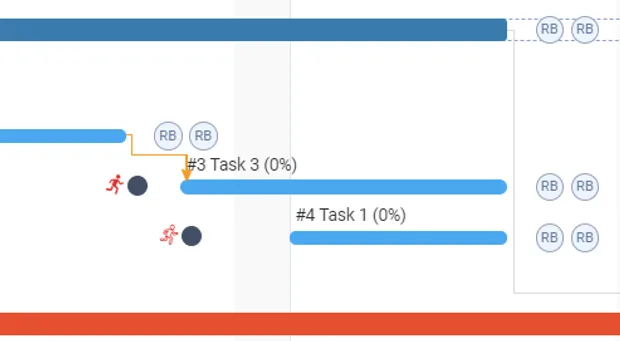
- Running man with only a red outline: the constraint is delayed, but the activity or task start date is not affected. There is still enough time between the constraint and the activity or task for the ETA.
- Solid red running man: the constraint's delay has affected the activity or task.
Last updated 2023-07-10. Part of Masterplan in the Lean PlanDo manual. Lean PlanDo by Lean Station.