
Lean PlanDo manual › Masterplan
Manage an activity constraint
Open a constraint's detail view, mini widget or timeline view to edit it, check its status and track its steps.
You can manage activity constraints in the Masterplan. You can also manage them from the Lookahead. A constraint is work that must be cleared before a task can be done, such as getting site access.
A constraint has three views: Detail View, Mini Widget and Timeline View.
Detail view
Double-click the constraint circle to open the detail view. There you can:
- Edit the constraint name, description, ETA and assignee.
- Edit the due dates, assignee and status of each step (see Manage steps in an activity constraint).
- View the tasks or activities affected by the constraint, in the Affecting Works tab.
- Add or update comments and attachments, in the Comments and Attachments tabs.
The steps are in the Overview tab. Delays are recorded in the Delay history tab.
You cannot set the status or the due date directly:
- The status turns Done when all steps are done.
- The due date is the last step's due date. Change it through the ETA or the step dates.
To edit the constraint:
- Double-click the constraint circle.
- Click Edit (pencil icon) in the header.
- Change the name, description, ETA or assignee.
- Click the tick button to save. Click the cross to cancel.
To edit a step, hover over it and click Edit step (pencil icon). Make your changes and save each step on its own.
Mini widget
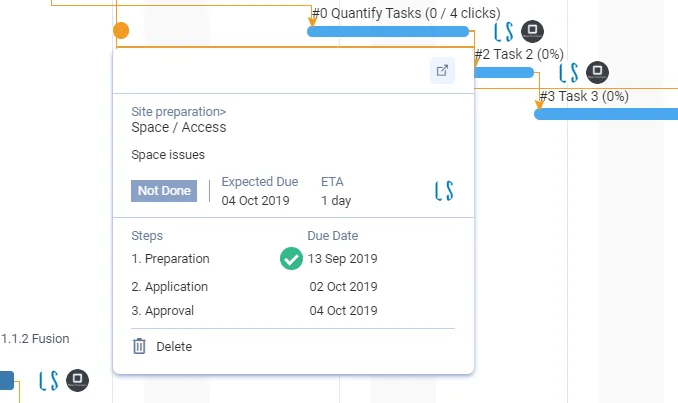
Click the constraint circle once to open the mini widget. It shows the status, the Expected Due (or Base Due) date, the ETA and the steps. Here you can change the assignee, assign the constraint to other work (Assign to), delete it (Delete) or open View all details. You cannot change the status of the constraint or its steps here.
Timeline view
- Hover over the constraint circle in the Gantt chart. An arrow pointing left appears.
- Click the arrow. The constraint expands into a timeline. Each circle is the due date of one step.
- To close the timeline, click the arrow pointing right beside it.

Last updated 2023-07-10. Part of Masterplan in the Lean PlanDo manual. Lean PlanDo by Lean Station.