
Lean PlanDo manual › Masterplan
Add an activity dependency
Link activities in the Masterplan as predecessors and successors, choose the dependency type and set a lag.
Add a dependency to link two activities in the Masterplan. A dependency makes one activity the predecessor or successor of another.
Add a dependency from the dialog
- Open the activity's Dependency list in one of two ways:
- Double-click the activity bar, then click the Dependency list tab.
- Hover over a leaf activity in the Gantt chart. Boxes appear at the start and end of its bar. Click a box.
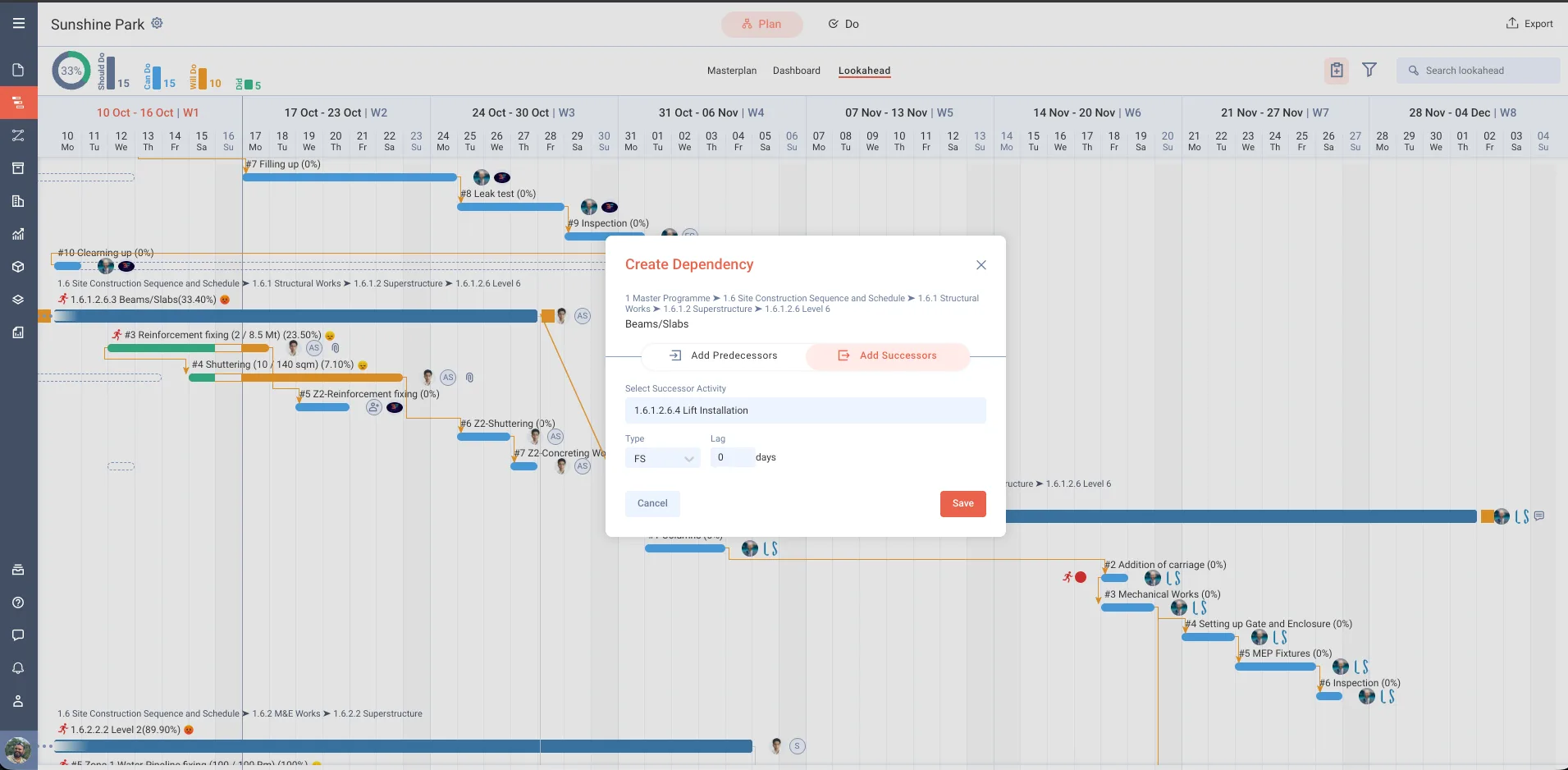
- Click + Add New Dependency. The Create Dependency dialog opens.
- Choose the Add Predecessors or Add Successors tab.
- In Select Predecessor Activity (or Select Successor Activity), search for the activity by its name or WBS number, and select it.
- Choose the Type: FS, SS, FF or SF. FF and SS are available only with milestones.
- Enter the Lag in days.
- Click Save.
Repeat these steps to add more dependencies. In the Dependency list, the Predecessors and Successors tabs show the dependencies you added.
Add a dependency by dragging
- Hover over a leaf activity to show the boxes at the start and end of its bar.
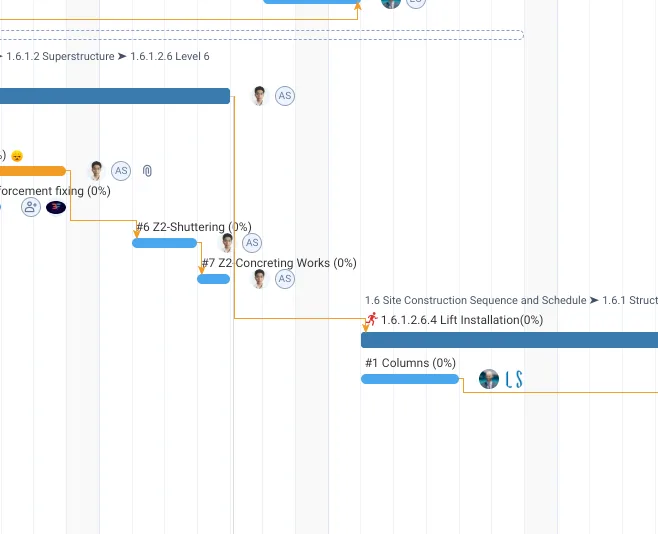
- Drag from one box to the start or end box of another activity. The Create Dependency dialog opens with the type already set. For example, from a finish box to a start box gives FS.
- Click Save.
The video shows how.
Dependency types and lag
There are four types of relationship between activities:
- Finish-Start (FS)
- Start-Start (SS)
- Finish-Finish (FF)
- Start-Finish (SF)
Lag is the number of days added between a predecessor and its successor. With a Finish-Start lag of 2, the successor starts 2 days after the predecessor ends. Lean PlanDo does not support negative lag: you cannot type a negative value.
Adding a task dependency works the same way. See Add a task dependency.
Last updated 2023-07-10. Part of Masterplan in the Lean PlanDo manual. Lean PlanDo by Lean Station.