
Lean PlanDo manual › Do List
Update a task constraint from the Do tab
Change the status, due date or assignee of a constraint's steps from the Do tab.
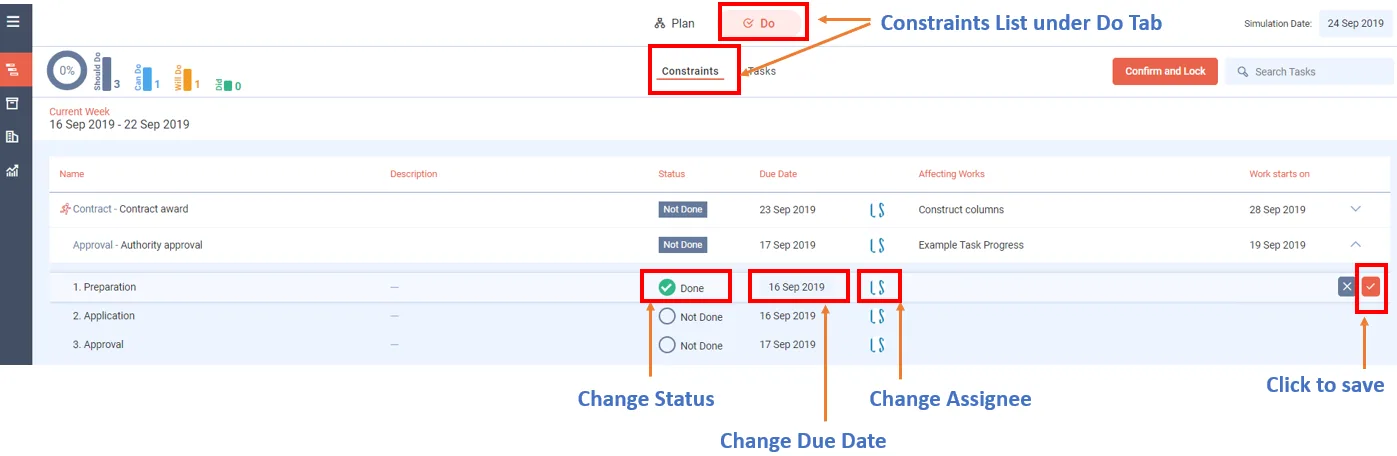
You can update the status of a constraint (work that must be cleared before a task can be done, such as getting site access) from the Do tab. You do this on each of its steps. A step is one part of a constraint; a step not done shows as an empty circle with a grey outline, a done step as a filled green circle.
- Click the drop-down arrow on the right of the constraint bar, or click anywhere on the bar. The constraint's steps open.
- Hover over a step. The Edit (pencil) button appears on the far right.
- Click Edit.
- Change the step's status, due date or assignee.
- Click the Tick to save.
Last updated 2023-07-10. Part of Do List in the Lean PlanDo manual. Lean PlanDo by Lean Station.