
Lean PlanDo manual › Masterplan
Masterplan screen
Switch between the Masterplan views, zoom the timeline, show only critical works and choose which columns to show.
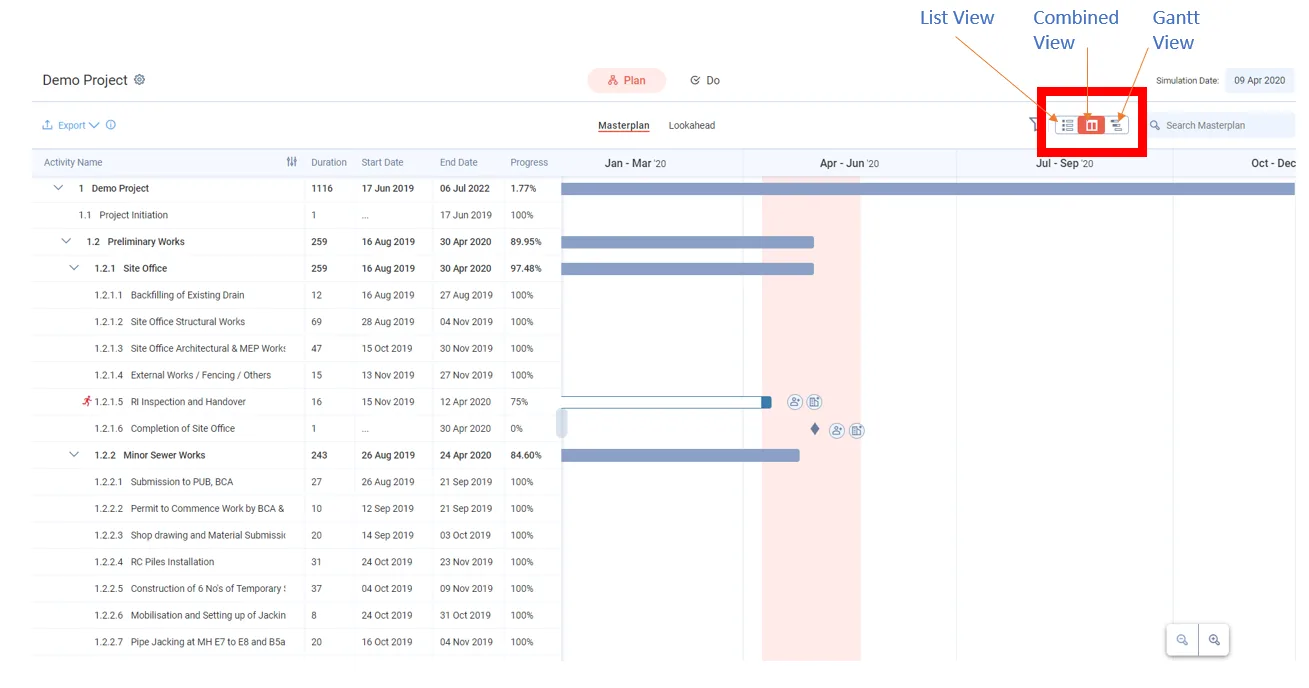
The Masterplan (the project's full schedule of activities, milestones and dependencies) has three views: List View, Combined View and Gantt View.
Switch views
Click the view buttons in the top right to switch between the three views.
Zoom the timeline
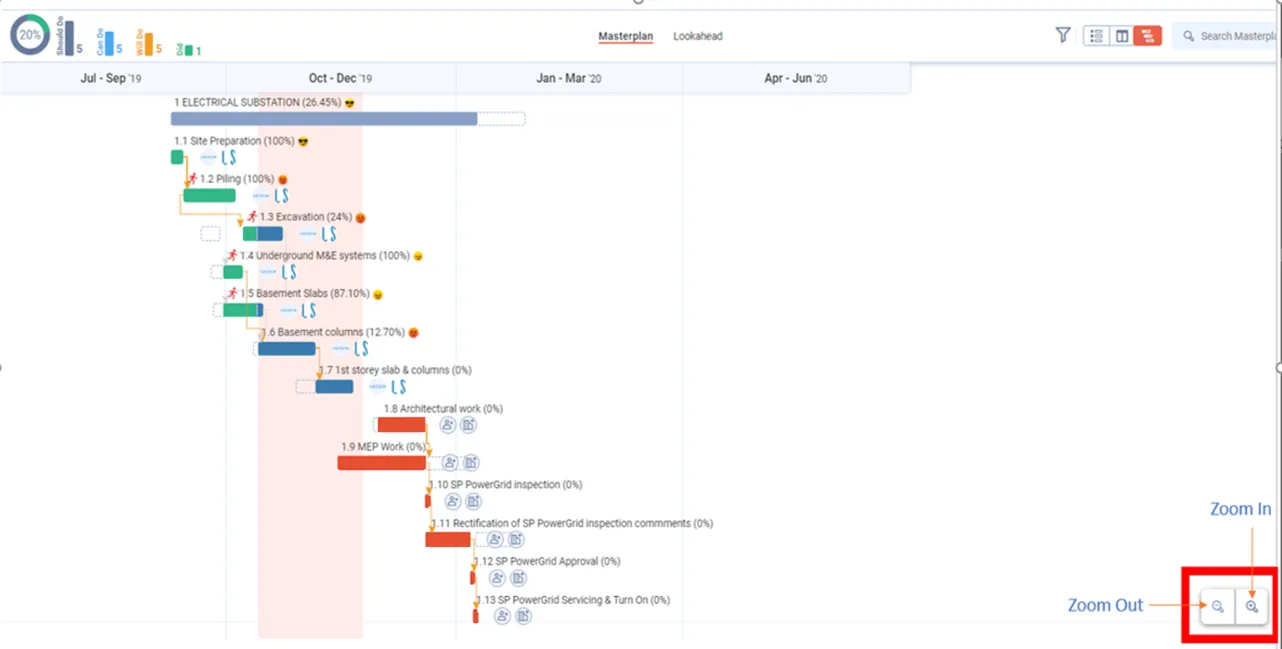
In Combined View or Gantt View, you can zoom in or out to make the timeline longer or shorter, as you prefer.
Show only critical works
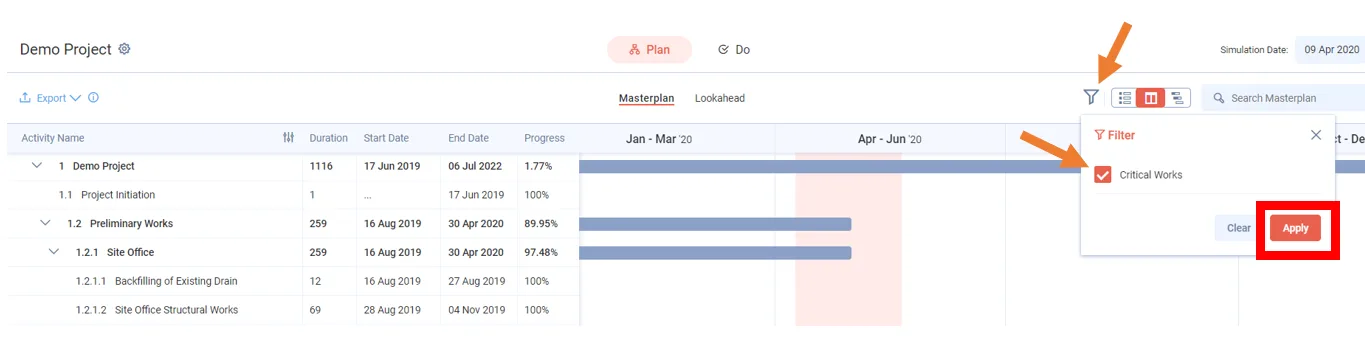
Use the filter to show only the Critical Path Activities. (The critical path is the activities and tasks where any change moves the project end date; critical activities show as solid red bars.)
- Click Filter, to the left of the view buttons.
- Tick Critical Works.
- Click Apply.
Choose the columns
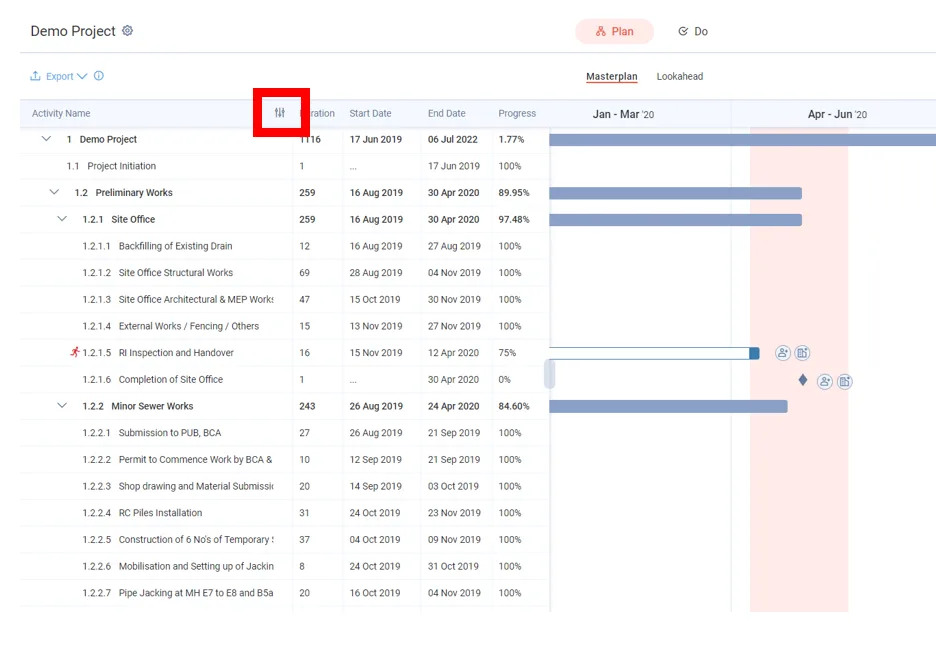
By default, List View shows only the Duration, Start Date, End Date and Progress of each activity. To see more:
-
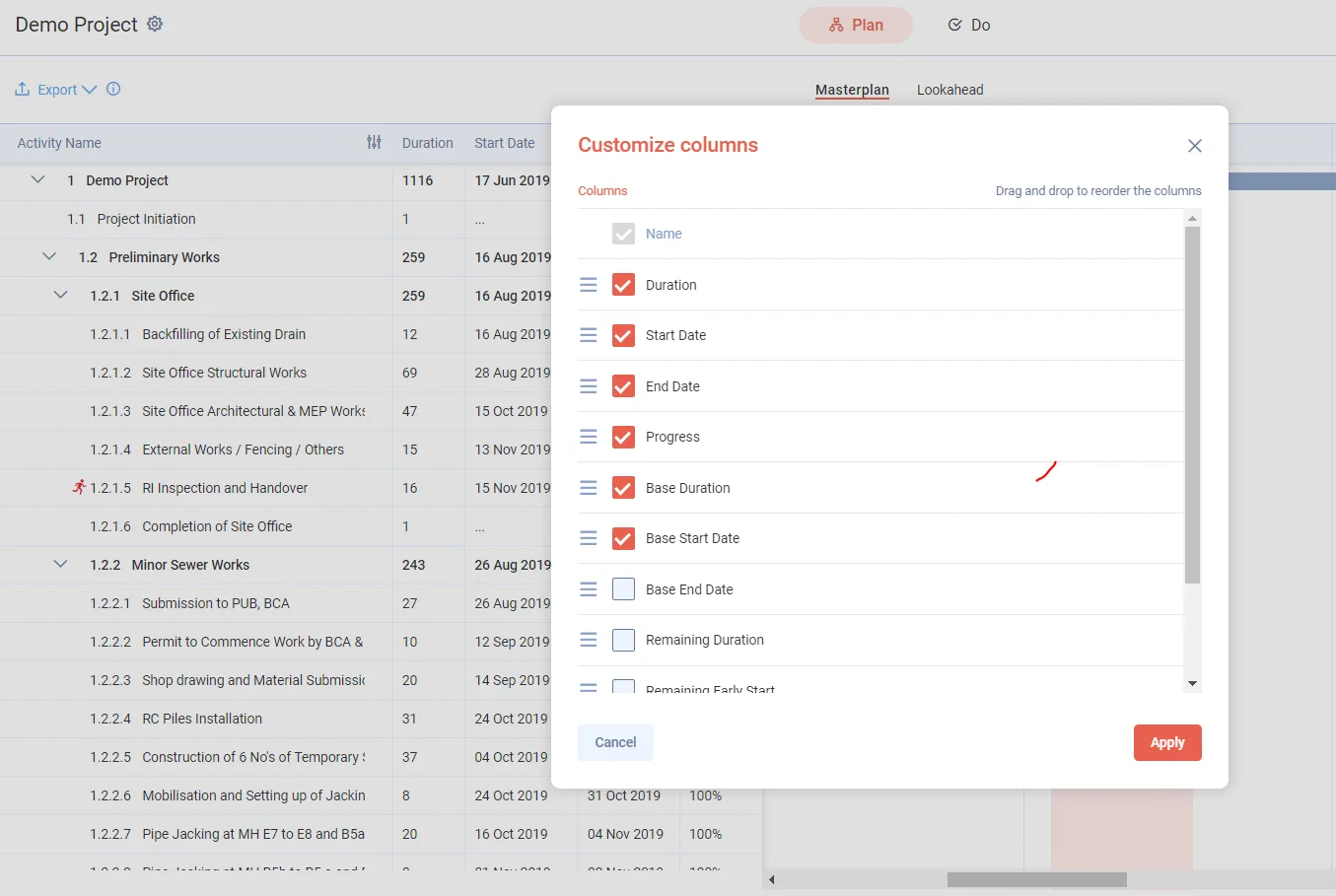
Click the columns icon to the right of the Activity Name column header. The Customize columns window opens.
-
Under Columns, select the columns you want, and drag them into the order you want.
-
Click Apply.
-
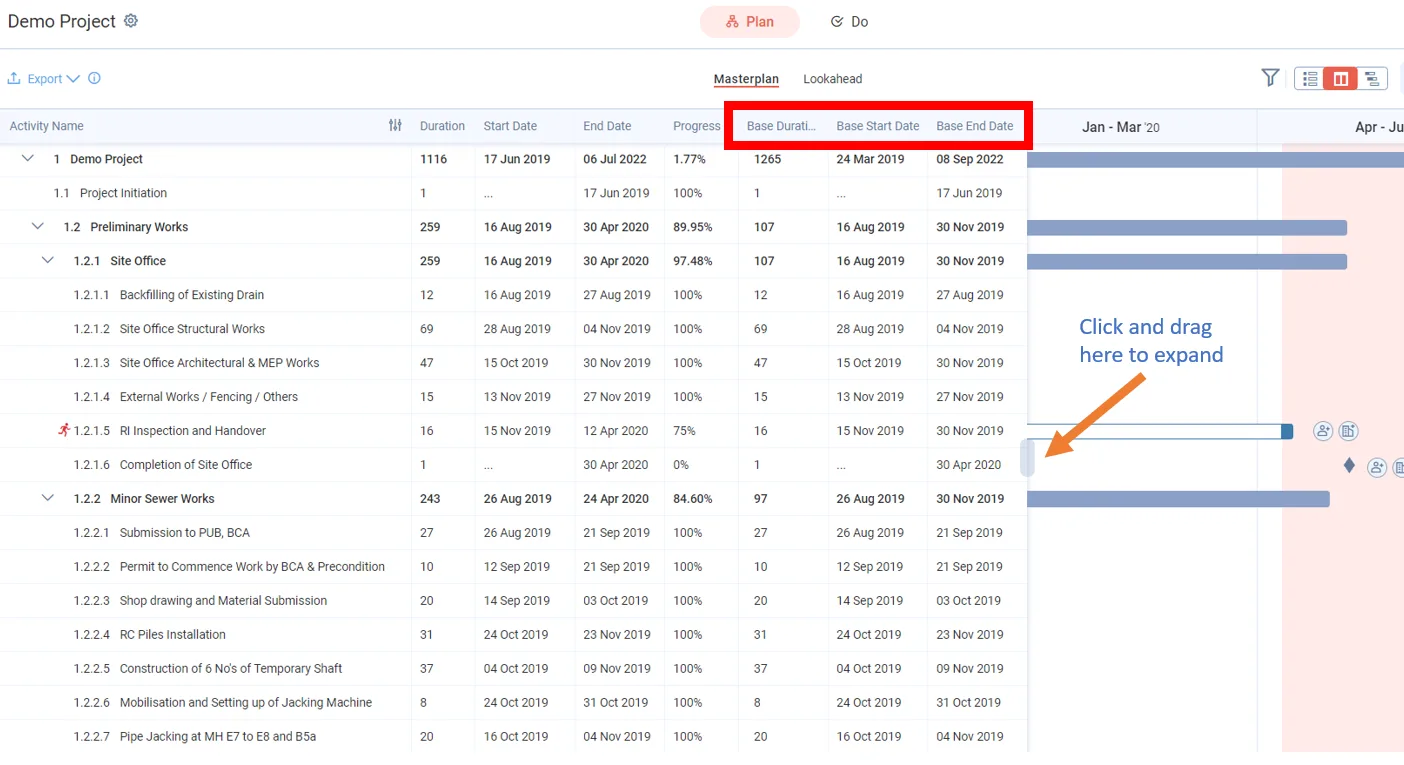
If needed, adjust the width of the List View to fit the added columns.
Watch a demo of the Masterplan screen:
Last updated 2023-07-10. Part of Masterplan in the Lean PlanDo manual. Lean PlanDo by Lean Station.