
Lean PlanDo manual › Create Project
Create a project by adding activities
Create a Lean PlanDo project without an imported schedule and build the Masterplan by adding activities yourself.
If you have no schedule to import, create the project and add the activities yourself in the Masterplan.
Create the project
-
After you log in, click Create New.
-
Fill in all the project details:
- Mode (schedule projects only): choose Production (the default) for a real project. It runs on today's date. Simulation is for training: the project runs on a Simulation Date shown in the header, which you can only move forward.
- Project Owner Role: choose Client or Contractor (the default). This decides whether your company joins the project as the Client or as the Main Contractor. You can see it later in Project Settings.
-
Click Create. A new screen opens.
-
Click Skip this step to start building activities from scratch.
Lean PlanDo gives you an empty Masterplan (the project's full schedule of activities, milestones and dependencies) to get you started. It has one parent activity (an activity with sub activities under it; you cannot record progress on it) and one leaf activity under it (an activity with no sub activities; you record progress here).
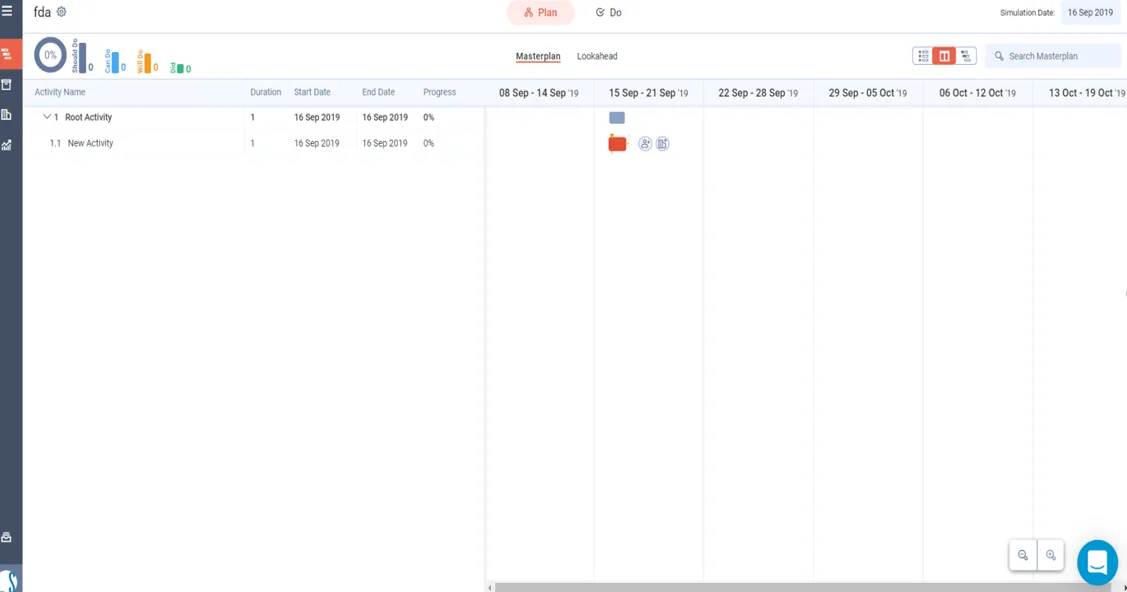
Add activities
To learn how to create new activities in the Masterplan, read Add an activity in the Masterplan.
Notes:
- A parent activity's duration changes to match the latest duration of its child activities.
- If you are a newly registered user without a commercial licence, your project expires 14 days after you create it. Until then, you can use all features. After it expires, the project shows Your 14 days free trial has expired, and only Lean PlanDo Insights is available. To buy a commercial licence, contact us through the chat option or email info@leanstation.com.
Last updated 2023-07-06. Part of Create Project in the Lean PlanDo manual. Lean PlanDo by Lean Station.