
Lean PlanDo manual › Reports
Create a template
Build a report template in Lean PlanDo Reports with a cover page, sections, text, images and Insights widgets.
Every report in Lean PlanDo Reports is built from a template, so create the template first. The template sets the structure of your weekly or monthly report, and you can customise it to suit your organisation.
Create the template
-
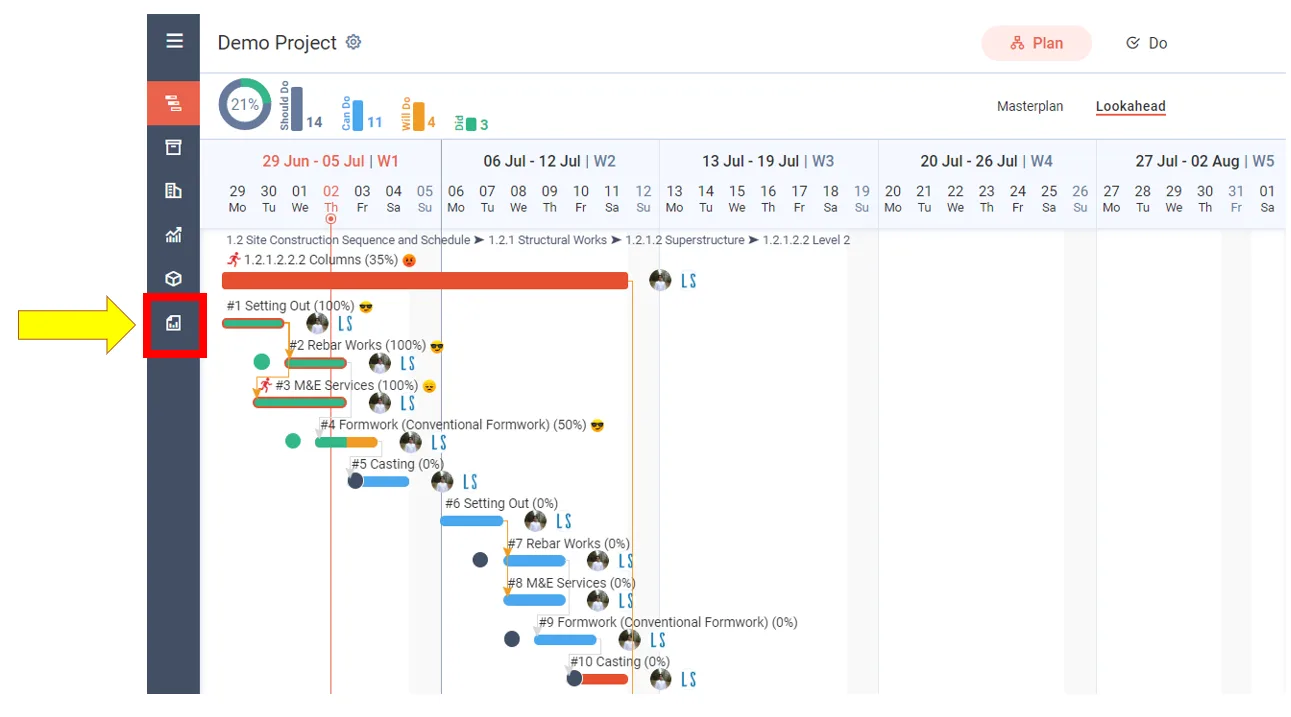
Click Reports in the side menu.
-
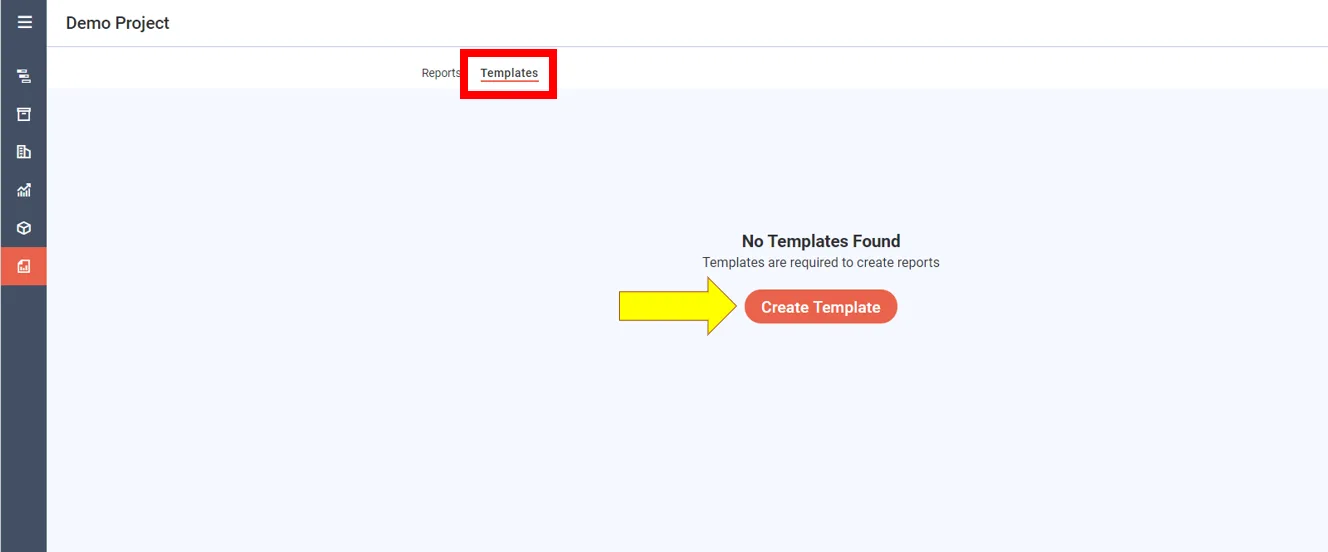
Open the Templates tab. The page has two tabs: Reports and Templates.
-
Click Create template.
-
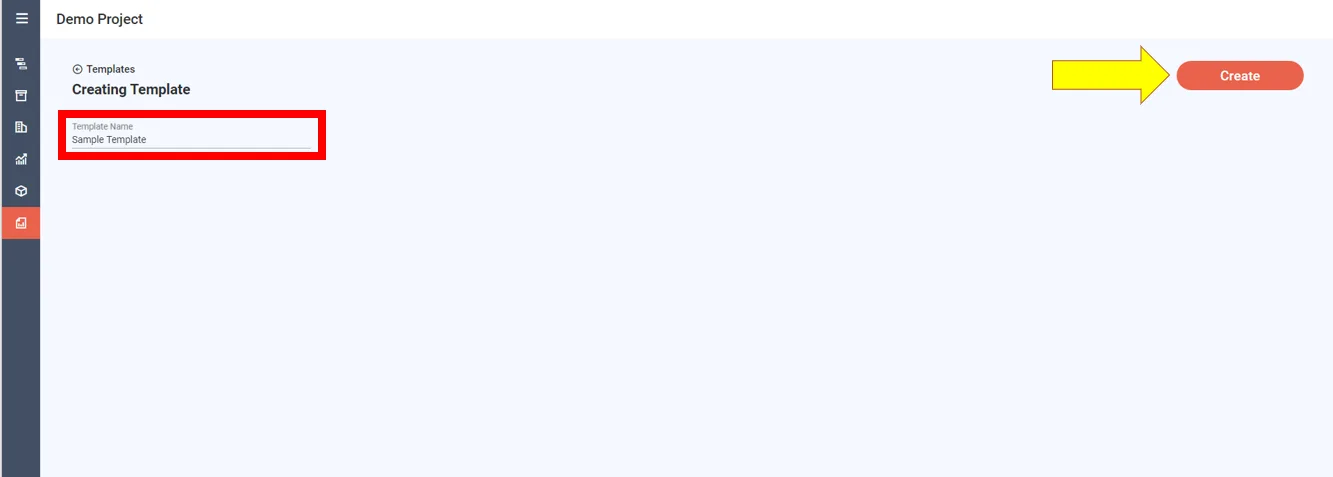
Type the name of the template.
-
Click Create.
Fill in the cover page
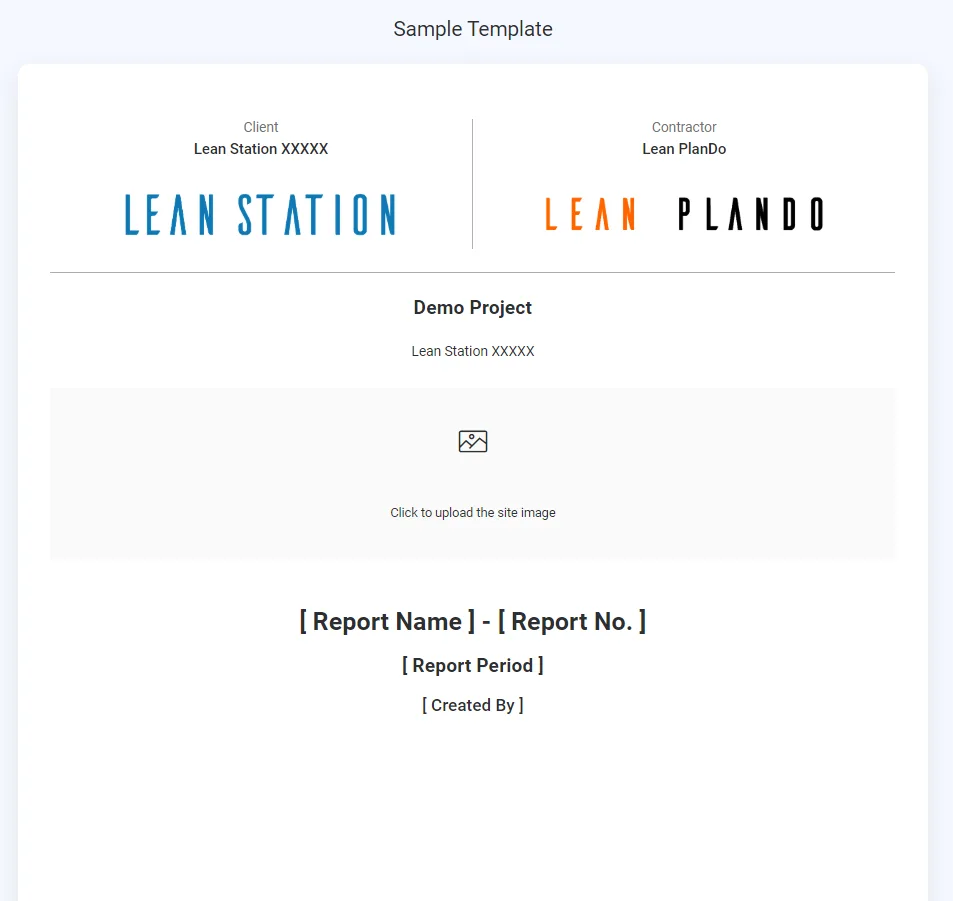
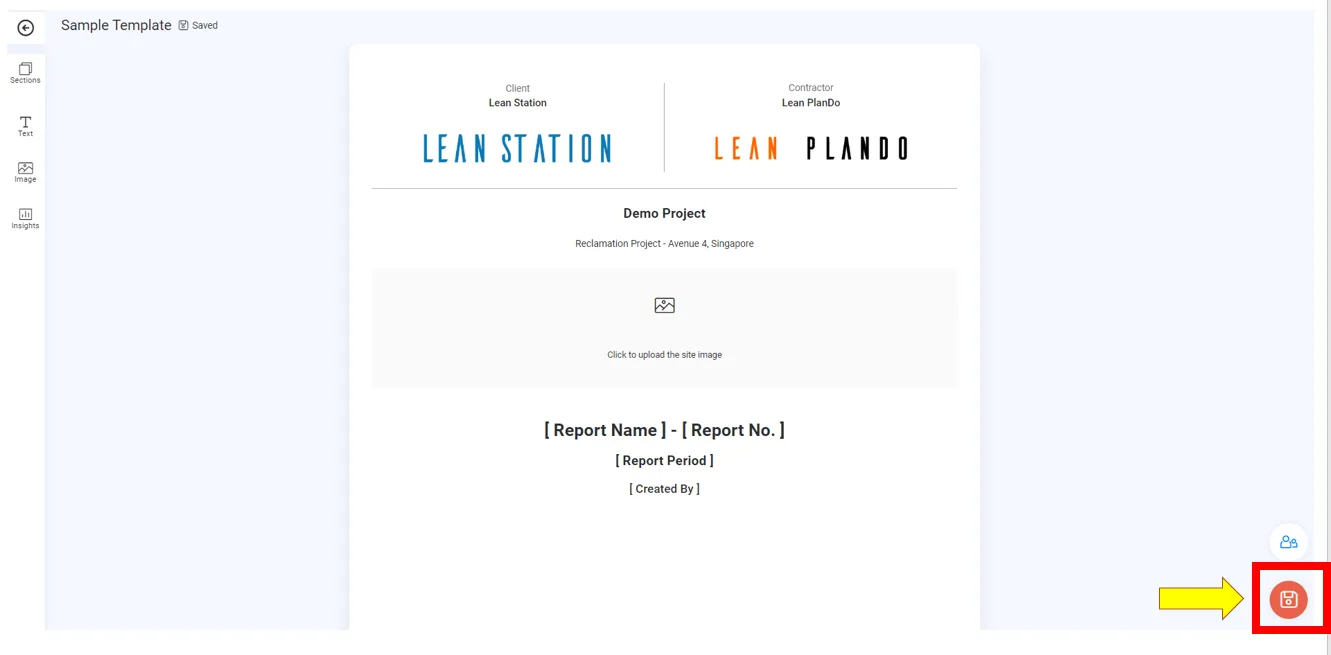
Each template has a cover page where you enter the client, contractor and consultant names and logos, a description of the project, and a site image for the cover.
Report Name, Report No., Report Period and Created by are filled in automatically when you use the template to generate a report.
Fill in the details and add the photos.
The left panel has four widget tabs to structure your report: Sections, Text, Image and Insights.
Sections
Sections split your report into parts. Each section can have its own title and description.
To add a section, click Add section in the Sections tab.
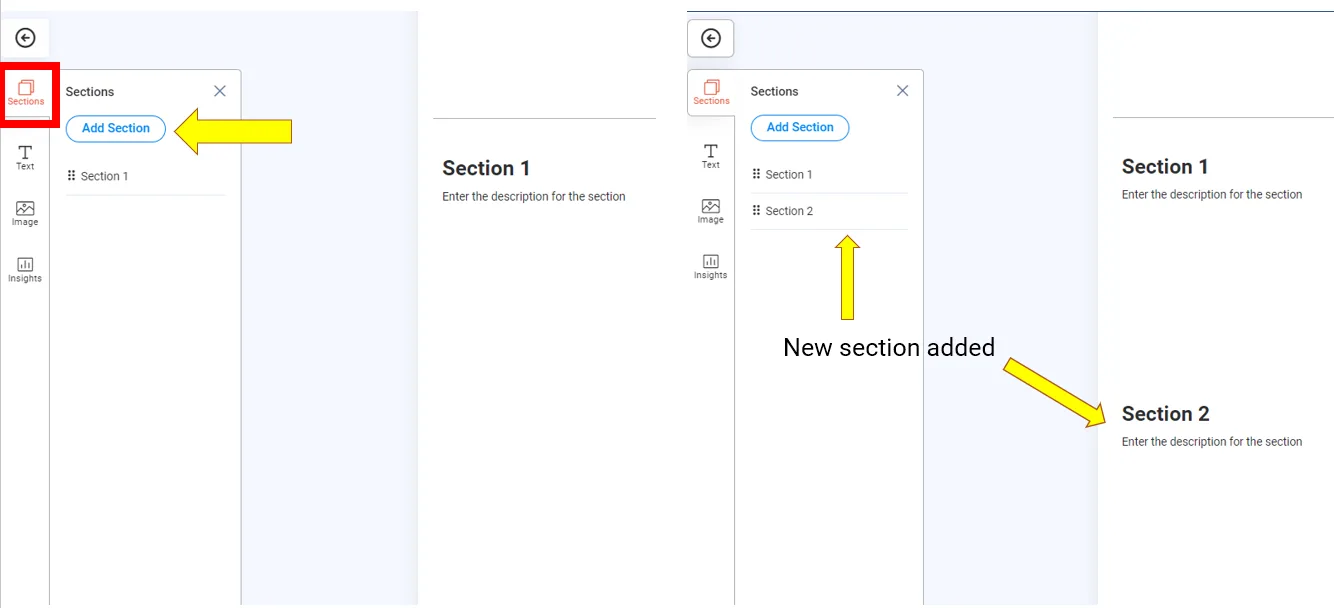
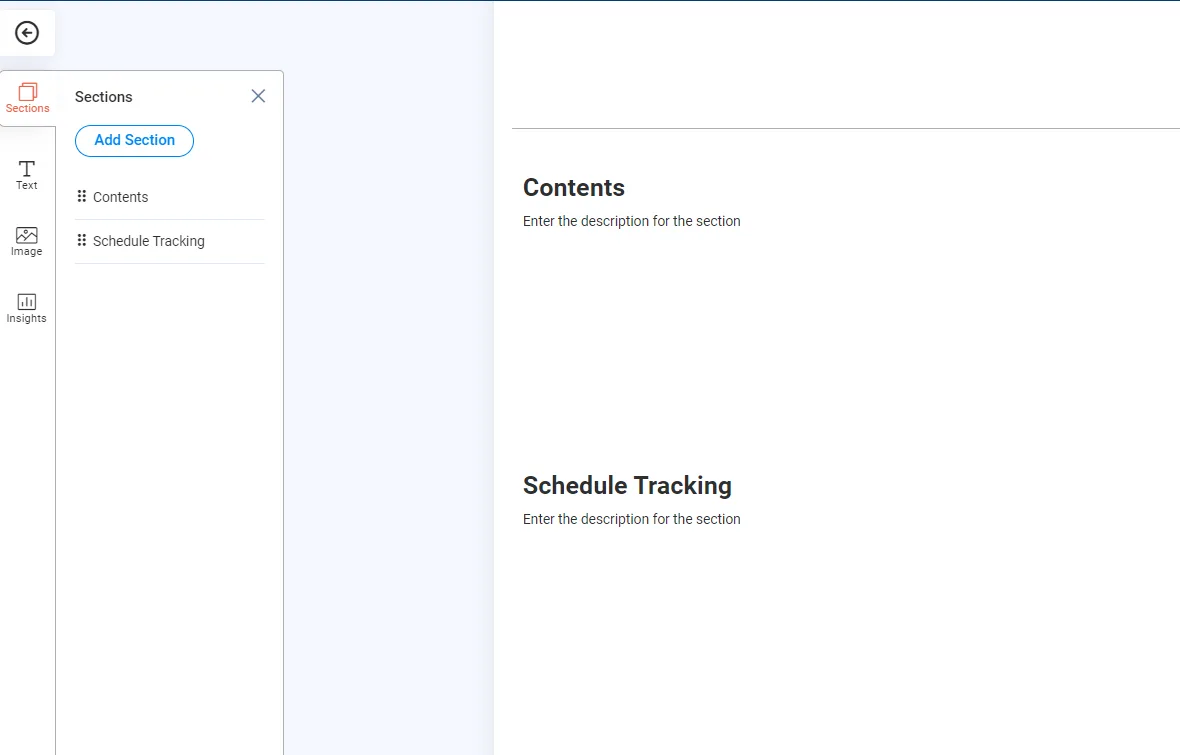
To rename a section, click its name and edit it.
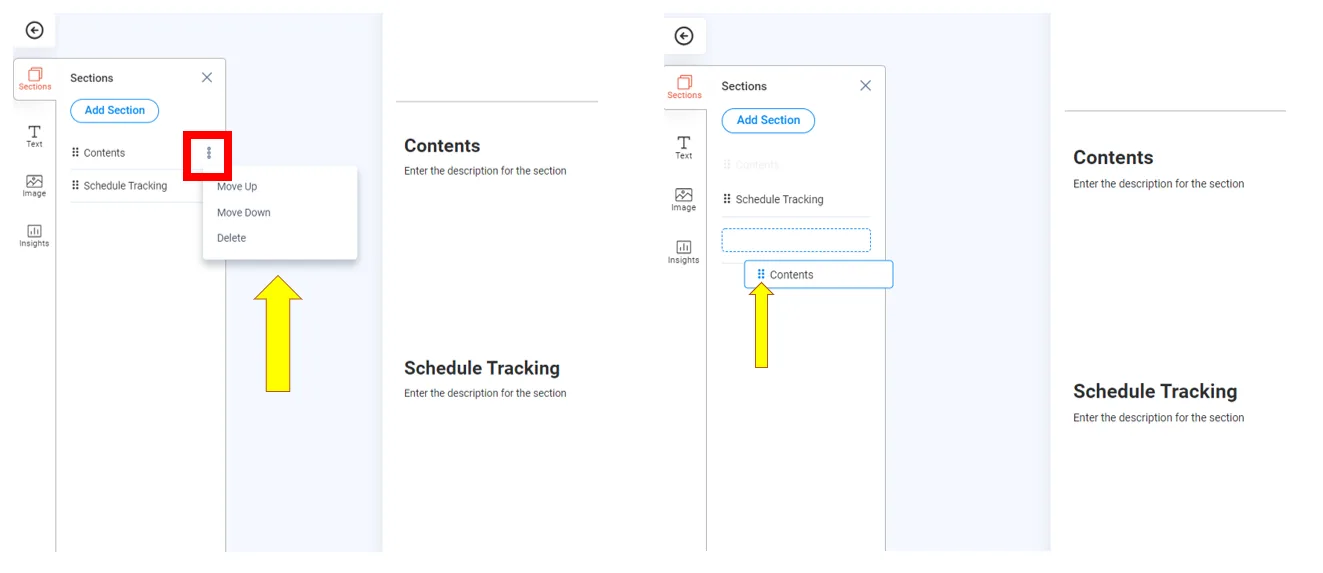
To reorder sections, click the menu button of a section. You can move it up, move it down or delete it. You can also drag a section into place with the handle on its left (the 6 dots icon).
Text
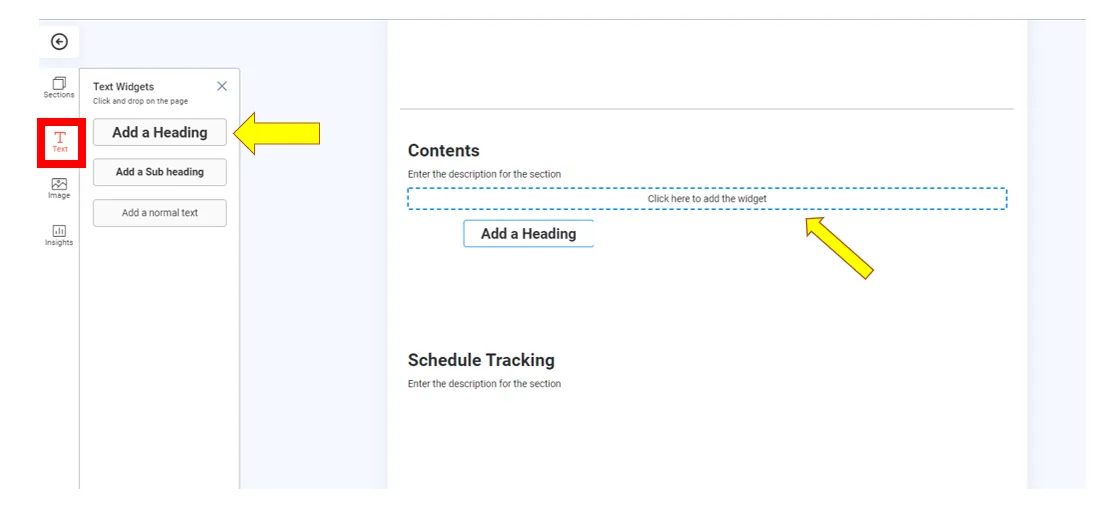
In the Text tab you can add a heading, a sub heading or a normal text box to any section.
-
Click the type of text widget you want.
-
Hover over the section where you want it.
-
Click Click here to add the widget at the place you want.
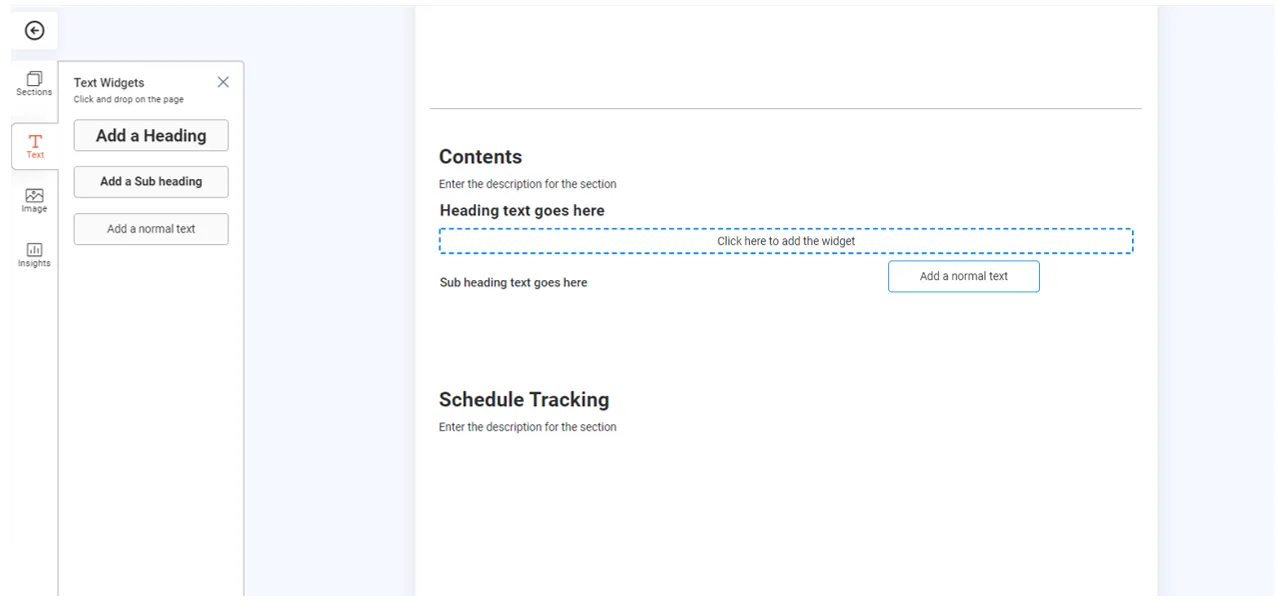
To change the text, click the box and type.
Image
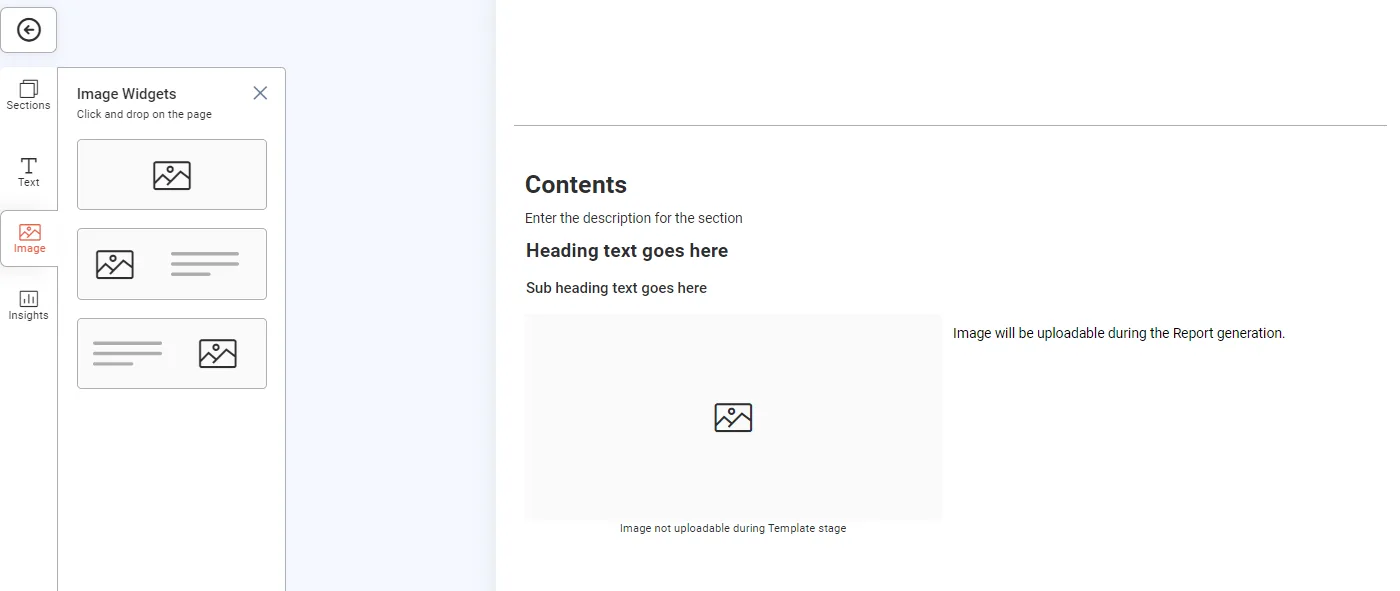
In the Image tab you can add an image on its own, or an image with a text box on its left or right. Add an image widget the same way as a text widget.
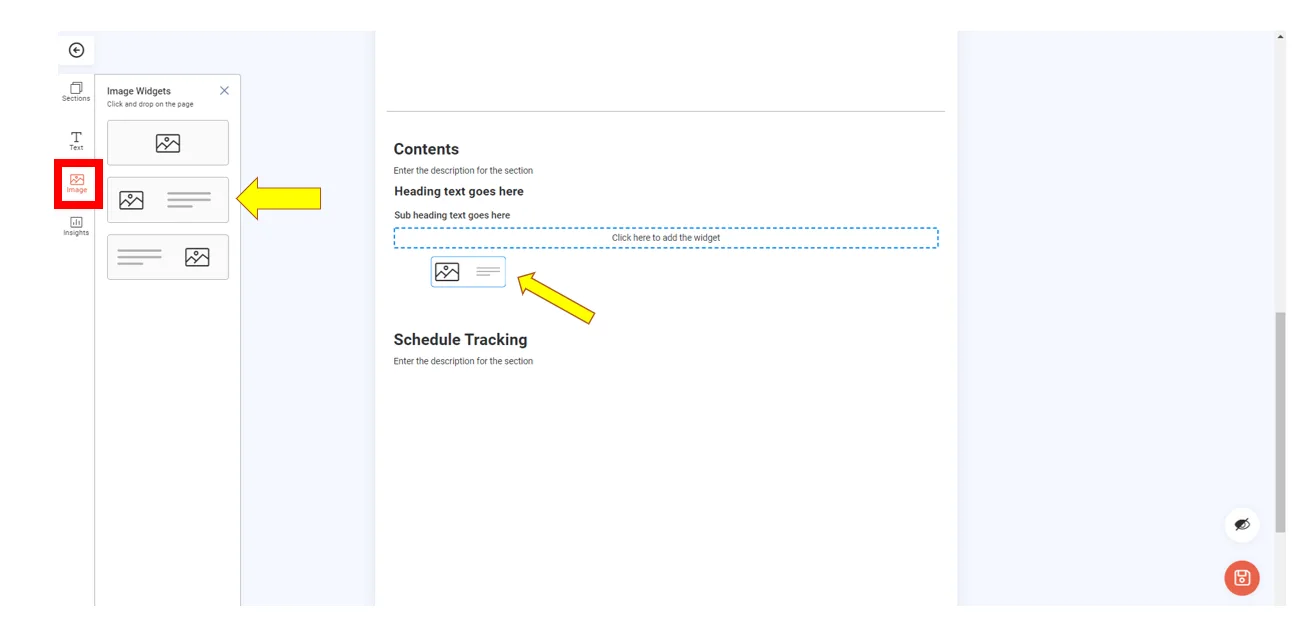
After you add an image widget, you can type text beside the picture. You add the image itself from your device when you use the template to create a report.
Insights
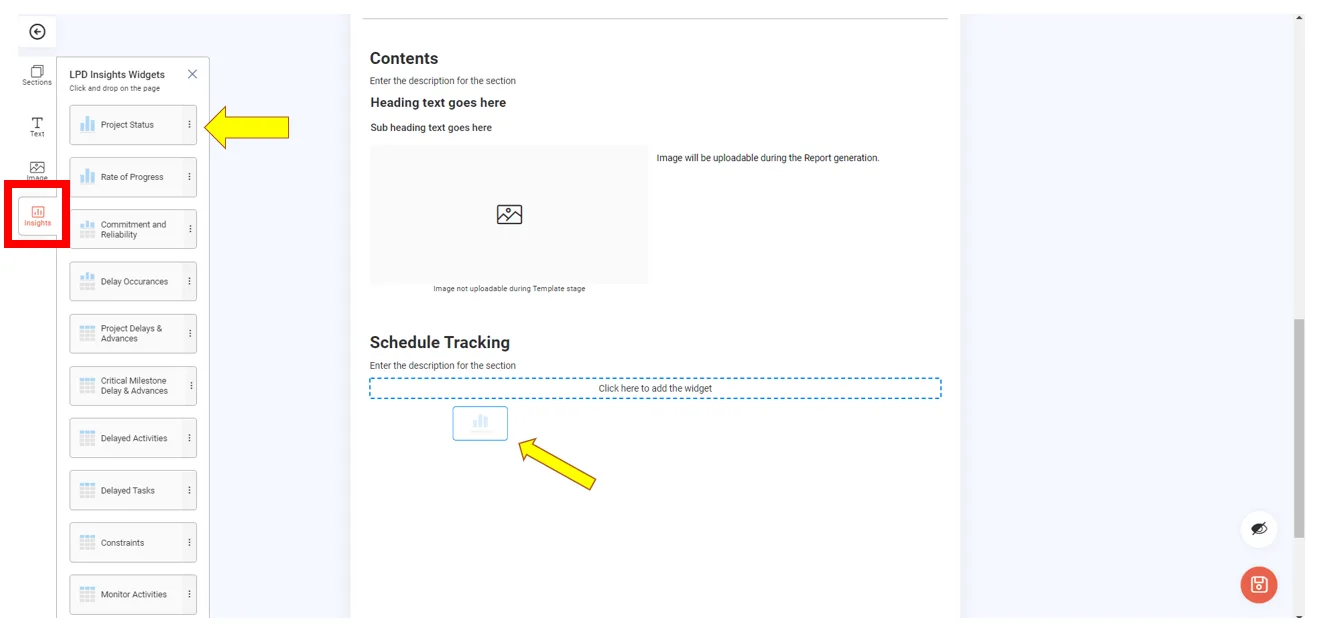
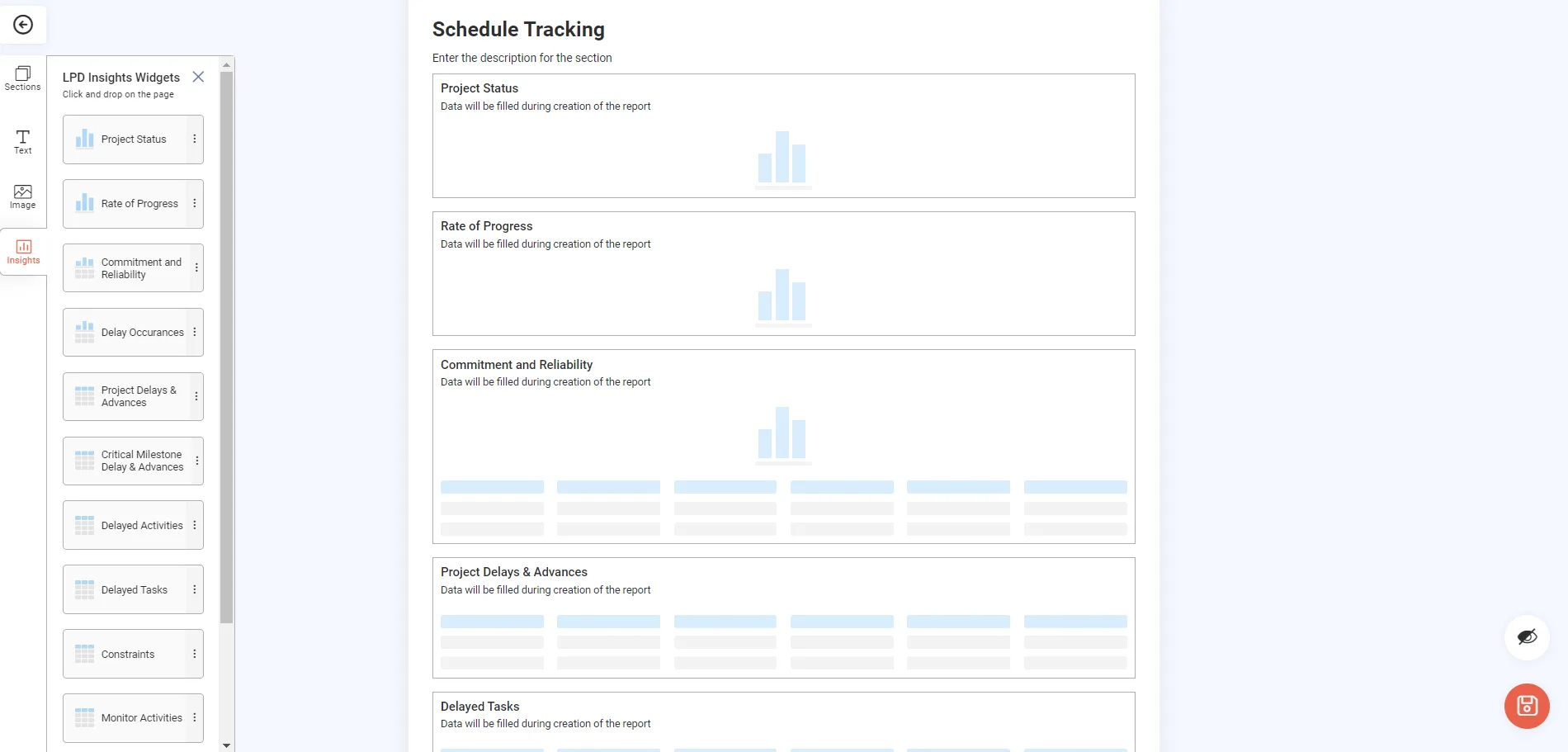
The Insights tab adds widgets from Lean PlanDo Insights straight into the report. Choose from Project Status, Project Delays and Advances, Critical Milestones Delays and Advances, and more.
-
Click the widget you want.
-
Hover over the section where you want it.
-
Click Click here to add the widget at the place you want.
Rearrange widgets
You can reorder text, image and Insights widgets within a section at any time.
-
Hover over the widget. Up and down arrows appear at its top left.
-
Click the up arrow to move it up, or the down arrow to move it down.
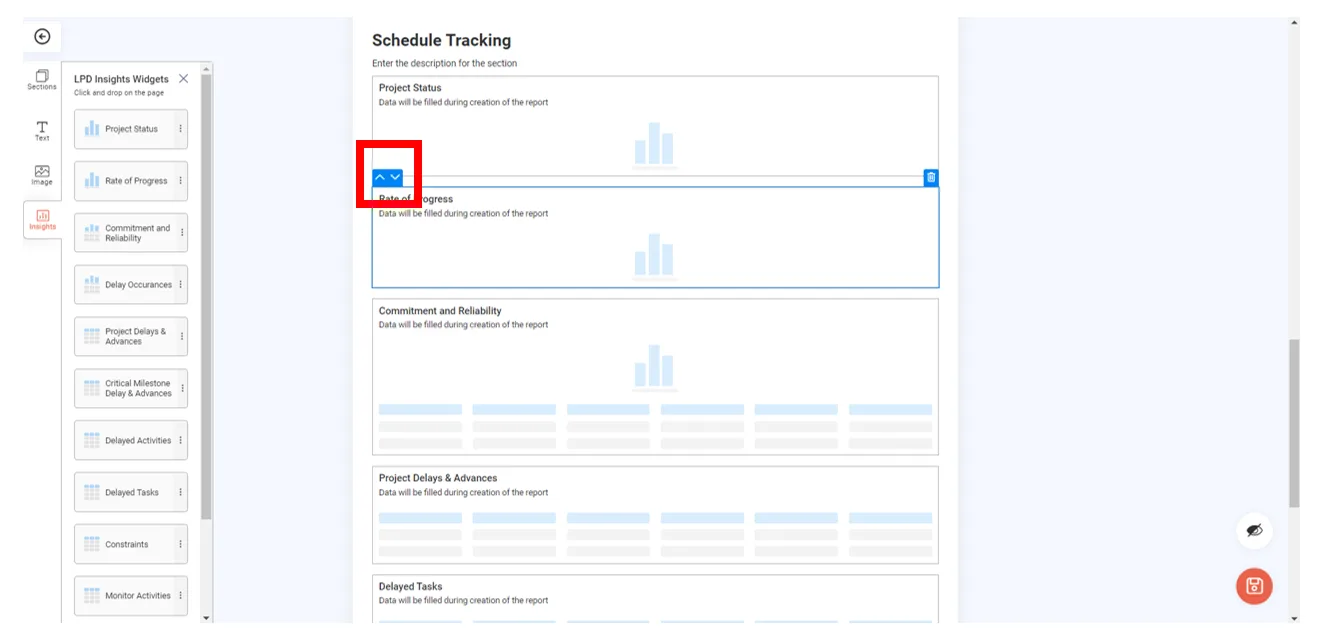
A widget moves only within its own section. You cannot move it to another section.
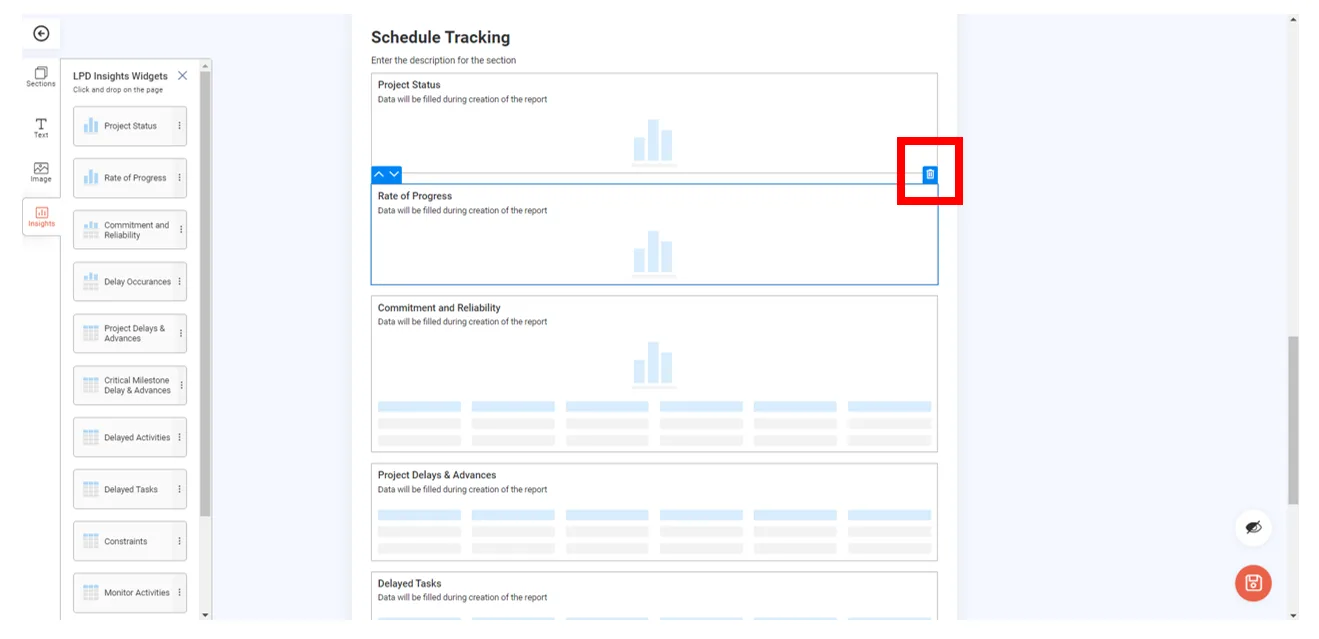
Delete a widget
-
Hover over the widget.
-
Click the delete button (trash can icon) at its top right.
Share the template
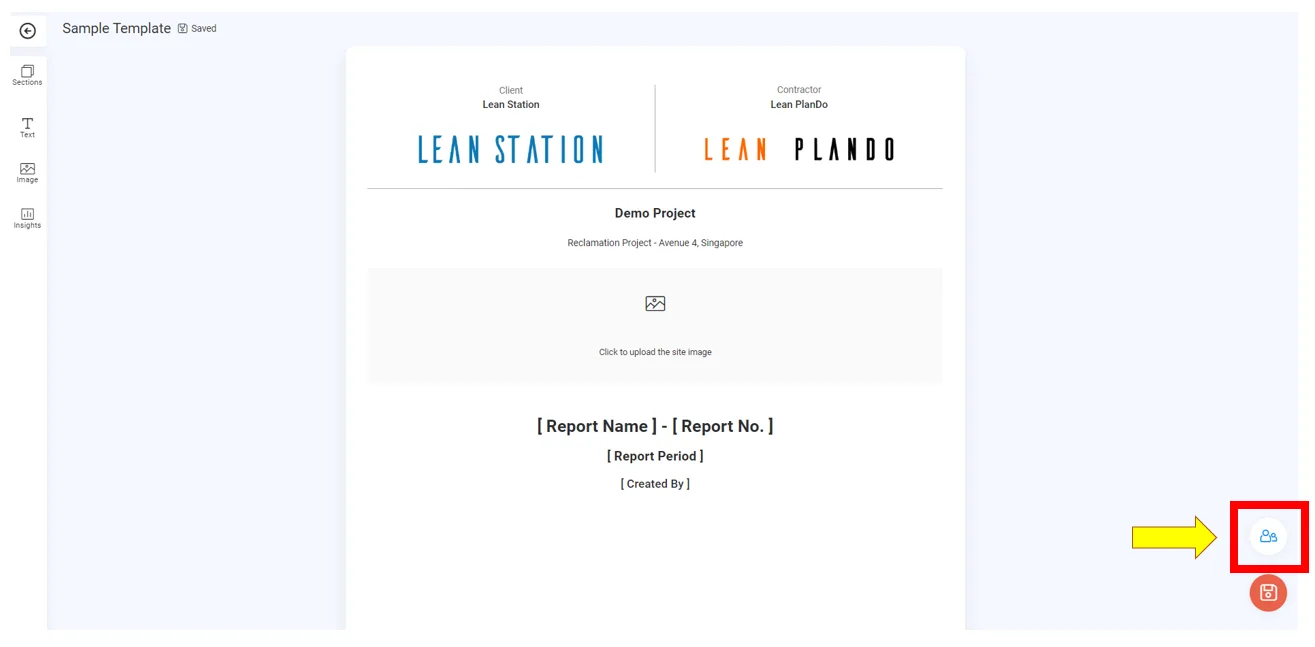
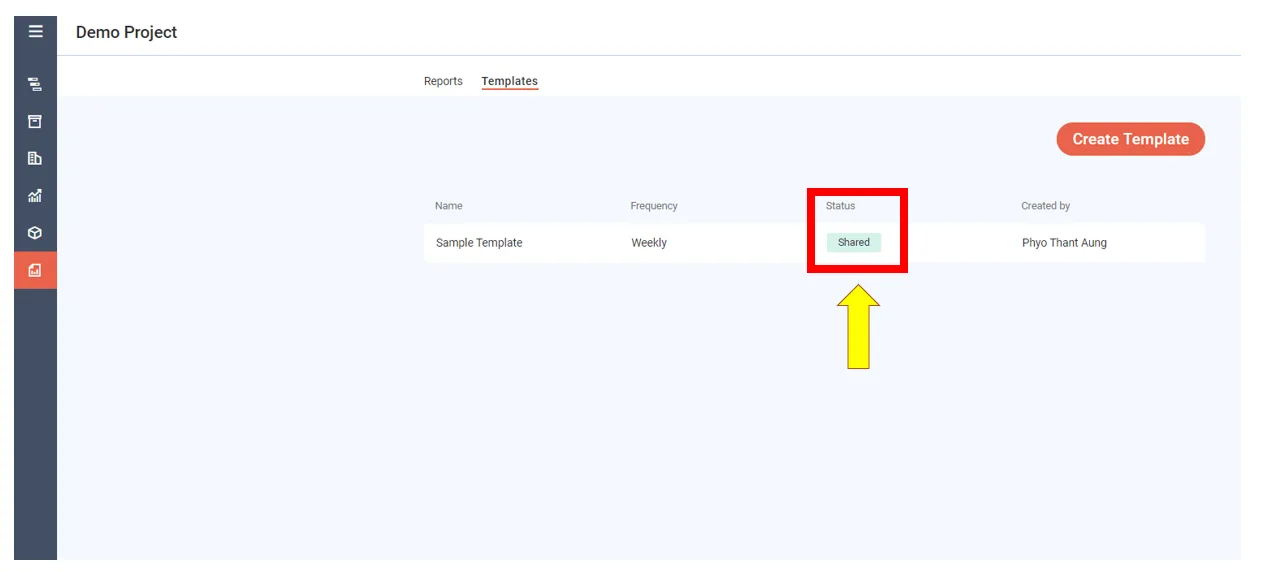
To share the template with colleagues in your company, click Share at the bottom right. The message Template shared successfully appears.
Save the template
When the structure is ready, click Save at the bottom right. The template is now in your Templates library.
Use the template
Your template is ready to generate a report. See Create a report.
Last updated 2023-07-10. Part of Reports in the Lean PlanDo manual. Lean PlanDo by Lean Station.