
Lean PlanDo manual › Reports
Create a report
Generate a weekly or monthly report from a template, customise it, then save, publish and discuss it with colleagues.
Create a report from a template to generate it automatically, weekly or monthly. You need a template first, so the same report can be generated again later. See Create a template.
Open your reports
- Click Reports in the side menu. In Flow projects, Reports appears only if reports are turned on for the project.
- Open the Reports tab. The other tab is Templates.
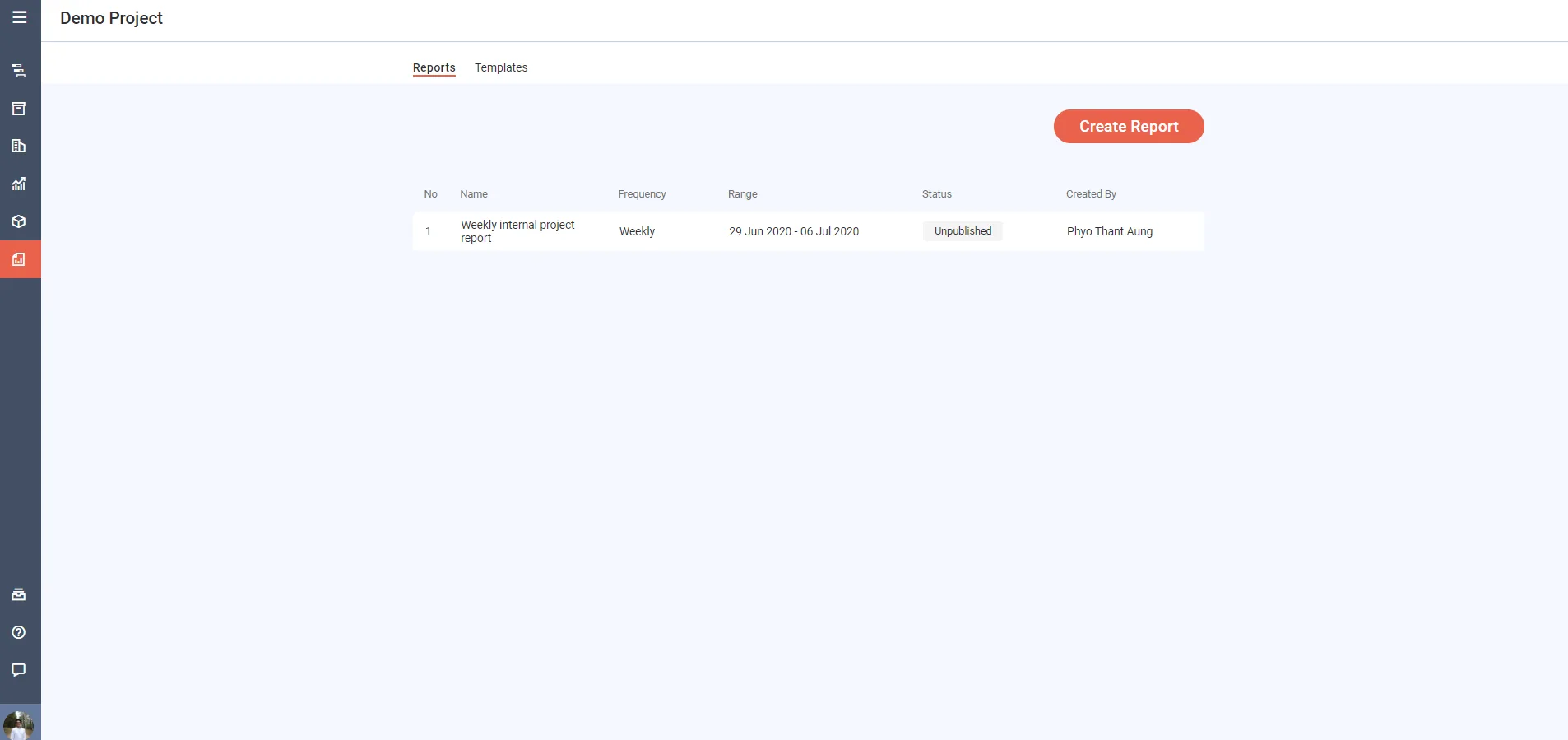
The tab lists the reports you have generated, if any. Each shows its name, frequency (weekly or monthly), the period its data covers and its status (published or unpublished).
Create a report
-
If you do not have any reports yet, click Create Report.
-
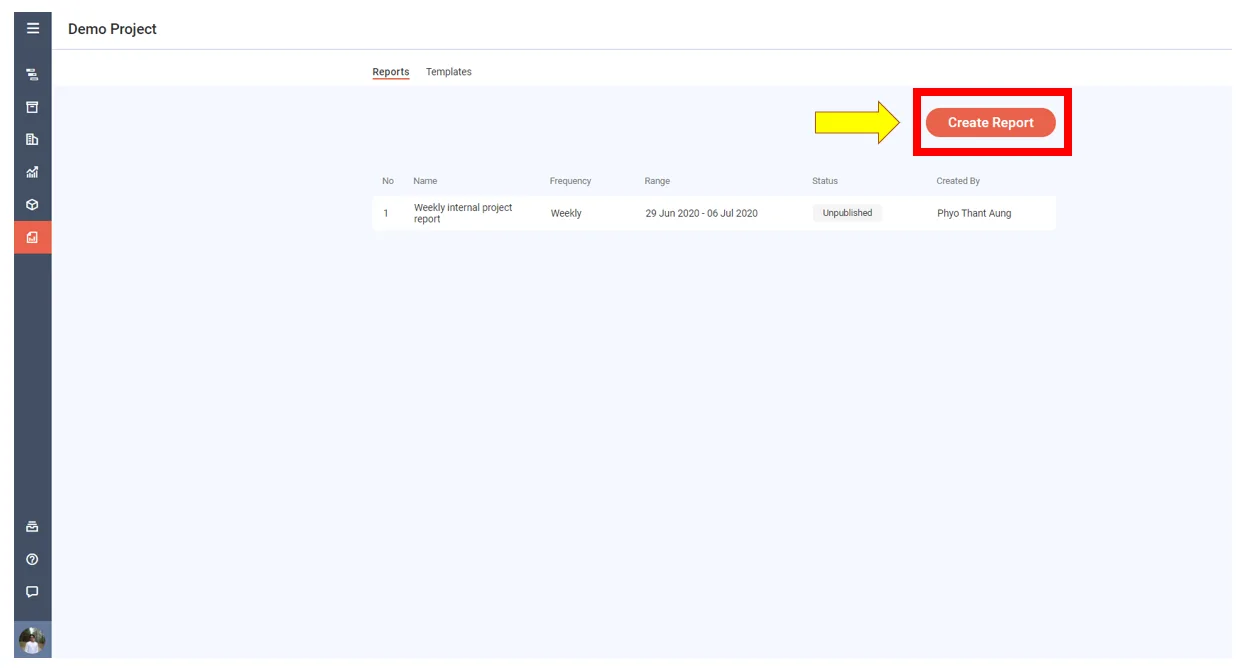
Enter the report number.
-
Enter the report name.
-
Choose the report period: the week or weeks the data comes from. You cannot choose a future week.
-
Click Continue.
-
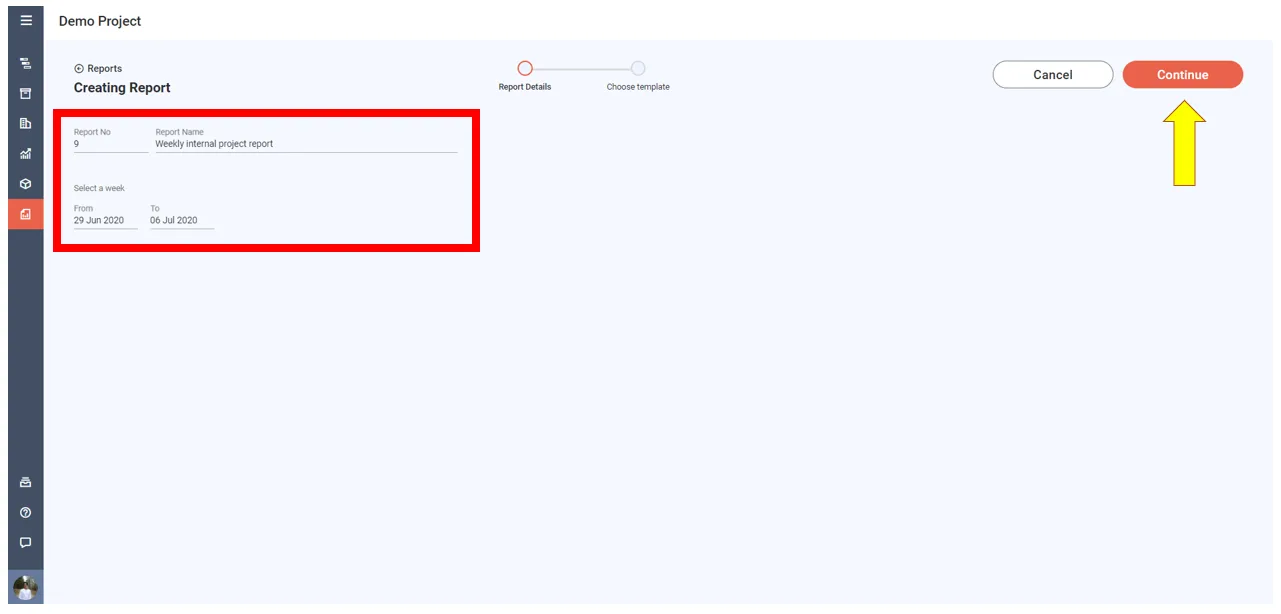
Choose one of your templates. Each shows its name and the date it was created or last changed.
-
Click Finish Setup. Your report draft opens.
Customise your report
While drafting, click any section in the left panel to jump to it.
In any section you can edit the sub headings and normal text boxes.
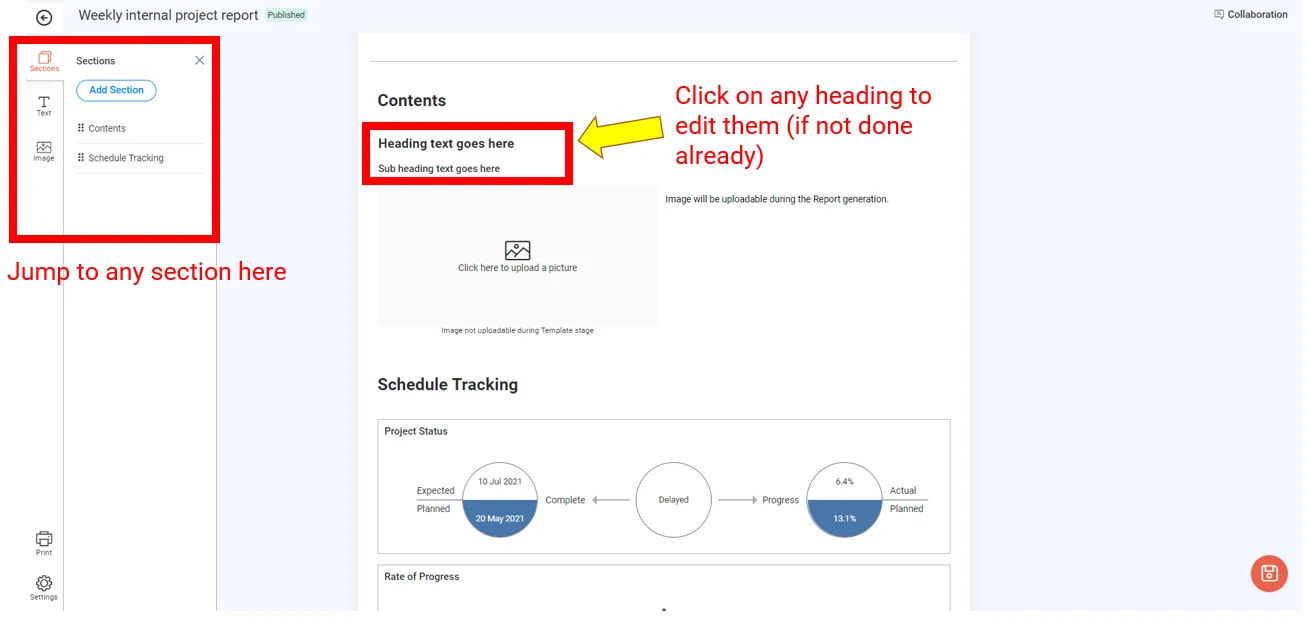
You can also:
- Update the image widgets with a picture of your choice, and edit their captions.
- Add new text widgets (headings, sub headings and normal text) and image widgets.
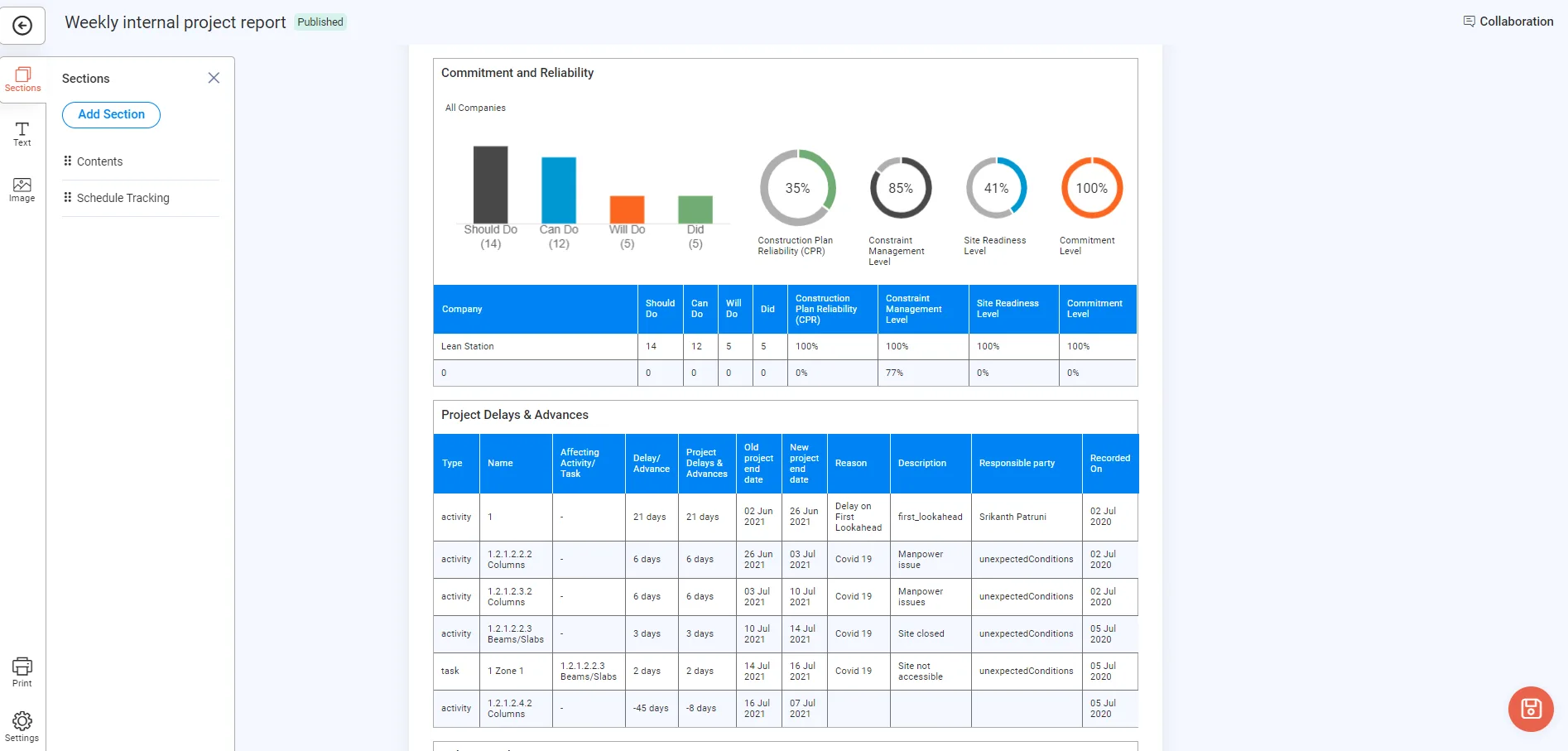
Insights widgets
If your template has Insights widgets, they fill in automatically with the real data from Lean PlanDo Insights for the week you chose.
Save and publish your report
-
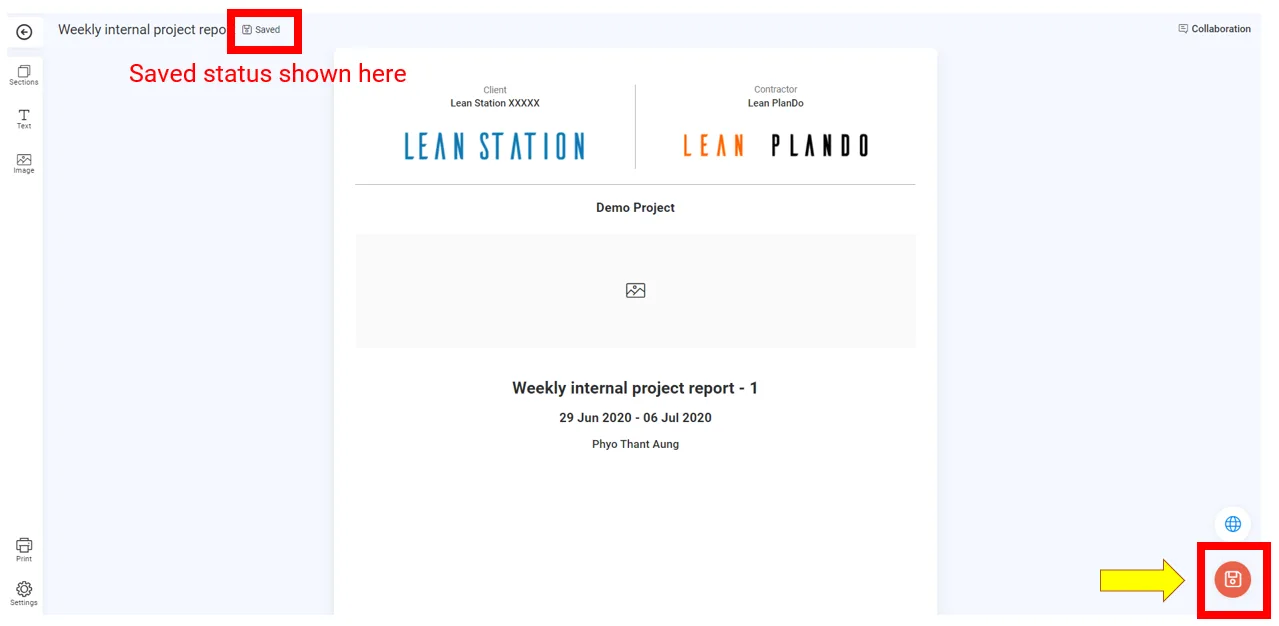
Click Save at the bottom right to save the report.
-
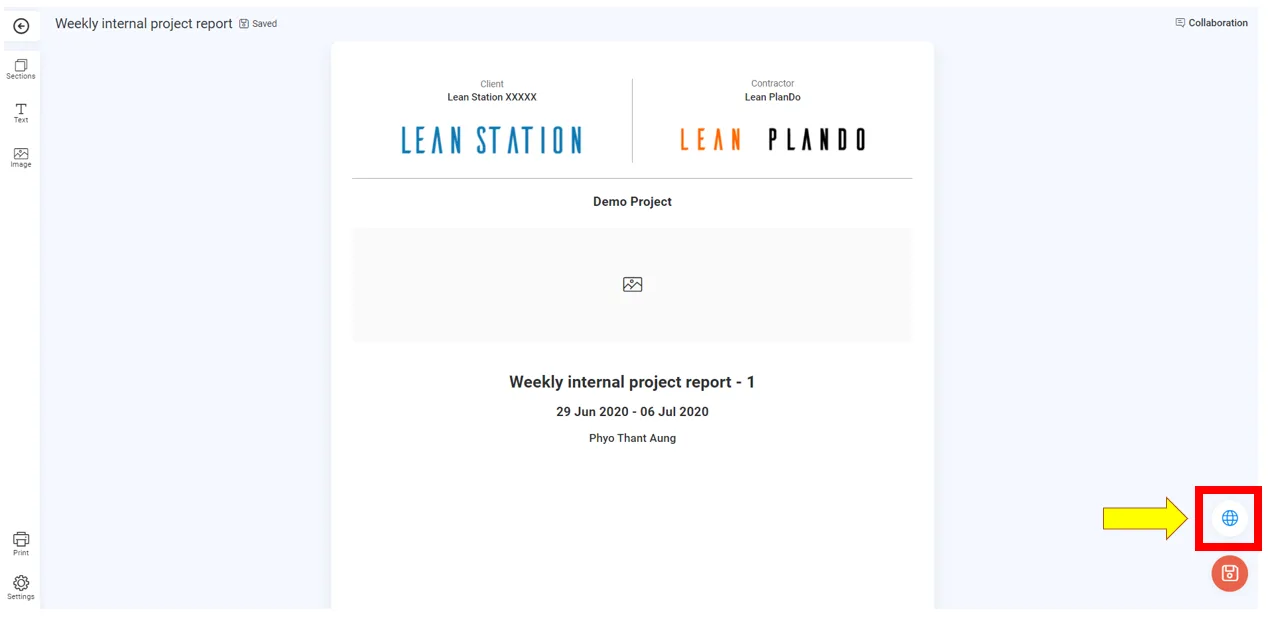
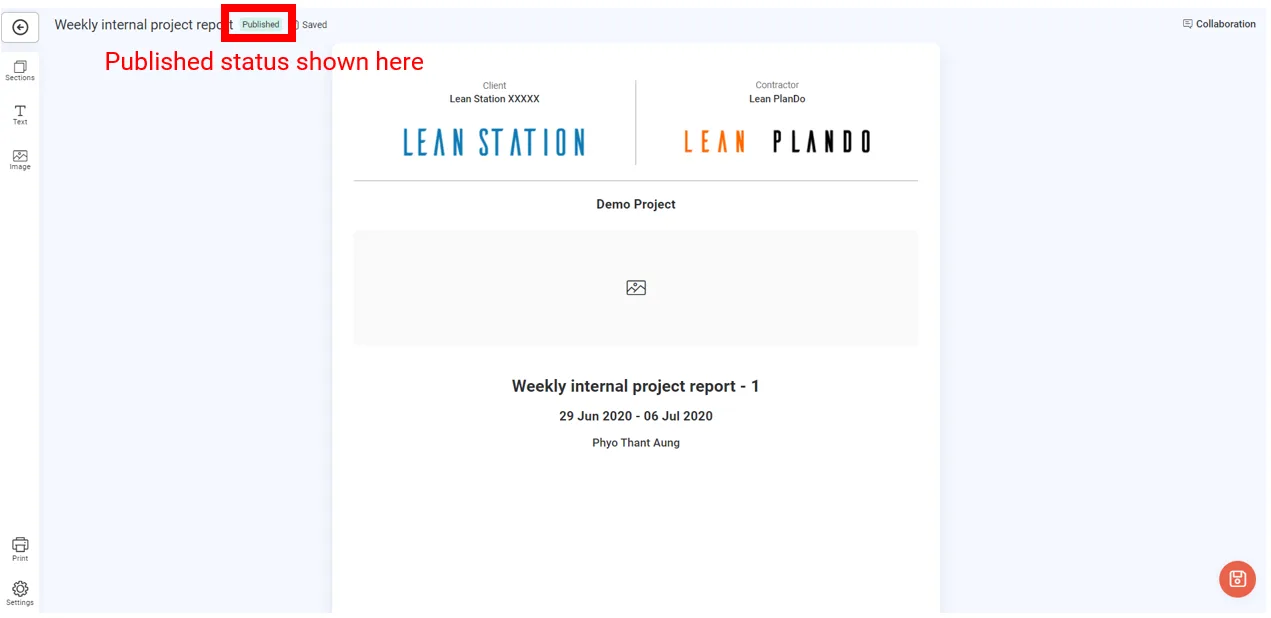
Click Publish at the bottom right to share it with your colleagues. Its status in the Reports tab changes to Published.
Discuss the report with colleagues
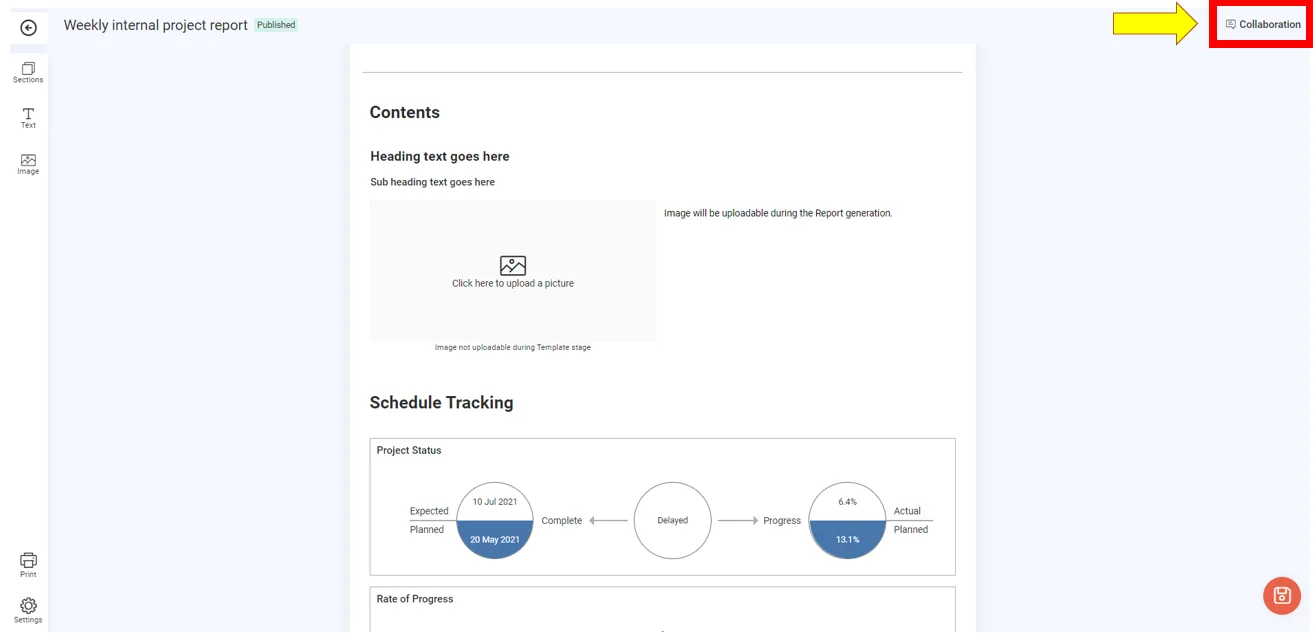
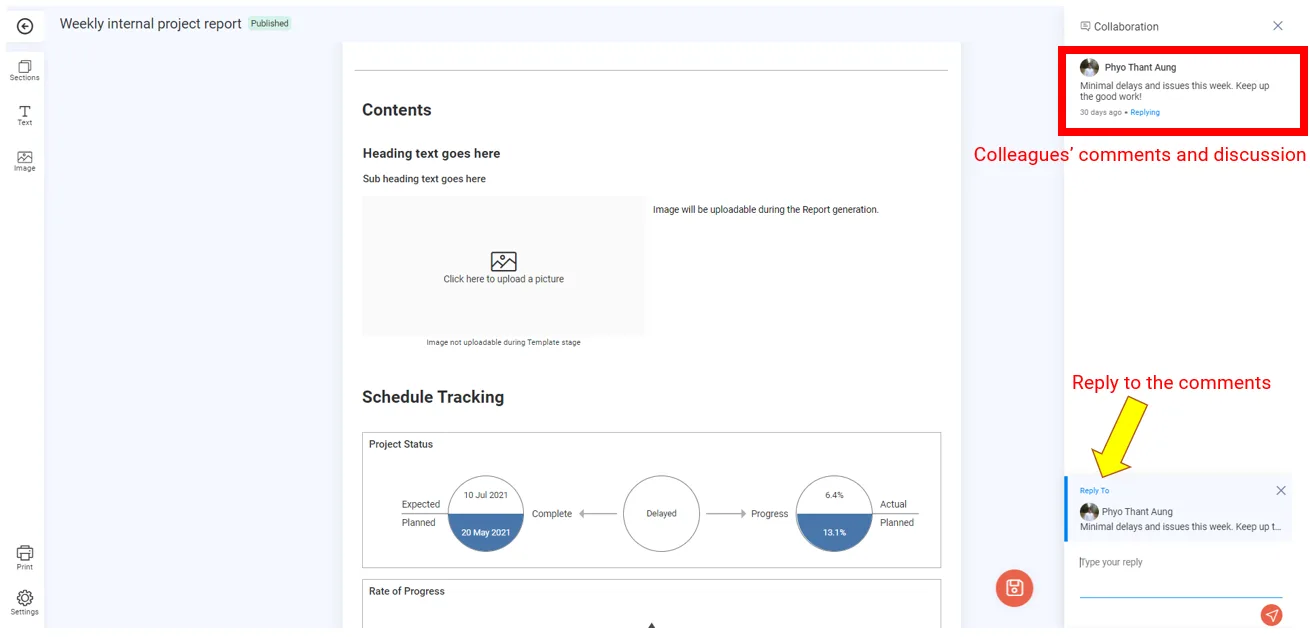
Once published, your colleagues can see the report. Use the Collaboration feature inside the report to discuss it.
The Collaboration panel holds comments on the whole report, with replies.
Last updated 2023-07-10. Part of Reports in the Lean PlanDo manual. Lean PlanDo by Lean Station.