
Lean PlanDo manual › Lookahead
Change the Lookahead day
Change the weekly Lookahead day in Project Settings, and see how the interim week moves your project to the new day.
You set the Lookahead day when you create a project. You can change it at any time in Project Settings.
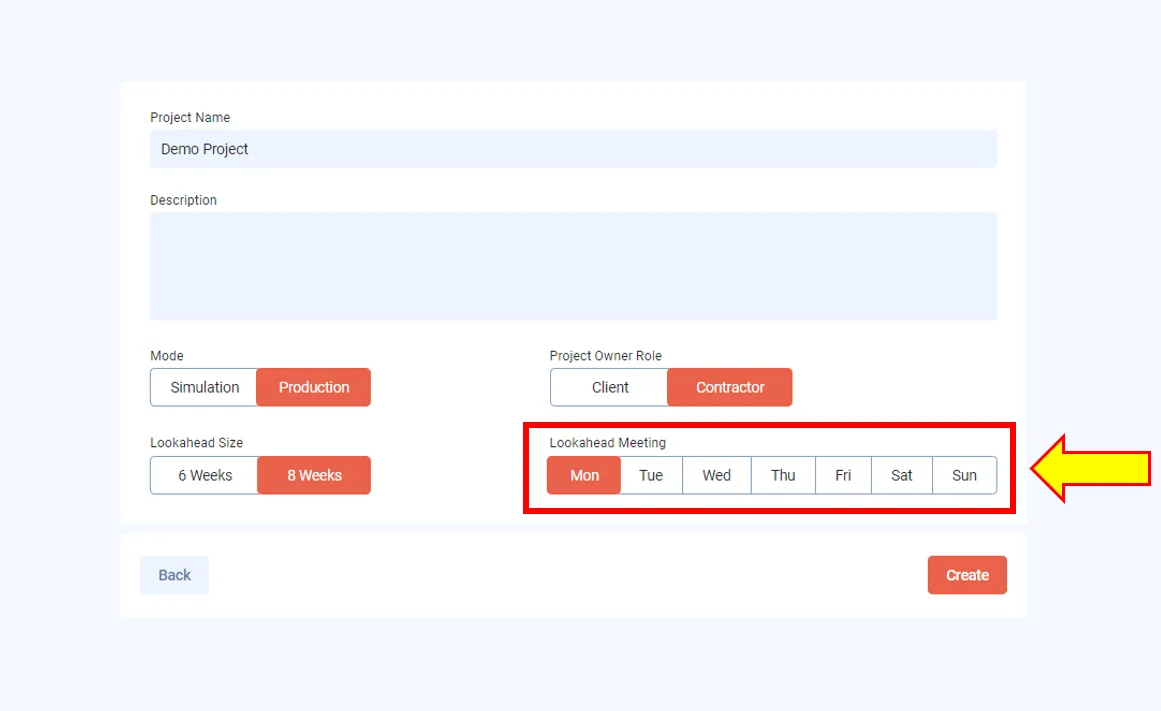
The Lookahead day fixes the weekly reporting cycle of your project.
Change the day
-
Go to Project Settings.
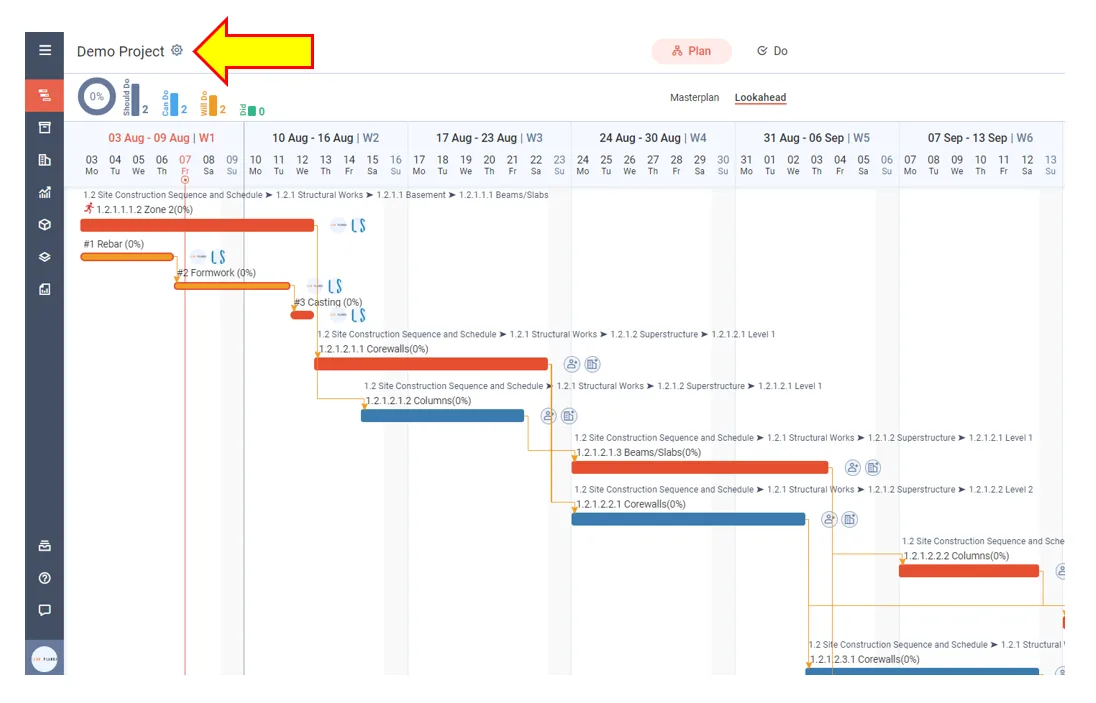
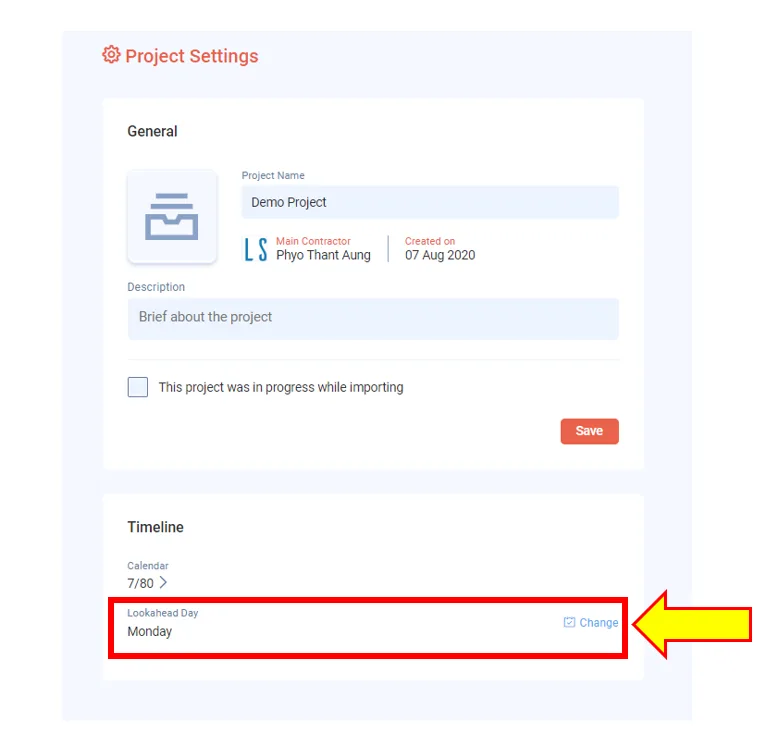
Project Settings shows your current Lookahead Day with a Change button.
-
Click Change.
-
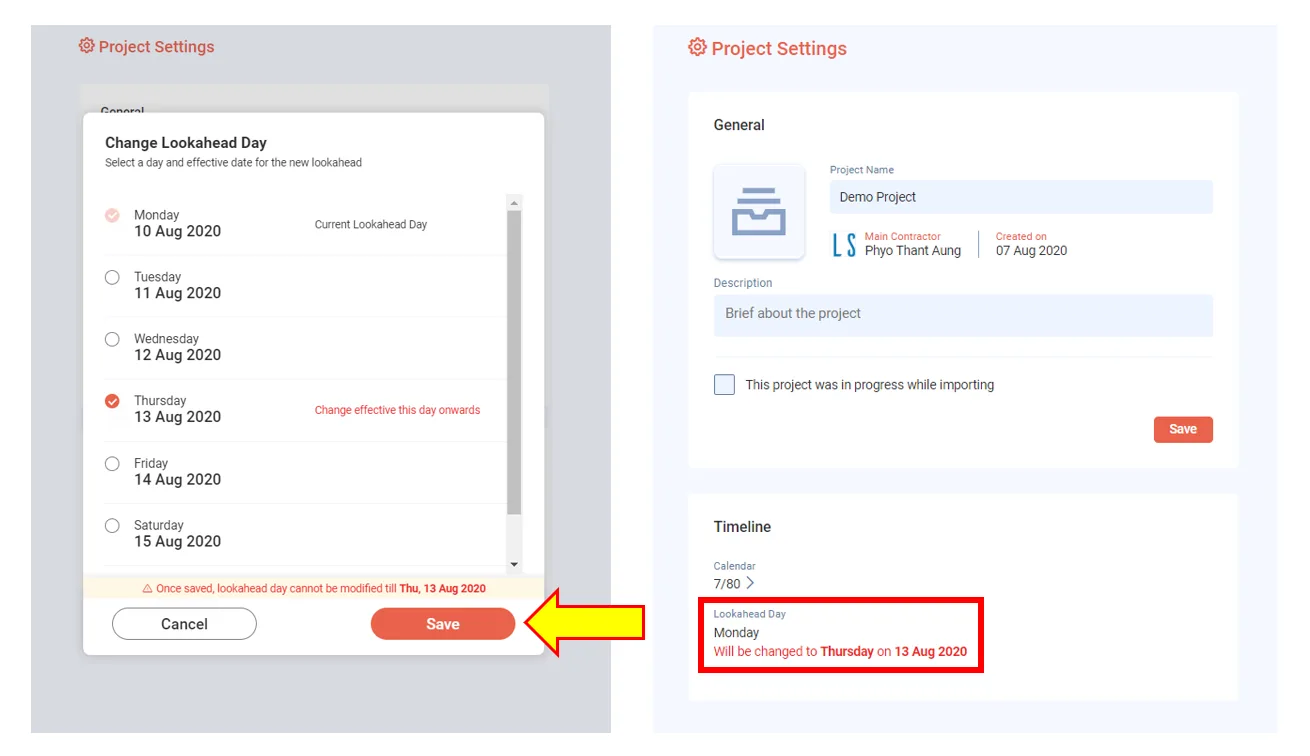
Select the new day. You can choose any day except the current Lookahead day. For example, if it is Monday, choose any other day.
You cannot choose a non-working day from your project calendar. For example, a project with a 6-day week and Sunday off cannot have its Lookahead on Sunday.
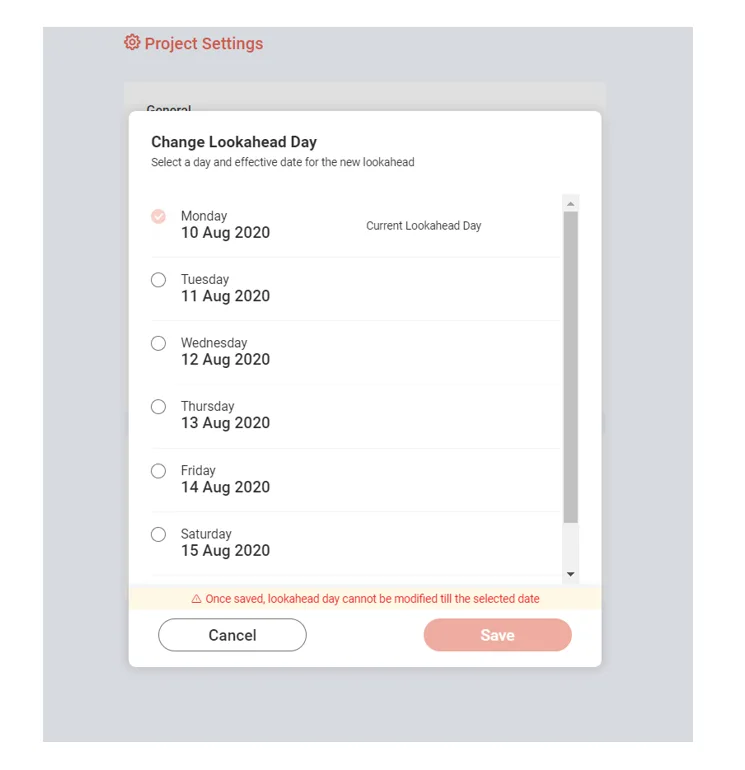
The dates shown start from the week after the Do week (the first week of the Lookahead, where tasks can be committed; it should be the current calendar week). Say you select Thursday.
-
Click Save. A message in Project Settings confirms that your Lookahead date will change to the day you selected.
What happens in the Lookahead
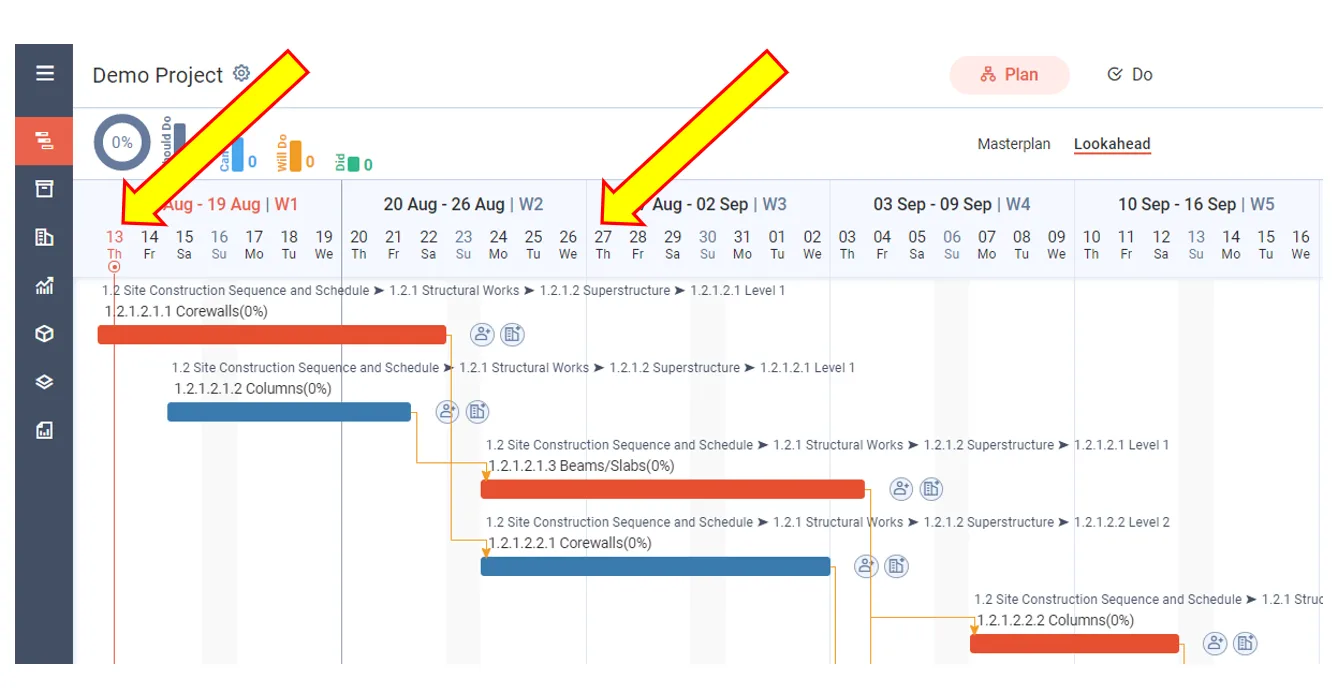
Go back to your Lookahead.
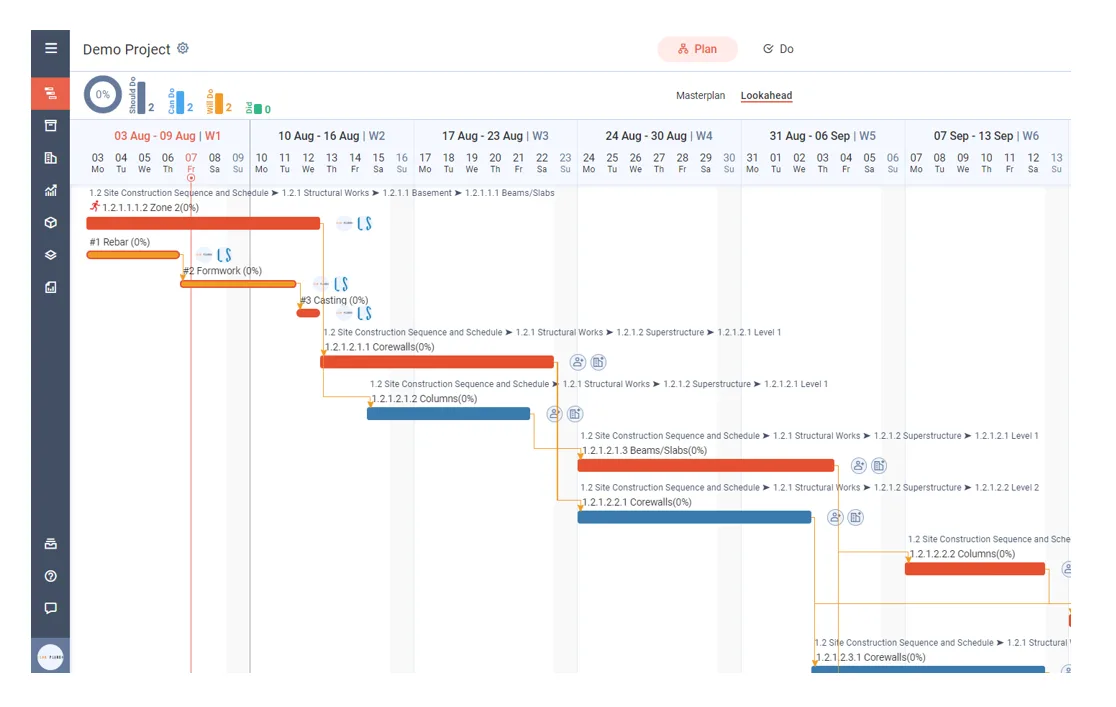
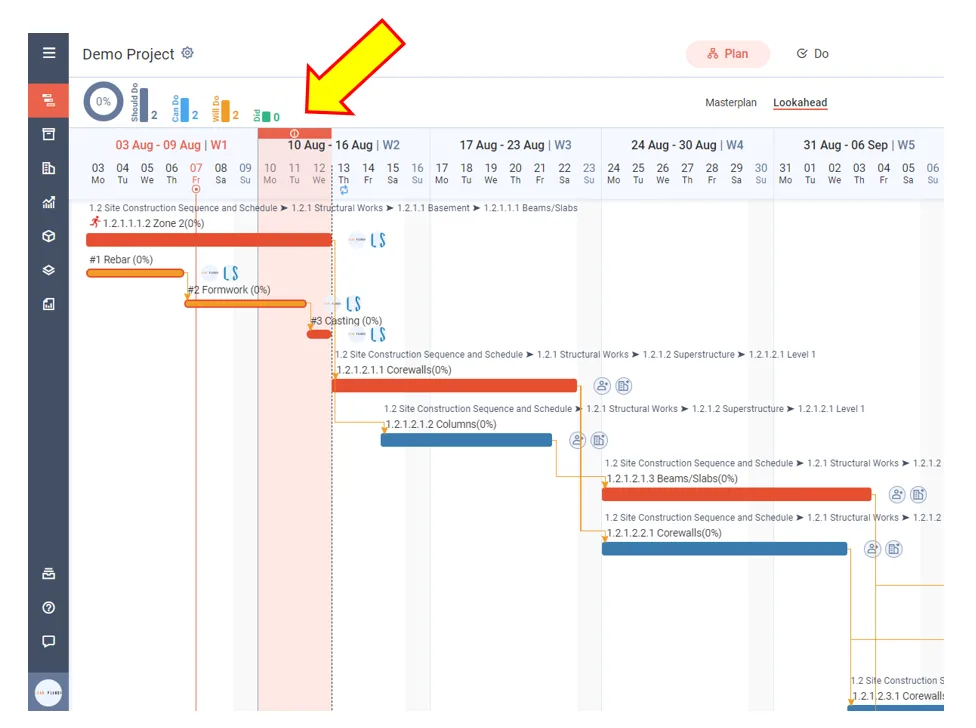
In this case, Lean PlanDo creates an interim week from Monday to Wednesday. You confirm and lock the data for those 3 days only. After that, the next Lookahead is generated with Thursday as the first day of the week. The interim week is a short transition that makes the change possible.
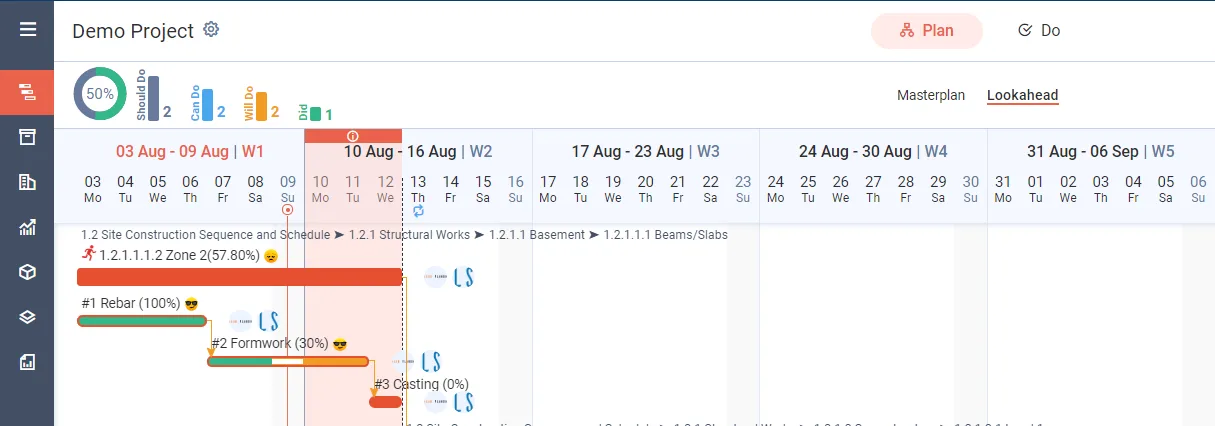
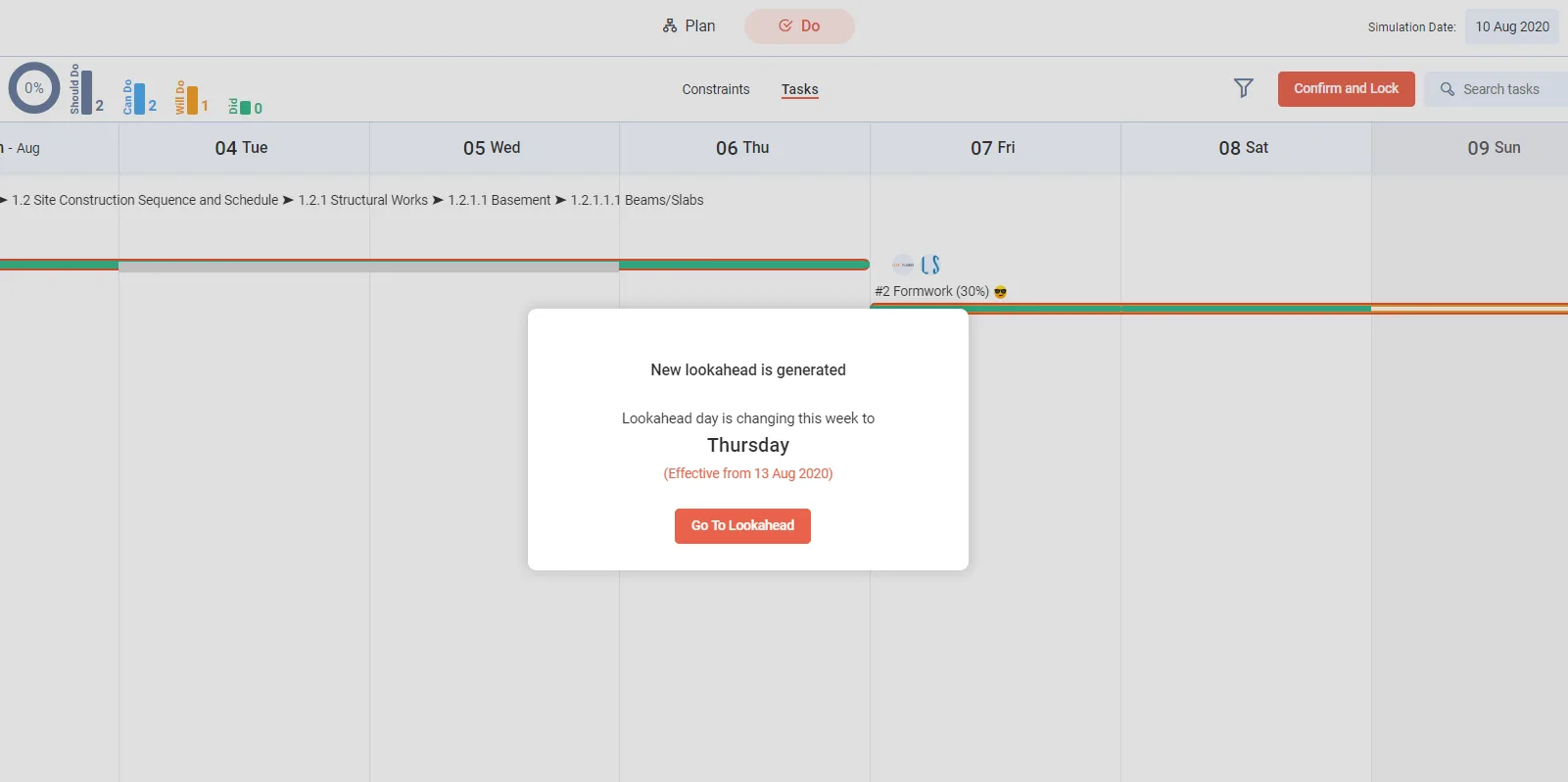
When you confirm the Do week after setting the new Lookahead day, a message appears.
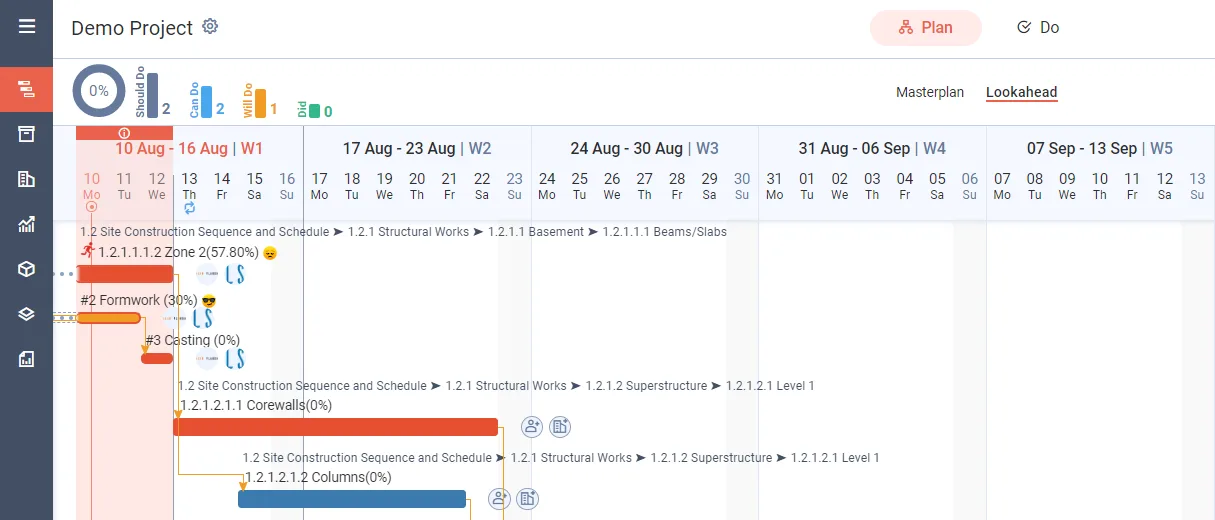
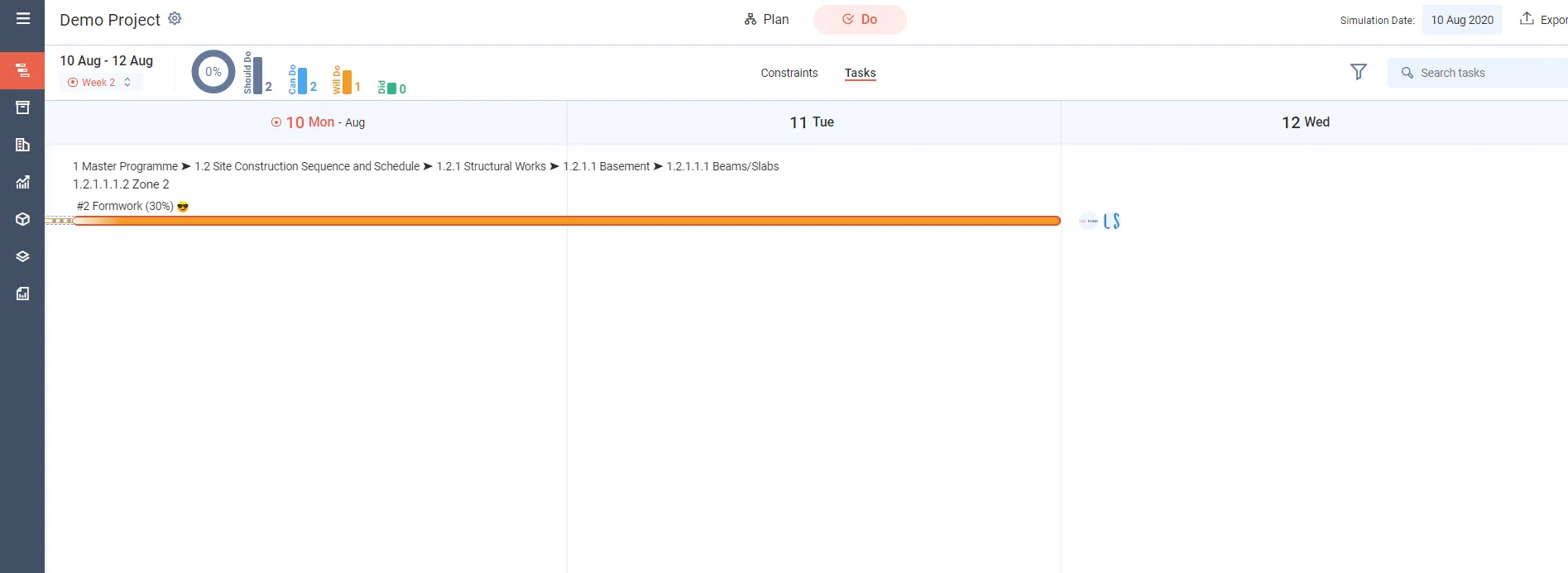
The interim week is shorter than a normal 7-day week. You must confirm and lock it before the new Lookahead day takes effect.
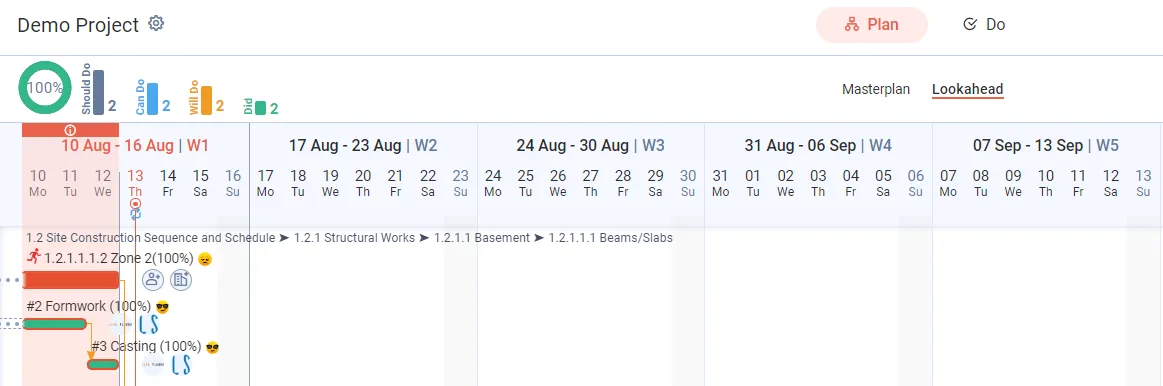
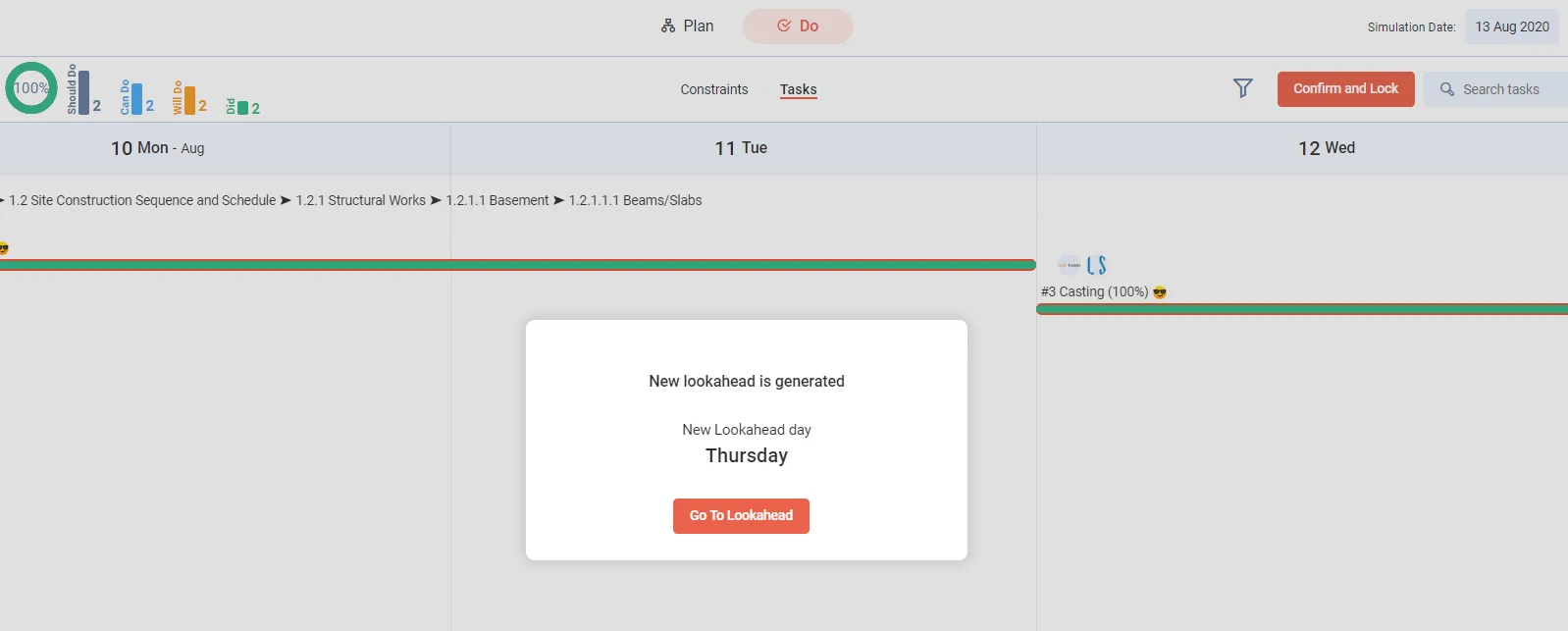
When you confirm and lock the interim week, a message tells you that your Lookahead date is now your chosen day, in this case Thursday.
If you have questions about this feature, chat with us.
Last updated 2020-08-12. Part of Lookahead in the Lean PlanDo manual. Lean PlanDo by Lean Station.