
Lean PlanDo manual › Masterplan
Add a milestone in the Masterplan
Add a milestone to the Masterplan as a sub activity with a duration of 0, then set its date.
You add a milestone (an activity that starts and ends on the same day and marks the start or end of a major piece of work; you create one by entering a duration of 0) the same way as an activity in the Masterplan. The difference is the duration: a milestone has a duration of 0.
-
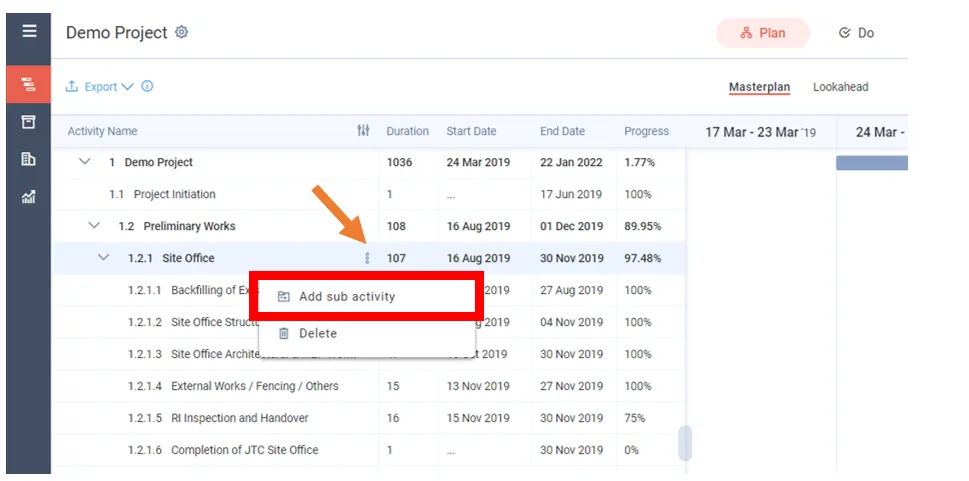
Open the three-dots menu of the parent or leaf activity you want to add the milestone under.
-
Click Add sub activity.
-
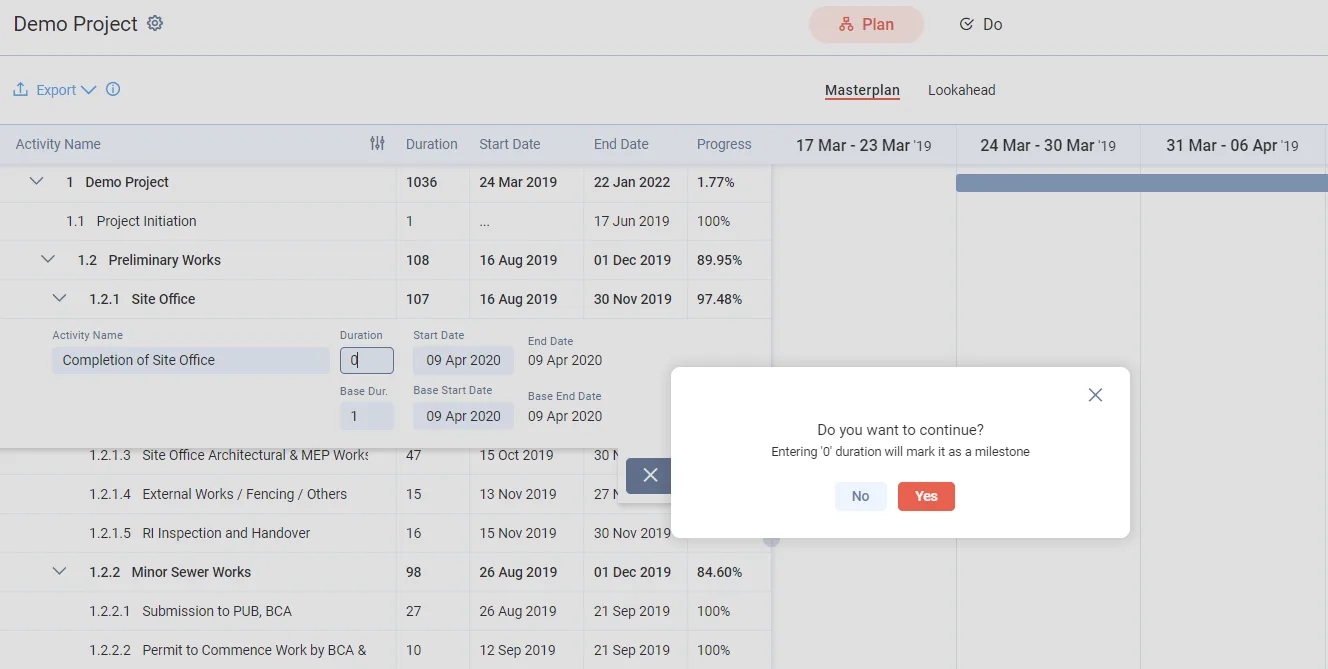
Enter 0 in Duration. This is how you choose a milestone instead of an activity. The app asks "Do you want to continue?" and shows "Entering '0' duration will mark it as a milestone".
-
Click Yes.
-
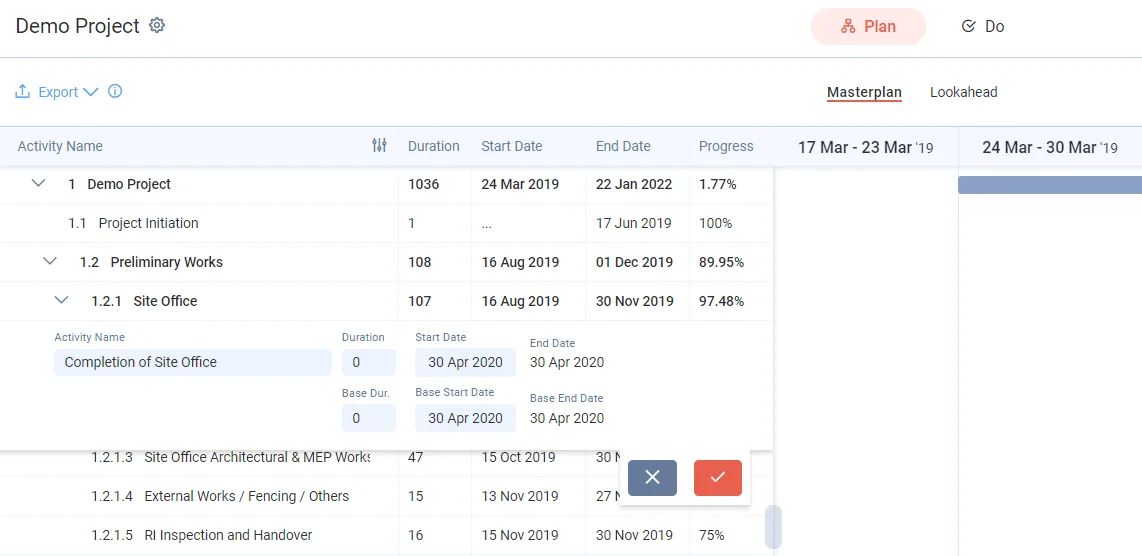
Change the dates to when you want the milestone scheduled. You do not need to change Base Dur.: once you confirm the milestone, the app sets both durations for it.
-
Click the Tick button.
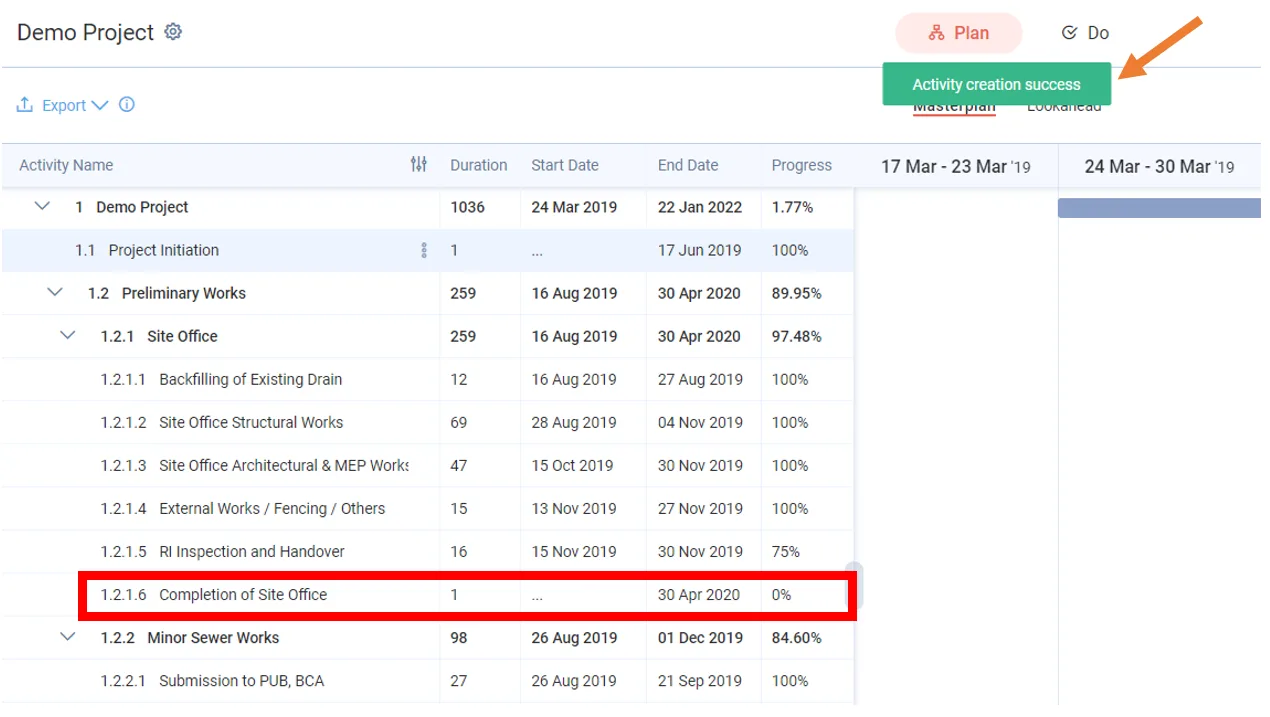
The milestone appears at the bottom of the activities under the parent activity.
Watch the video to see how to add or delete a milestone:
Last updated 2023-07-10. Part of Masterplan in the Lean PlanDo manual. Lean PlanDo by Lean Station.