
Lean PlanDo manual › Create Project
Add companies and users
Add the companies working on your project, then invite their people as users with the right role.
Add every company on your project, then invite its people as users. Go to Companies in the project menu on the left.
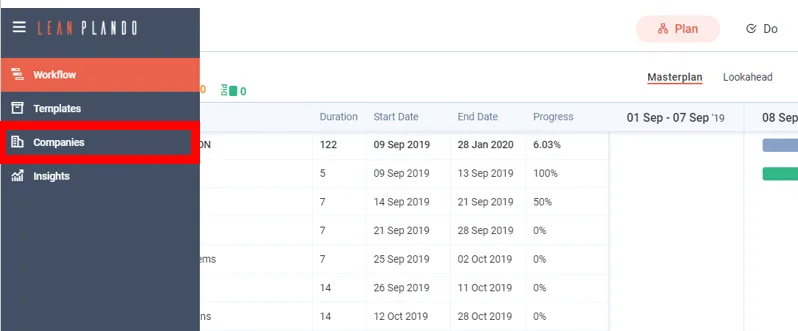
Add a company
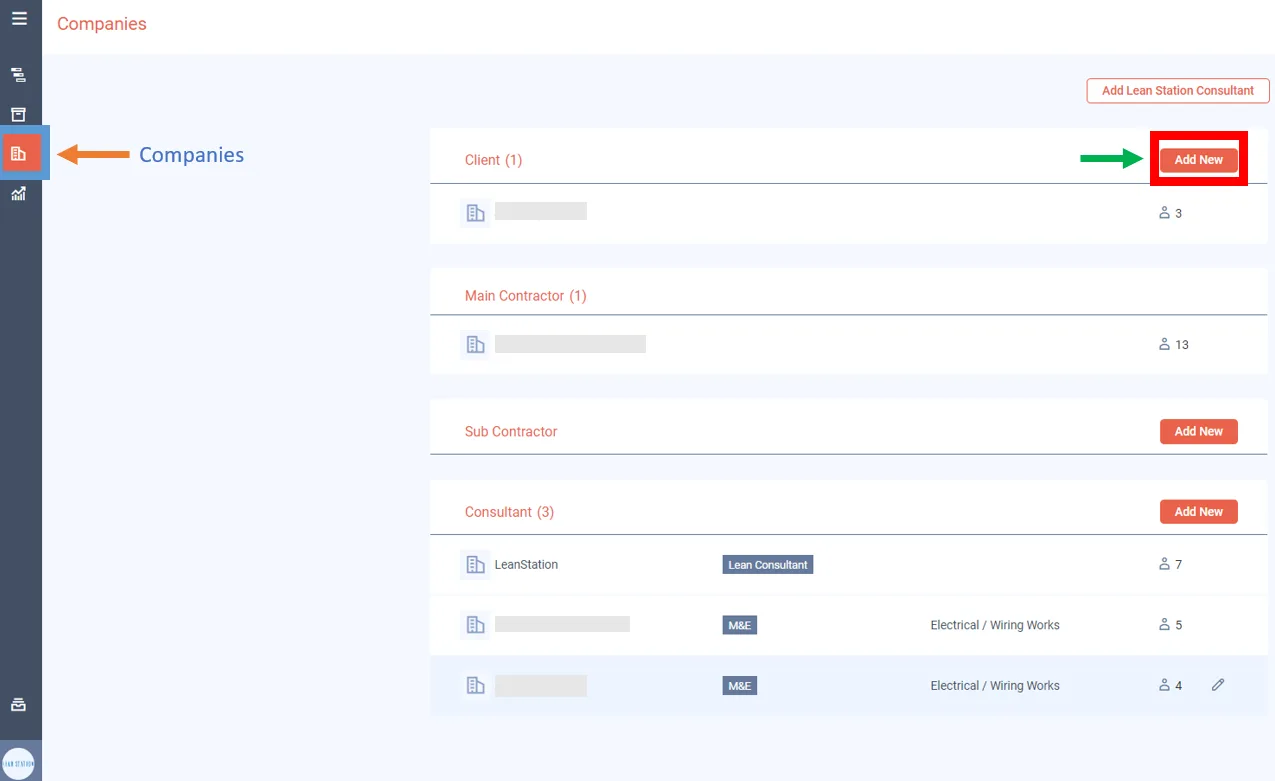
The Companies page lists all companies in the project: Client, Main Contractor, Sub Contractors and Consultants. Each company type has its own Add New button. Main Contractor has Add New only while the project has no main contractor.
-
Click Add New next to the company type you want. For example, to add a sub contractor, click Add New next to the Sub Contractor section.
-
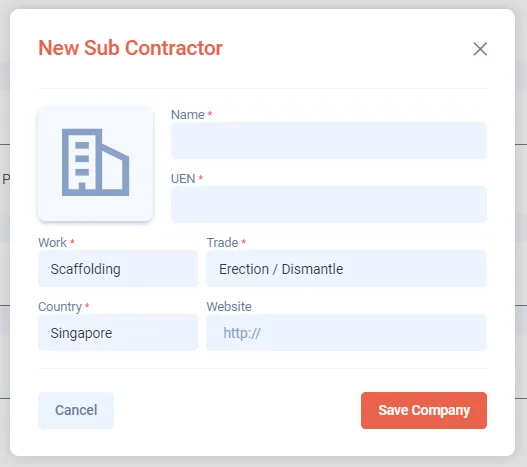
Enter the company's Name, UEN (Unique Entity Number), Work, Trade, Country and Website (optional).
-
Click Save.
Work and Trade do not appear for Client and Main Contractor companies. Trade does not appear for Consultant companies.
Add a user
-
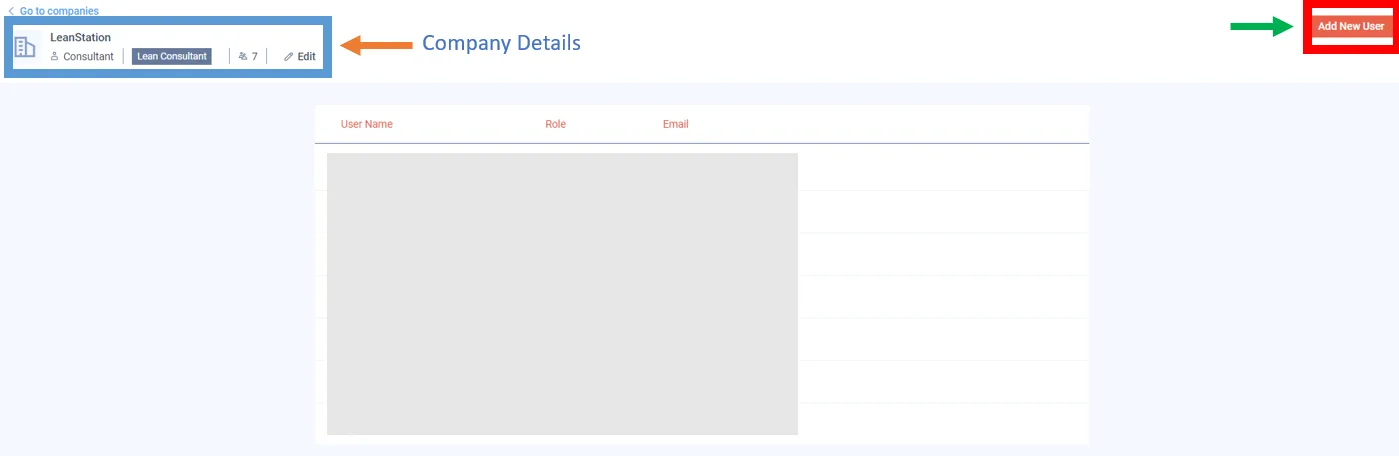
Click the company name to open its information.
-
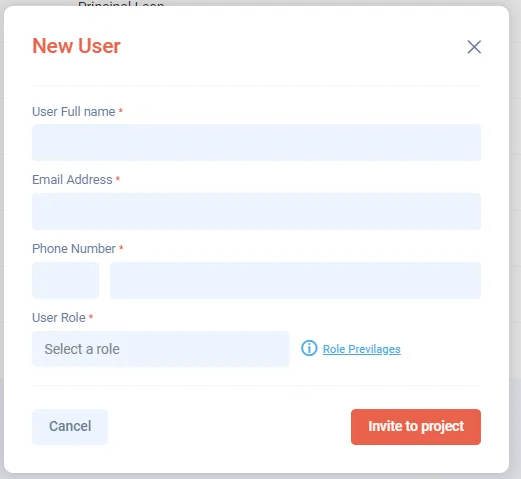
Click Add New User in the top right corner.
-
In the pop-up window, enter the User Full name, Email Address, Phone Number and User Role. All four are required.
-
Click Invite to project.
Add Lean Station support
Click Add Lean Station Consultant to give Lean Station access for customer support and troubleshooting. This creates a Lean Station consultant company with one user, Lean Station Consultant, who has the Lean Consultant role.
To learn what each role can do, read Project user roles.
Last updated 2023-07-06. Part of Create Project in the Lean PlanDo manual. Lean PlanDo by Lean Station.