
Lean PlanDo manual › Mobile Apps
Understanding the dashboard
Read the Lean PlanDo Site app dashboard: CPR, the Tasks widget and the Constraints widget for the week.
The dashboard in the Lean PlanDo Site app shows, in real time, the status of the work planned and done in a week of your project.
At the top you see the project name and the start and end dates of the current week. Below that is the CPR value (Construct Plan Reliability): the number of tasks done as planned divided by the total tasks planned for the week.
Below the CPR are two widgets:
- Tasks
- Constraints
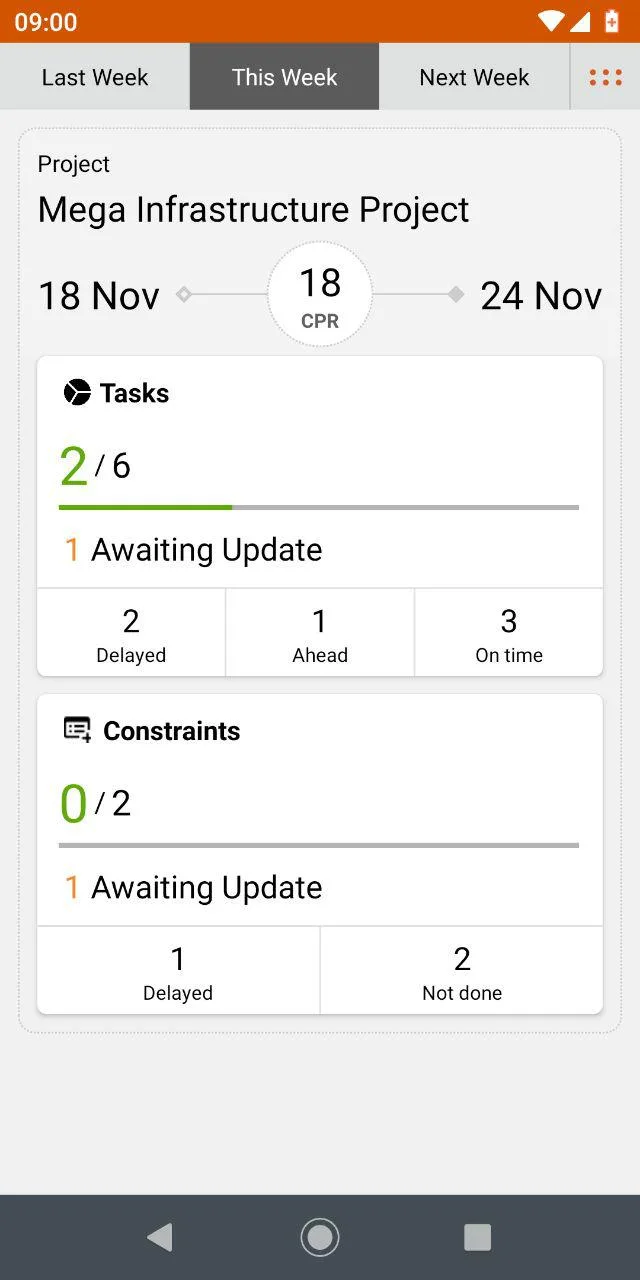
Tasks widget
The Tasks widget shows how many tasks are 100% complete out of all tasks in the week.
Below that is the number of tasks awaiting update. A task is awaiting update if it is planned for today or an earlier day this week and its progress is not updated.
Below that, tasks are split into Delayed, Ahead and On time. This shows at a glance whether site work is going to plan.
- On time: the actual start and end dates are the same as the base start and end dates.
- Ahead: the task ends before its base end date and takes the same or less time than its base duration.
- Delayed: any other task. It started after its base start date, finished after its base end date, or took longer than its base duration.
Constraints widget
The Constraints widget shows how many constraints (work that must be cleared before a task can be done, such as getting site access) are done out of all constraints in the week. It shows only the constraints assigned to you, the logged-in user.
Below that are the numbers of constraints marked Done and Not Done.
Last updated 2019-12-05. Part of Mobile Apps in the Lean PlanDo manual. Lean PlanDo by Lean Station.