
Lean PlanDo manual › Getting Started
Reset your password
Reset your Lean PlanDo password with a one-time code sent to your email, and choose a new password that meets the rules.
If you forget your password, reset it with a one-time code sent to your email.
Password rules
A strong password helps stop unauthorised people from getting into your project schedules, files, forms and other resources. It should be hard to guess or crack. Lean PlanDo uses a strong password standard.
Your password must:
- be at least 12 characters long
- contain at least two of these:
- upper case letters (A to Z)
- lower case letters (a to z)
- digits (0 to 9)
- special characters (!, $, #, %, and so on)
- not contain your username, real name, company name, email address or phone number
- not be a commonly used password
- not be the same as any of your last 3 passwords
Example of a strong password: cLrXq68!pynE*
Reset your password
-
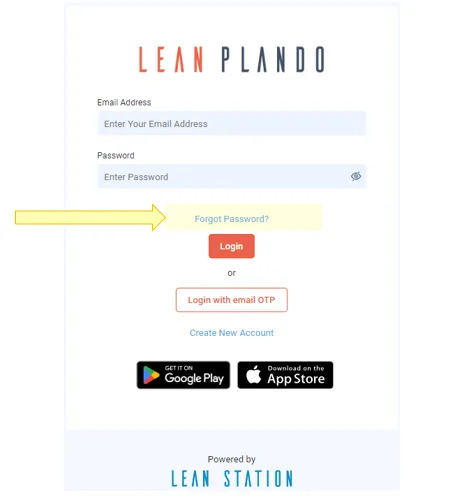
Go to app.leanplando.com.
-
Click Reset Password.
-
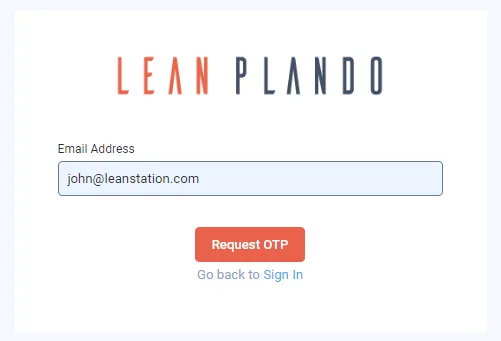
In Email Address, enter the email you used to sign up for Lean PlanDo, then click Request OTP.
-
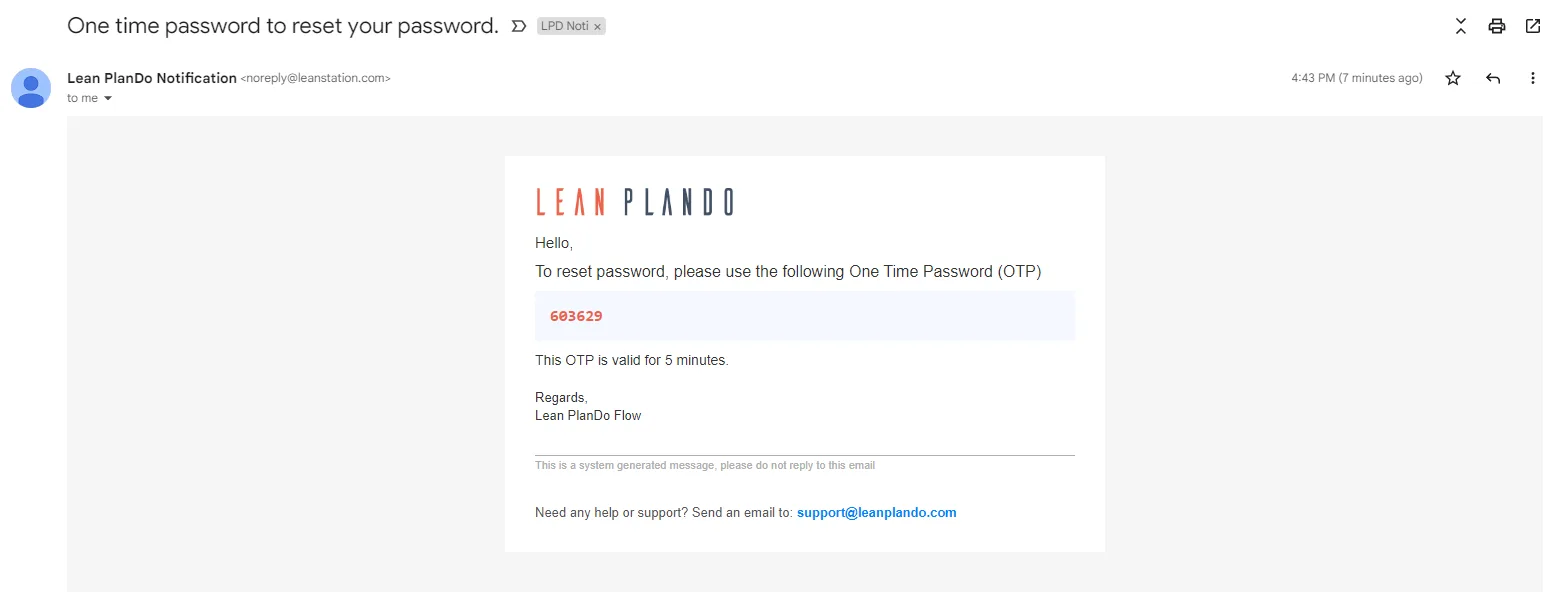
Check your email. Lean PlanDo sends an OTP (One Time Password) to that address.
-
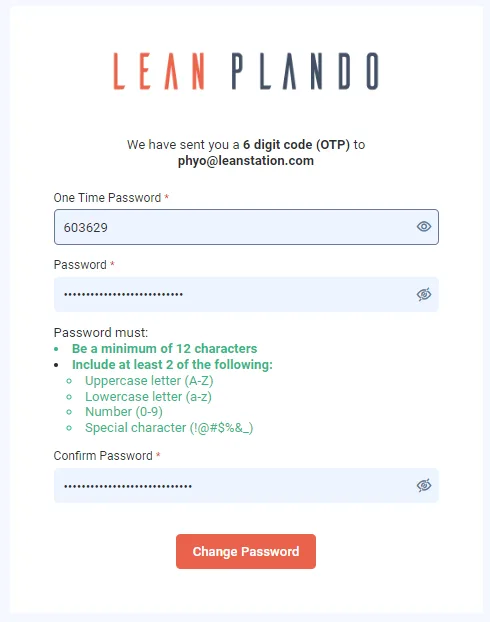
Enter the OTP in One Time Password. Enter your new password in Password and again in Confirm Password. The new password must follow the rules above. The OTP expires after 15 minutes, and a countdown shows the time left. When it runs out, click Resend OTP to get a new one. You can request a new code once every 15 minutes.
-
Click Change Password.
You can now log in to Lean PlanDo at app.leanplando.com with your new password.
Last updated 2022-09-14. Part of Getting Started in the Lean PlanDo manual. Lean PlanDo by Lean Station.