
Lean PlanDo manual › Getting Started
Glossary
Look up the meaning of the tabs, bars, icons and colours you see in Lean PlanDo.
Use this list to look up a tab, bar, icon or colour you see in Lean PlanDo. Each picture shows how the item looks on screen.
Plan, Masterplan and activities
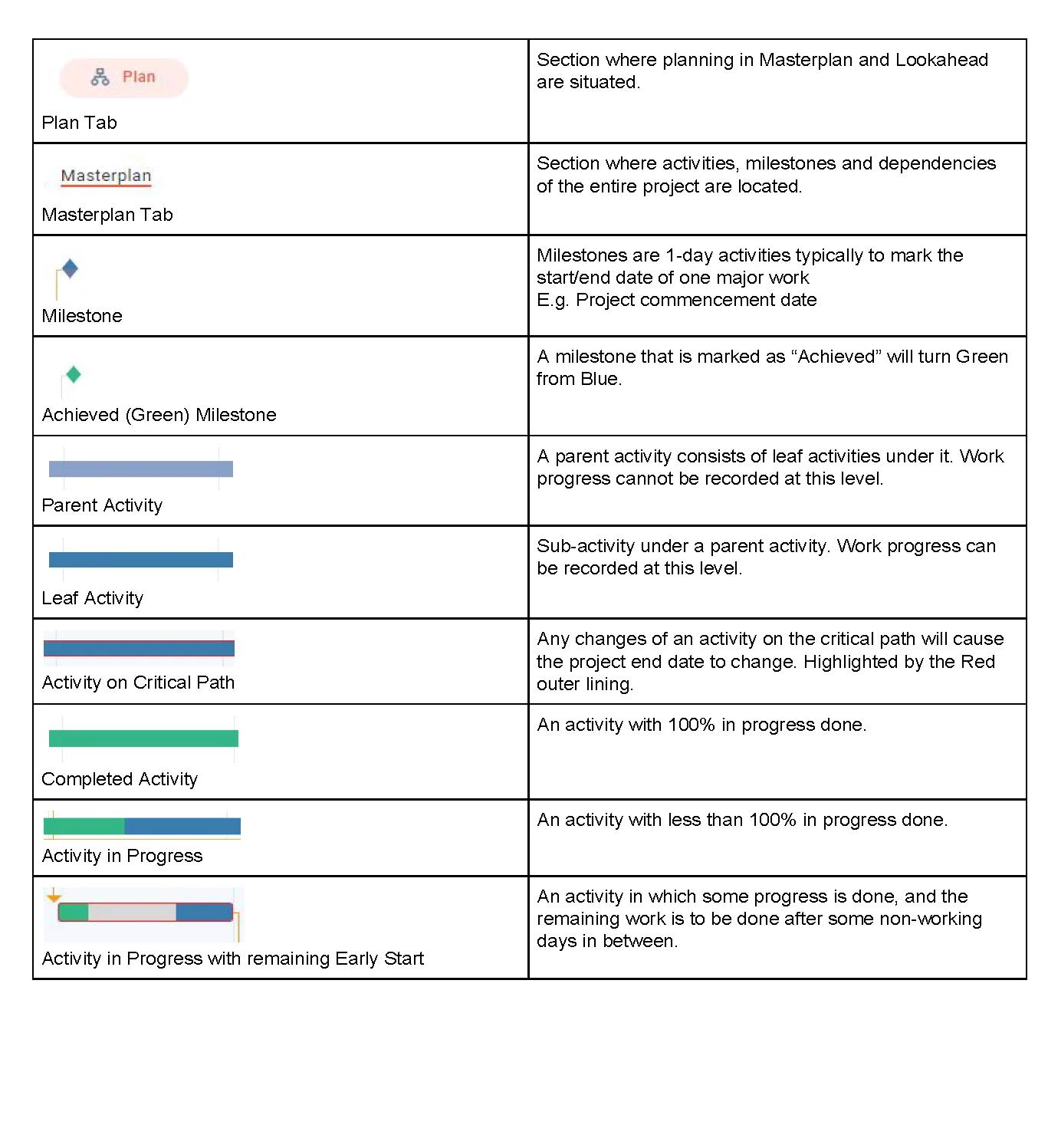
- Plan tab: The section that holds the Masterplan and the Lookahead.
- Masterplan tab: The section that holds the Masterplan (the project's full schedule of activities, milestones and dependencies).
- Milestone: A one-day activity (it starts and ends on the same day) that marks the start or end of a major piece of work. An example is the project start date. A milestone on the project critical path is filled red.
- Achieved (green) milestone: A milestone marked as "Achieved". It turns from blue to green.
- Parent activity: An activity with sub activities under it. You cannot record progress on it.
- Leaf activity: An activity with no sub activities. You record progress here. The activities above it take their progress from it.
- Activity on critical path: An activity on the critical path (the activities and tasks where any change moves the project end date). Critical activities show as solid red bars.
- Completed activity: An activity with 100% progress.
- Activity in progress: An activity with less than 100% progress.
- Activity in progress with Remaining Early Start: An activity where some work is done, and the remaining work resumes after some non-working days. The Remaining Early Start is the date the remaining work of a started activity or task resumes.
Lookahead
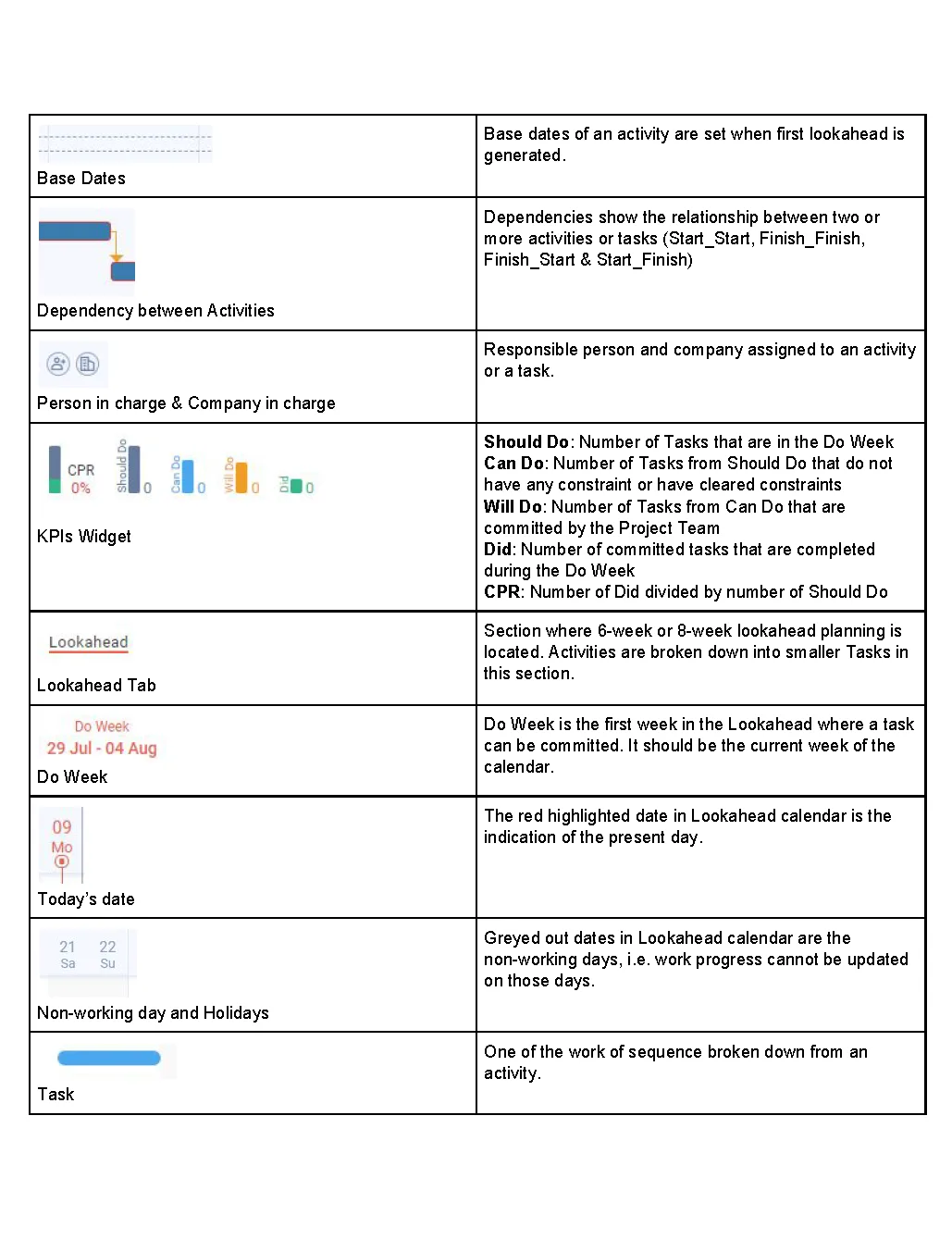
- Base dates: The dates an activity has when the first Lookahead is generated. A task gets its base dates when it first falls in the Do week of a generated Lookahead, or when it is created inside the Do week. They do not change after that.
- Dependency between activities: The link between two or more activities or tasks. There are four types: Start_Start, Finish_Finish, Finish_Start and Start_Finish.
- Person in charge and Company in charge: The person and the company responsible for an activity or a task.
- KPIs widget:
- Should Do: The number of tasks in the Do week.
- Can Do: The Should Do tasks with no open constraint on the task, on its activity, or on any task before it in the same activity. Dependencies on tasks in other activities do not count.
- Will Do: The Can Do tasks the project team has committed.
- Did: The committed tasks completed in the Do week.
- CPR: The number of Did tasks divided by the number of Should Do tasks.
- Lookahead tab: The section that holds the Lookahead (the 6-week or 8-week plan where activities are broken down into smaller tasks).
- Do week: The first week of the Lookahead, where tasks can be committed. It should be the current calendar week.
- Today's date: The red highlighted date in the Lookahead calendar. It marks the present day.
- Non-working days and holidays: The greyed out dates in the Lookahead calendar. You cannot update work progress on these days.
- Task: One piece of work broken down from an activity.
Tasks and constraints
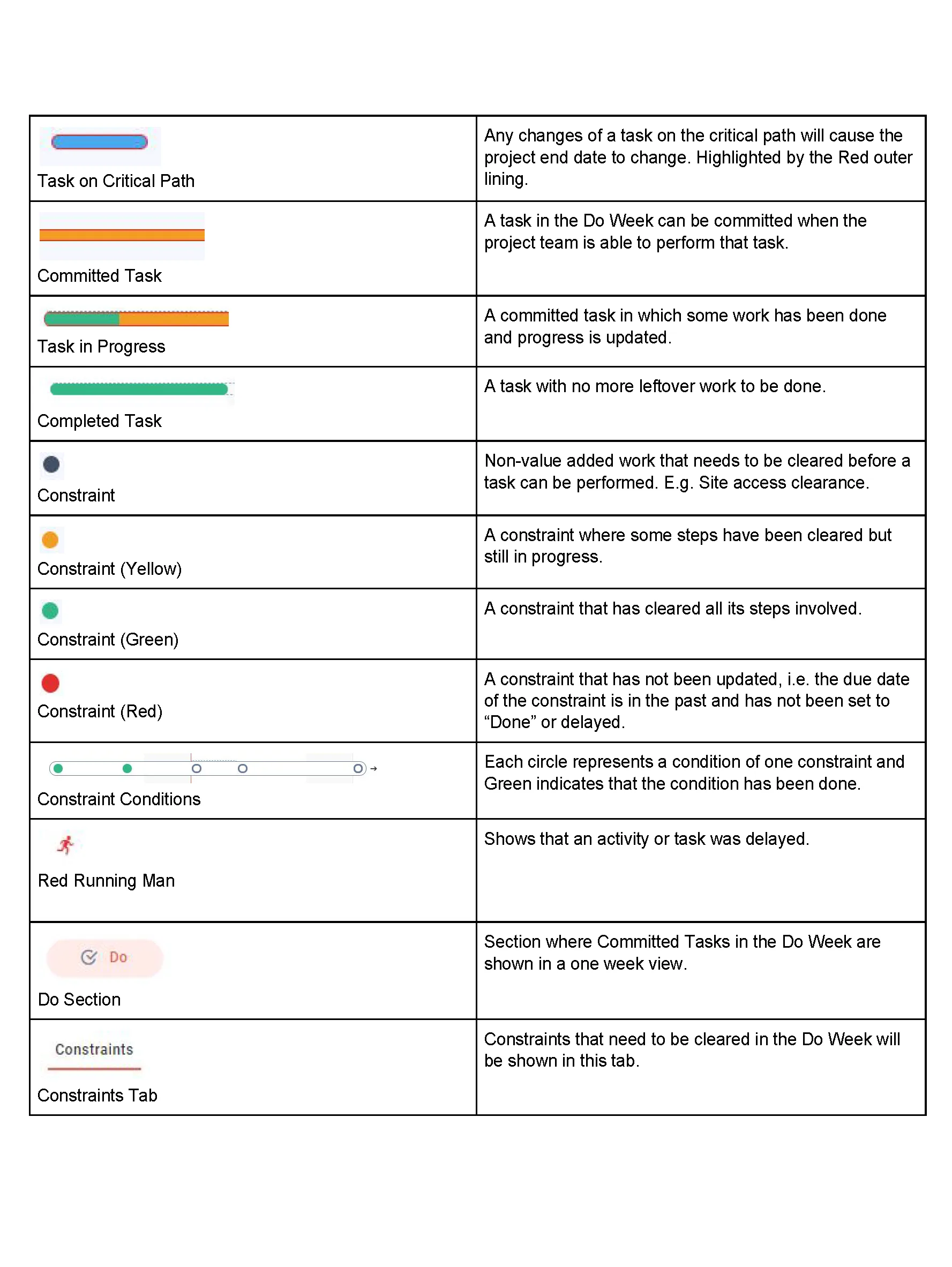
- Task on critical path: A task where any change moves the project end date. An unfinished task with zero float has a thin red outline, or the colour of its critical milestone. An unfinished task on the path to a critical project milestone is a filled red bar. A finished task shows neither.
- Committed task: A task in the Do week can be committed when the project team is able to do it.
- Task in progress: A committed task where some work is done and progress is updated.
- Completed task: A task with no work left to do.
- Constraint: Work that must be cleared before a task can be done, such as getting site access.
- Constraint (yellow): A constraint where some steps are cleared, but it is still in progress.
- Constraint (green): A constraint where all steps are cleared.
- Constraint (red): A constraint that has not been updated. Its due date is in the past, and it has not been set to "Done" or delayed.
- Constraint steps: Each circle is a step (one part of a constraint). A step not done shows as an empty circle with a grey outline. A done step is a filled green circle.
- Red Running Man: Shows that an activity or task was delayed.
- Do section: The section that shows the committed tasks of the Do week in a one-week view.
- Constraints tab: Shows the constraints that must be cleared in the Do week.
Do tab and progress
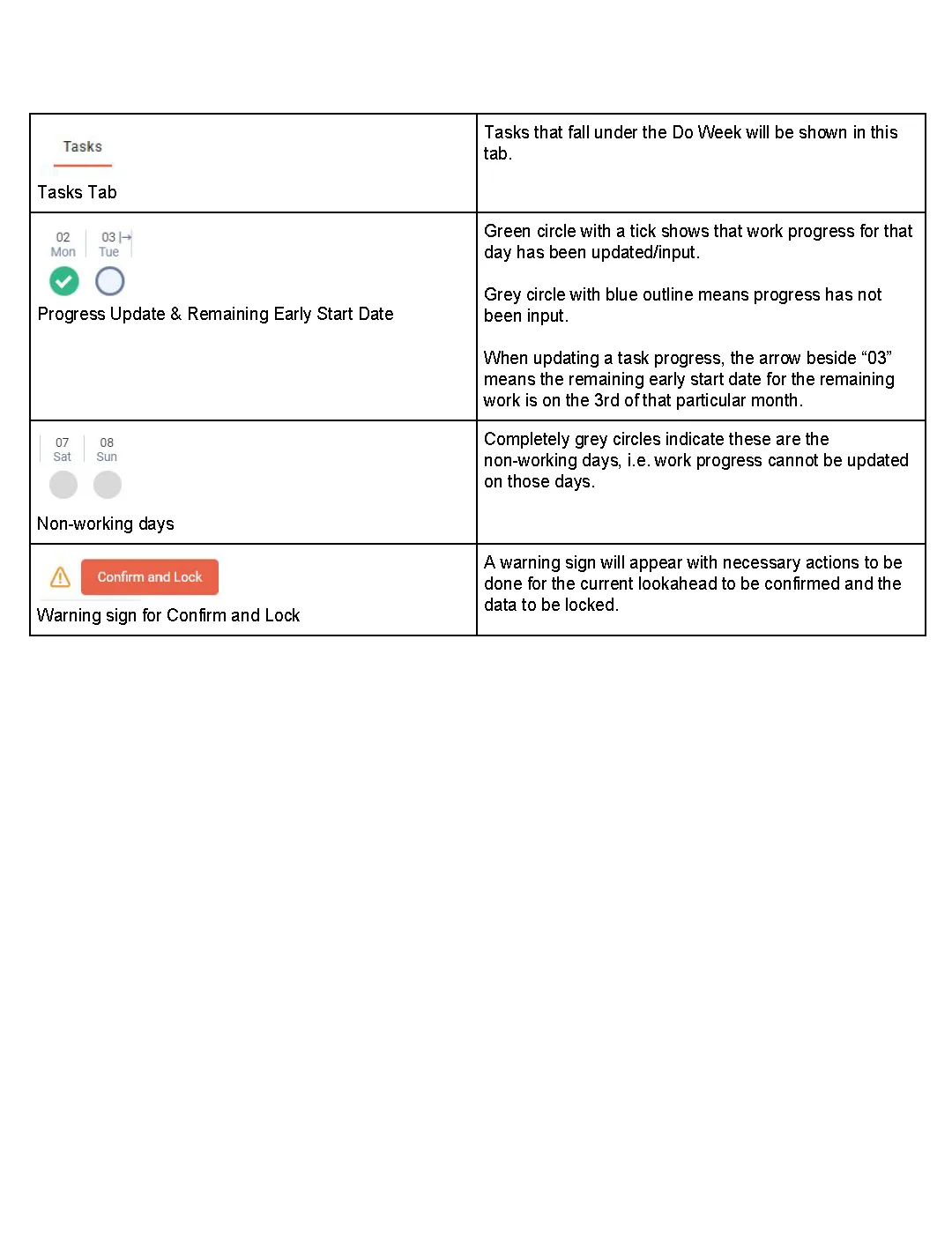
- Tasks tab: Shows the tasks in the Do week.
- Progress update and Remaining Early Start date:
- A green circle with a tick means work progress for that day is entered.
- A grey circle with a blue outline means progress is not entered.
- When you update task progress, an arrow beside a date marks the Remaining Early Start date. For example, an arrow beside "03" means the remaining work resumes on the 3rd of that month.
- Non-working days: Fully grey circles mark non-working days. You cannot update work progress on these days.
- Warning sign for Confirm and Lock: A warning sign shows the actions you must complete before you can confirm the current Lookahead and lock its data.
Last updated 2020-02-26. Part of Getting Started in the Lean PlanDo manual. Lean PlanDo by Lean Station.